Using the Lexicon
When you enter new records into PastPerfect, the Lexicon is available to help you choose an appropriate object name or names. The Lexicon enables you to catalog items consistently and place them within a hierarchical classification system based on object function. When you enter an object name, PastPerfect will automatically place the hierarchy of category, classification, sub-classification, and terms into the catalog record. Nomenclature 3.0's three tiers of object terms (primary, secondary and tertiary) give you the opportunity to be as specific as you need in naming items.
When you can, use the most specific name. It may be a tertiary, secondary or primary term. Here is an example where you would select the most specific term, a tertiary term. If your organization has a collection of cooper's tools, you would want to distinguish a cooper's downshave drawknife from other drawknives in the collection. When you enter "Downshave, Cooper's" in the Object Name field, the more general terms, "Drawknife" and "Knife, Woodworking," the Classification and the Category are assigned.
Category: 4: Tools & Equipment for Materials
Classification: Woodworking T&E
Primary Term: Knife, Woodworking
Secondary Term: Drawknife
Tertiary Term: Downshave, Cooper's.
There are times when using more general terms is practical. In the instance that you are cataloging an ax, but are unsure of its specific function (or maybe it had multiple functions), you would select "Ax" as the object name. The secondary and tertiary terms are not used. By entering "Ax" in Object Name, the Category "4: T&E for Materials" and the Classification "Woodworking T&E" will automatically be selected.
To use the Lexicon when cataloging, click the Add button in the Navigation Bar in any catalog. The Add New Catalog Record screen opens as shown below.
Add New Catalog Record screen
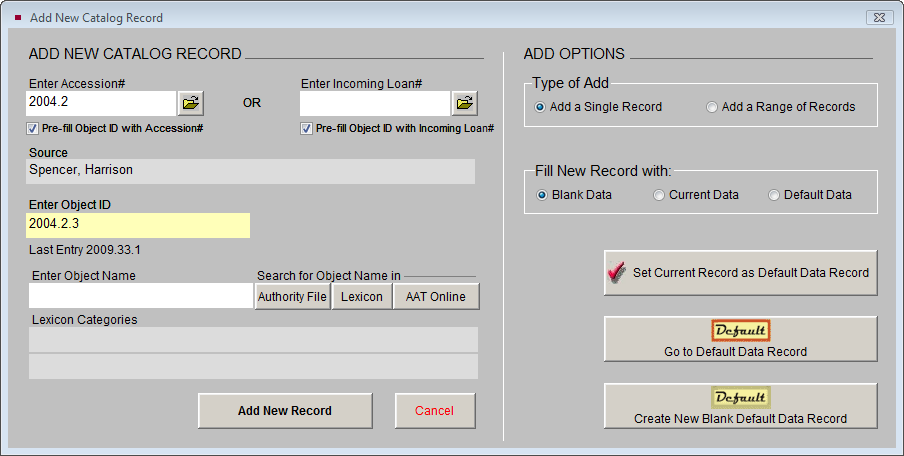
To search for an object name using the Lexicon, click the Lexicon button to the right of the Enter Object Name field. The Search Lexicon screen opens.
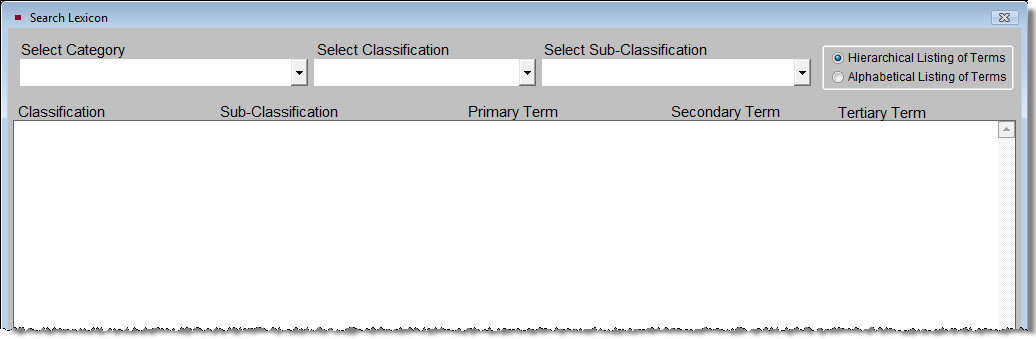
In the upper right corner of the screen you will see Hierarchical Listing of Terms and Alphabetical Listing of Terms. Select one of these two approaches for finding the object name.
Search Lexicon screen
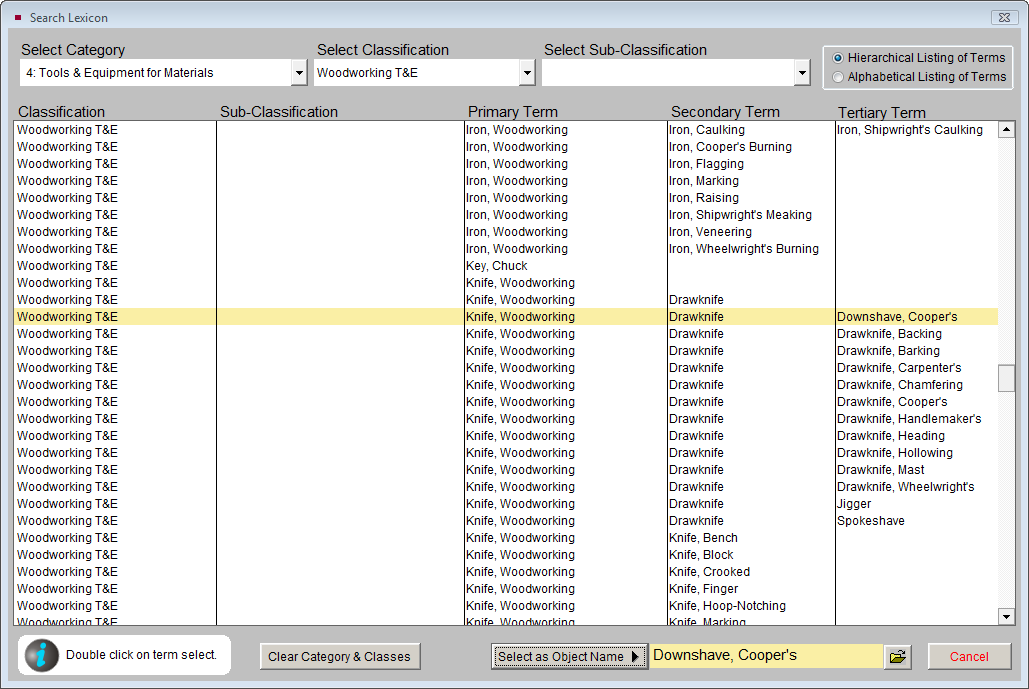
By using the Hierarchical Listing of Terms, you can start by looking at groupings of objects with similar functions then narrow your search. Use the drop-down menus for Category, Classification and/or Sub-Classification. In the example of the drawknife, you may want to start your search by selecting the "Woodworking T&E" from the Classification menu to see all the associated terms. Scroll through the terms until you find the most appropriate object name. To select it, double click on the line that contains the most specific level of term. The most specific term is entered in the Object Name field at the bottom of the screen. Click on the Select As Object Name button to complete your selection and return to the Add New Catalog Record screen
Hierarchical Listing of Terms
By choosing Alphabetical Listing of Terms, you will see a complete listing of all primary, secondary and tertiary terms on the left. Scroll through the list and double click on the term to select it. For ease in navigating the alphabetical list, click once on any term, then quickly type the first couple of letters of the term for which you are searching. The Category, Classification, Sub-Classification and more general object terms are provided on the right. Click Select as Object Name to return to the Add New Catalog Record screen.
Viewing the hierarchical classification system is helpful in choosing an object name when you do not have an exact term in mind. Placing the item in the context of like objects may help you select the best name. If you know the object name, using the alphabetical listing is a quick way to locate and select it.
Alphabetical Listing of Terms
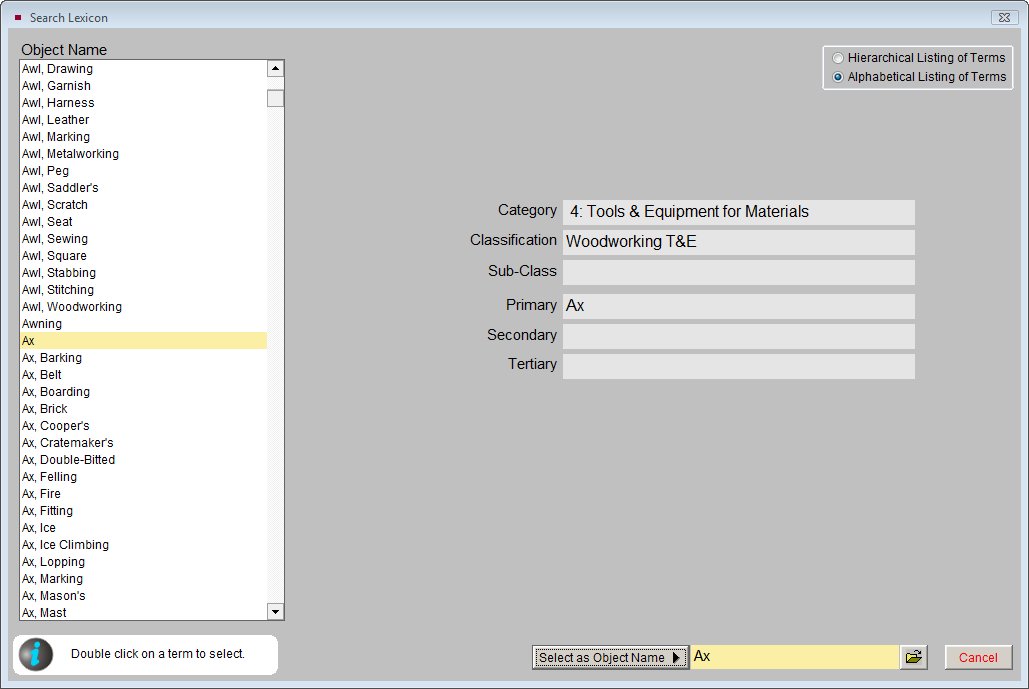
NOTE: Object terms follow the format of a noun followed by an adjective descriptor. Sometimes one word is adequate to describe the item, but in many cases the adjective is needed to distinguish similar items. Rather than using the object name "Top hat," the term is listed as "Hat, Top." In this way a top hat is distinguished from a cowboy hat, and all hats are listed together alphabetically. When searching the Alphabetical Listing of Terms, you can see all hats at once and find the one that best matches the hat in your collection.
Using Multiple Object Names
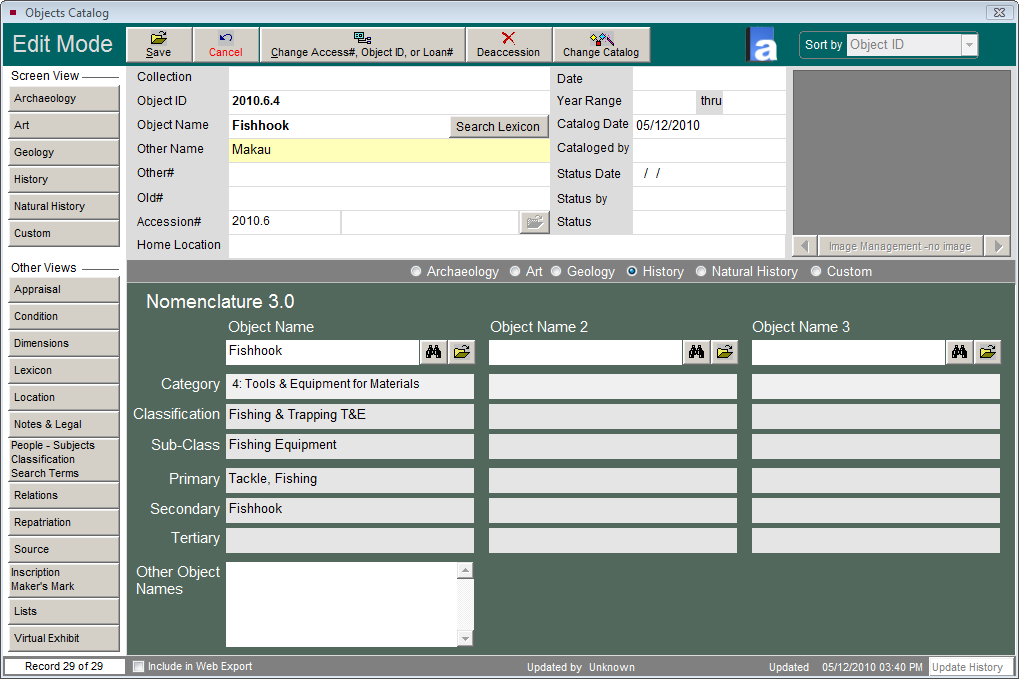
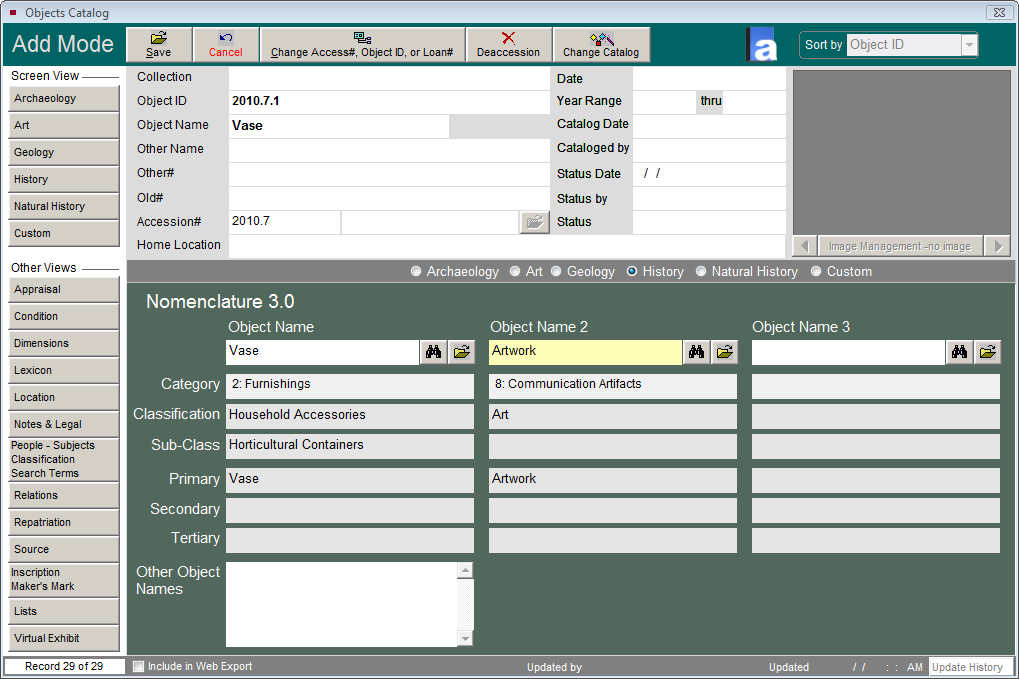
On a catalog record, click the Lexicon screen view from the Sidebar to display this item's Nomenclature classification. On this screen view, you can enter up to two additional object names to the catalog record. Using multiple object names will enable you to cross index multipurpose or combination objects. An example of when you might use multiple object names for cross reference is an art vase. You would enter "Vase" in Object Name to classify it as a Horticultural Container |Household Accessories. Then enter "Artwork" in Object Name 2 to classify it as Art. Depending on your organization's collection and purpose, you might first classify it as an Artwork then a Vase.
Lexicon Screen View - Multiple Object Names
A souvenir T-shirt is another good example of an object that would be cataloged with multiple names (taken from Nomenclature 3.0's Introduction). To give multiple contexts to the object, you would use the Object Name "Souvenir" to classify it under Memorabilia| Documentary Artifacts and then enter "T-Shirt" in Object Name 2 to classify it under Main Garment | Clothing.
Nomenclature 3.0, unlike earlier editions of the Nomenclature, encourages catalogers to use multiple object names for cross reference and add object terms for specialized collections. PastPerfect's Lexicon enables you to do both. The Introduction to Nomenclature 3.0 has full explanations for using this expanded classification system, including examples of multipurpose and combination objects.
TIP: Use the binoculars button while in Edit Mode to open the Search Lexicon screen to choose an new object name. Use the file folder icon button to access more information.
Using Other Name Fields
If your organization uses regional or ethnic names for items, you can enter the primary "non-standard" name in the Other Name field near the top of the catalog screen and additional other names in the Other Object Names memo field at the bottom of the Lexicon screen view.
Lexicon Screen View with Object Name and Other Name