Working with the Setup Lexicon Screen
To access this screen, please click Setup from the Main Menu and choose Lexicon from the drop-down menu. The Setup Lexicon screen provides the ability to add new Lexicon categories, classifications and terms, as well as remove and reclassify terms. There is also an alphabetical list of illegal terms and their preferred term equivalents.
The Setup Lexicon screen displays a Category and its Classification, Sub-Classification, Primary, Secondary and Tertiary Terms. When the screen is first opened, Category 1: Built Environment Artifacts are shown below. To view the hierarchy for a different category, use the Select Category drop-down menu at the top of the screen. To the right of Select Category are two check boxes. The first check box controls the Lexicon Alert which appears when you add or edit a catalog record and try to use an object name that is not in the Lexicon. The other allows you to enter catalog records without an object name.
Setup Lexicon
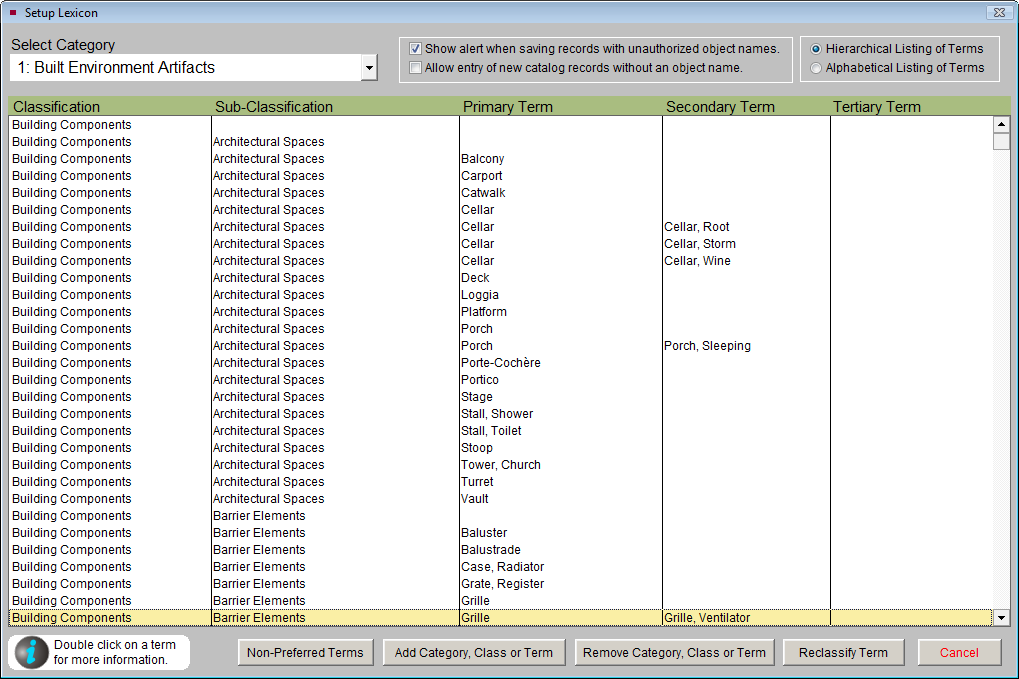
The options to view the Lexicon as a Hierarchical Listing or Alphabetical Listing of Terms are at the upper right of the screen. The Lexicon navigation buttons appear at the bottom of the screen.
When using the Hierarchical Listing of Terms, you must first select a category. In the table below, its classification, sub-classification and terms are displayed. Each line in this view represents a different term and its associated classification levels. Some lines represent the classification level. Some lines represent the most specific term for that type of object. To view all the terms in the category, use the scroll bar at right, use the Page Up and Page Down keys on your keyboard, or click on a line, then use your mouse wheel to scroll through the terms.
When using the Alphabetical Listing of Terms, you can use some keyboard shortcuts to navigate the long list. First, click on an object name in the Object Name list and then start typing the name for which you are searching. You will be advanced to the name that most closely matches the letters. For example, typing "THIM" will take you to Thimble. You will need to type the letters relatively quickly to do this. If you type too slowly, when you type each letter it will take you to the first word beginning with that letter.
Lexicon Information
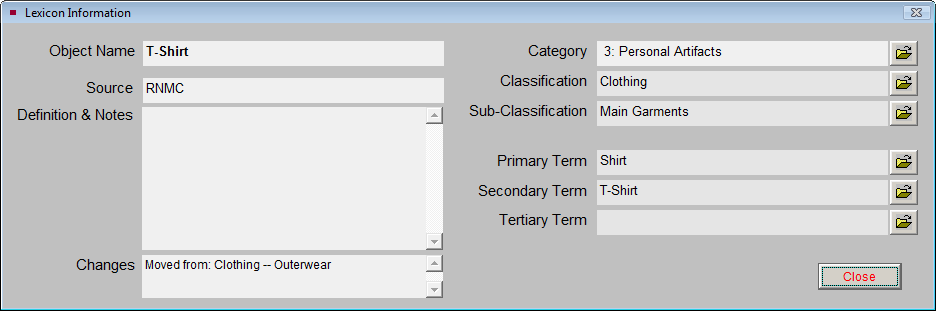
The Setup Lexicon screen provides definitions and additional information for categories, classifications, sub-classifications, and object terms from Nomenclature 3.0. Double click on the line for the classification, sub-classification or term for which you want information. The Lexicon Information screen appears with the Object Name, Source, Definitions & Notes, and Changes (from The Revised Nomenclature) on the left side. The Source may be The Revised Nomenclature for Museum Cataloging (RNMC) or a user, if you have added terms to the Lexicon. The Changes field usually contains notes on how the classification changed between The Revised Nomenclature and Nomenclature 3.0. The Category, Classification, Sub-Classification, and Terms levels appear on the right. Each classification level has a file folder icon button which provides more information about that level.
Lexicon Information
Illegal Object Names
PastPerfect comes pre-loaded with about 1500 illegal object names. These are names listed as non-preferred by Nomenclature 3.0. When a user enters a record with an object name that is not in the Lexicon, for example "Cabinet Card," PastPerfect will give the following alert:
Lexicon Illegal Terms
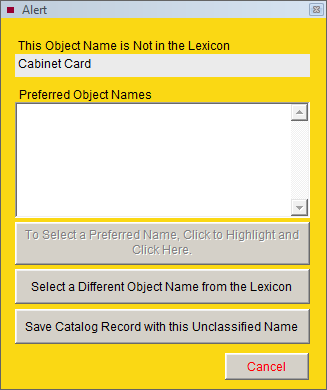
If the object name entered matches one of the illegal object names, the preferred object name will be listed on this screen and should be selected. If the object name does not match an illegal object name, click the button Select a Different Object Name from the Lexicon to choose the appropriate name from the lexicon.
You can add to the Lexicon Illegal Terms list with commonly misused terms of your own. To add a new non-preferred name, on the Setup Lexicon screen, click the Non-Preferred Terms button.
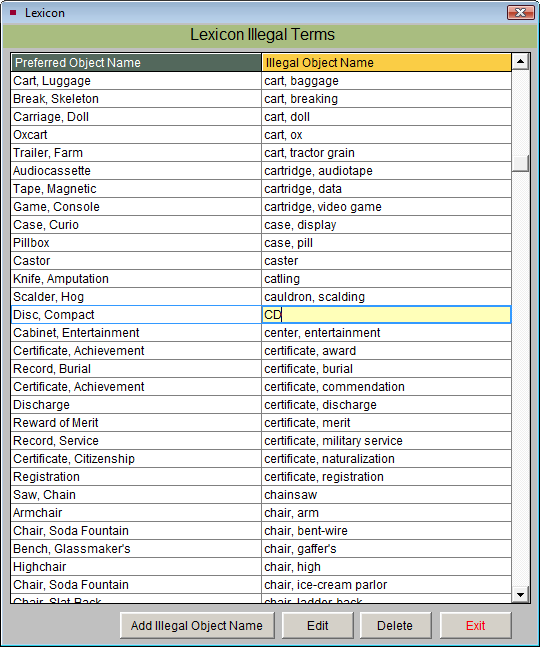
Notice that the Illegal Objects Name list is in alphabetical order, and the corresponding Preferred Object Name is in the left-hand column.
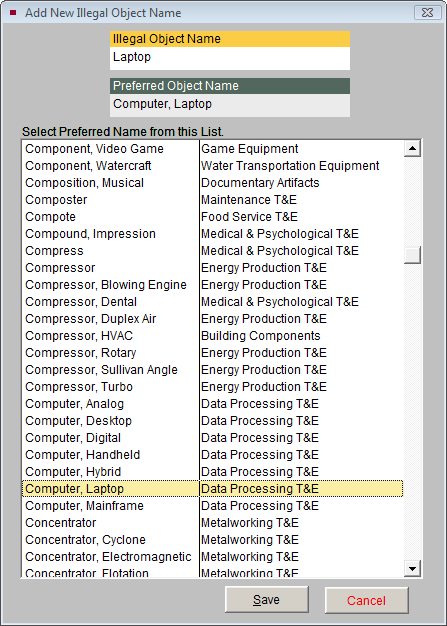
When you click on the Add Illegal Object Name button, the screen shown in below appears. Type the illegal object name in the field at the top of the screen and choose a preferred object name from the list. The list shows the object name on the left and corresponding classification on the right. Click the Save button to add the new term.
You may also edit or delete terms from the Lexicon Illegal Terms list by clicking the Edit or Delete buttons at the bottom of the screen.
Add New Illegal Object Name:
Adding a Category, Classification or Term
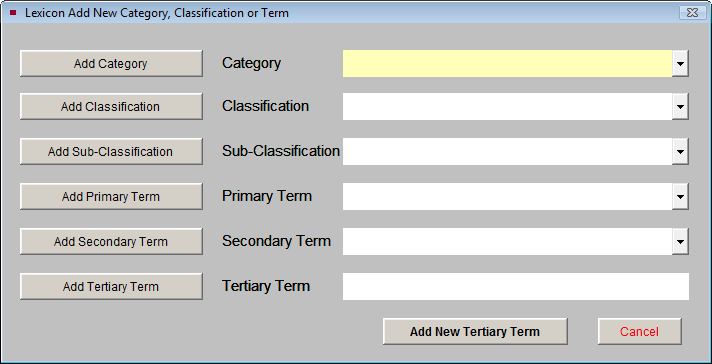
Use the Add Category, Class or Term button at the bottom of the Setup Lexicon screen to add to any level of the hierarchy. If you want to add a specific term, for instance a tertiary term, you will need to put it within the framework of a Category, Classification, Sub-Classification (if applicable), Primary Term and Secondary Term. Click on Add Tertiary Term. Drop-down menus will appear for all levels except Tertiary Term. You will then be able to select the hierarchy for this new term and type in the tertiary term you want to add.
NOTE: If you are adding object names to the object name authority file, you should choose terms that are listed in the Lexicon. The object name authority files are not automatically populated with terms from the Lexicon. If you add terms to the object name authority file exactly as they are listed in the Lexicon, PastPerfect will fill the appropriate classification levels for you when you create your catalog record. Otherwise object names will belong to the Unclassifiable Artifacts category.
Removing a Category, Classification or Term
You can delete any level of the hierarchy by clicking the Remove Category, Class or Term button. Click the Remove button for the classification level where you want to make a deletion. A list of classifications or terms will appear. Double click on your selection to remove it from the Lexicon. Before deleting categories, classifications or more general terms, you must first delete all of their associated lower level terms. For instance, if you want to delete the Secondary Term "Necklace," you would first need to delete all of the more specific types of necklaces, the Tertiary terms. If a Primary, Secondary, or Tertiary term is being used as an Object Name on any records, you will not be able to delete the term.

The deletion of a term is most often required when a cataloger has added a term not recognized by the Lexicon and has chosen to save the catalog record with the unclassified name. This will automatically assign the object name the Category "10: Unclassifiable Artifacts" and the Classification "Need to Classify." You should regularly review "Need to Classify" terms. To remove the term from "Need to Classify," you can edit the catalog record and choose a different term that is within the classification system. Or you can add the term to the Lexicon in the Setup Lexicon area using the Add Category, Class or Term button, then edit the catalog record and choose that new term you added.
TIP: PastPerfect has added a classification that does not appear in Nomenclature 3.0 - "Need to Classify." This Classification is listed under Category 10: Unclassifiable Artifacts. A list of object names that need to be classified may be printed by going to the Main Menu | Reports | Lexicon | Need to Classify.
Reclassifying a Term
If needed, terms can be moved from one Category, Classification and Sub-Classification to another by using the Reclassify Term function. This function is helpful if a new term was added under an incorrect Category or Classification. To reclassify a term, while viewing the Hierarchical List of Terms, select the term from the screen, then click the Reclassify Term button.
Reclassify Lexicon Term
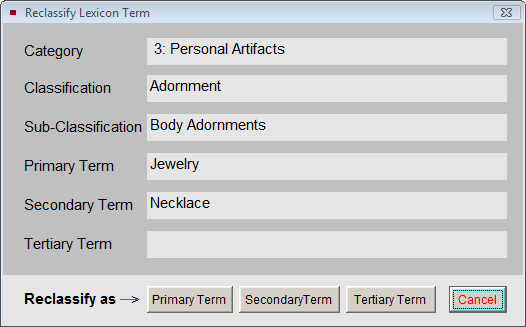
On the Reclassify Lexicon Term screen, choose the level for the term you are reclassifying, either Primary, Secondary or Tertiary. Then select the new Category and Classification for the item. If a Sub-Classification is needed, choose that as well. If your term is a Secondary term, you must choose a Primary term. If your term is a Tertiary term, you must choose a Primary and Secondary term. Click Save to save your changes. All records that have this object name will display the newly assigned hierarchy.
Resolving Unclassified Object Names
In Setup Lexicon, the View Unclassified Object Names button enables you to see a list of Object Names from your catalog records that exist outside of the current Nomenclature. These Object Names are not recognized terms and have not been added to the classification system. This section enables you to either change the unclassified term to an Object Name from the Lexicon OR add the term to your Lexicon.
Unclassified Object Names
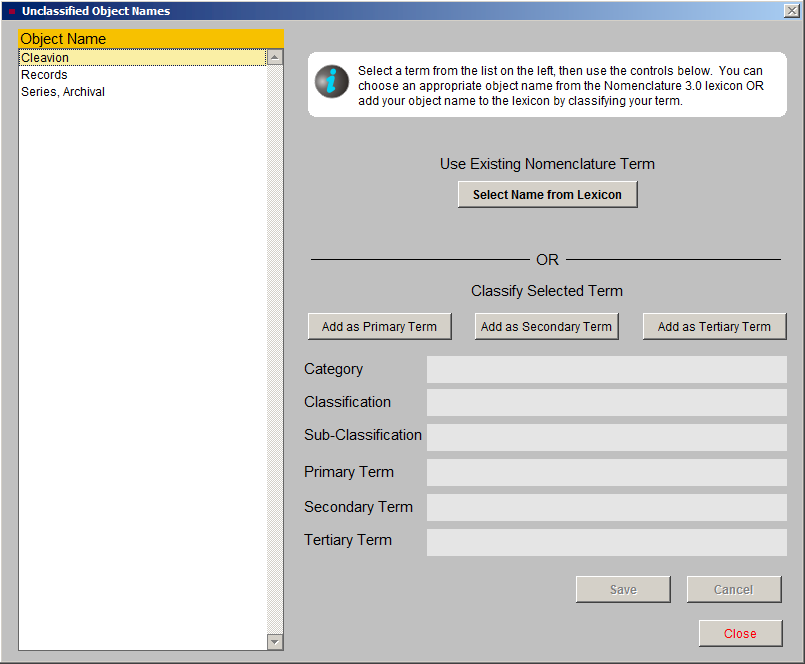
To change an unclassified name to a term in the Nomenclature 3.0 lexicon, select the term in the list at the left. Then click the Select Name from Lexicon button. When using the Hierarchical Listing of Terms view, use the drop-down menus to select the Category, Classification, and Sub-Classification (if needed) to find the desired grouping. When you find your desired term, double click to select it, then click the Select as Object Name button. If using the Alphabetical Listing of Terms view, scroll through the list and double click on the term to select it. Once selected, click the Select as Object Name button. Please review the "Using the Lexicon" section in this chapter for tips on how to best find terms.
The Unclassified Object Names screen also allows you to add your object name to the lexicon by classifying your term. Just as if you were going to write in object names in the Nomenclature 3.0 book, you can make changes to PastPerfect's built-in Lexicon. Please perform a thorough search of the Nomenclature before making additions.
It is also important to understand the three levels of terms before adding to the Nomenclature. The "Using the Lexicon" section of this chapter briefly reviews the structure. For a more detailed explanation of the hierarchy, please read the "Structure of Nomenclature 3.0" section in the Nomenclature 3.0 book.
To add a term, click on the Add button that fits the specificity of the Object Name to classify. For more general terms, use the Add Primary Term button. For more specific terms, use either the Secondary or Tertiary Term button. Remember, to be a tertiary level term, the Lexicon must have an appropriate Primary and Secondary level term. Use the drop-down menus to place the term into an existing Category, Classification, Sub-Classification (if applicable), and higher level terms. Click the Save button.
Natural History
Since PastPerfect's Objects catalog has a component for cataloging natural history items, we have added an eleventh category, Natural History. This category has four associated classifications: Biology, Botany, Geology, and Paleontology. By using the Select Category drop-down menu and choosing "Natural History," you can access the four classifications and their associated primary terms. These primary terms will be the object names for the records.
PastPerfect does not provide every possible species name in the Natural History Lexicon, because it is expected that most natural history collections are of a limited nature. For example, you may have a collection of plant specimens. In that case, you would want to add the species names for the plants in your collection as primary terms to the category "Natural History" and classification "Botany."
If you would like your collection's species list imported into this portion of the Lexicon, please contact our conversions department toll free at 1-800-562-6080 or by email using conversions@museumsoftware.com.