Creating Folders & Lists
To begin, please click on the Catalog Lists button in the Research section on the Main Menu, seen below. The Catalog List Manager screen has a Sidebar with tools on the left, a list of folders, a list of catalog lists, and the numbers of records on each list. The folder View All Lists enables you to view all lists. If you have chosen to make lists private and security is activated, these lists may only be viewed by the list manager. If you wish to look at lists in one folder, click on that folder to see just those lists.
Catalog List Manager screen
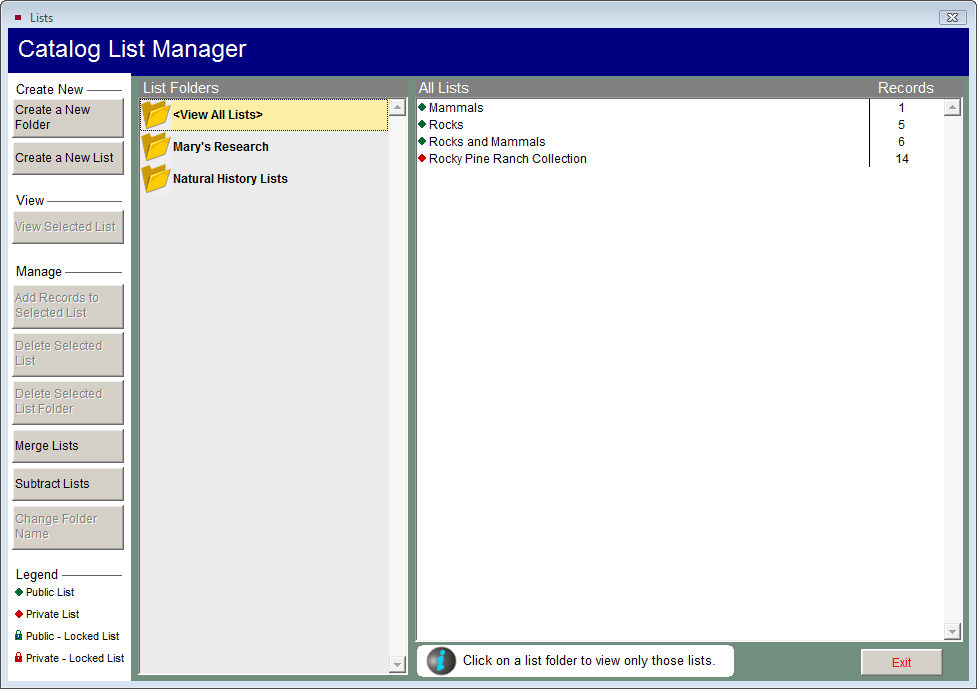
The first step in producing and managing lists is creating folders. Please click Create a New Folder from the Sidebar and enter a new folder name. Click OK. Add as many folders as you need. Different folders may serve to help you organize lists for staff members, projects, etc.
Once folders are in place, you are now ready to build lists. Click Create a New List from the Sidebar. Please select a Folder and List Manager from the drop-down menus on the Lists screen. If Security is not activated, the List Manager drop-down menu is built from the Users authority file. If Security is activated, the List Manager drop-down menu contains the names of the Users set up in security. If you do not want to assign a manager, you may choose the option "<Anyone>" from the list.
NOTE: The User's authority file is managed from Main Menu | Setup | Authority Files | Common Screens | Users. You can add, edit and delete Users from this setup screen.
Create a New List
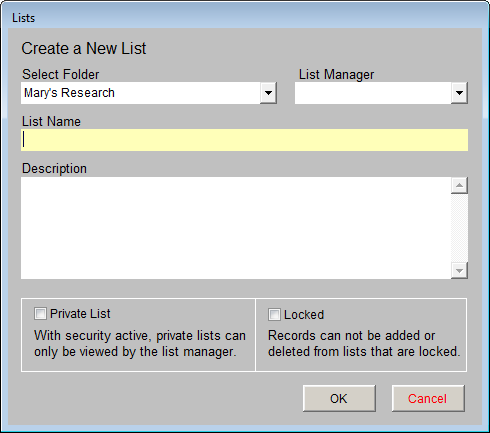
Enter a List Name and Description, and check if you wish to make this list private or locked. A Private List may be viewed only by the selected List Manager; please note that Security must be activated to allow this restriction. For more information about setting up and activating Security, please review Chapter 3 - Getting Started. When you check Locked, records may not be added to or deleted from this list. For a new list, you will need to leave it unlocked until you add the desired records to the list. Click OK and your new list will appear in the All Lists folder and in your selected folder.