Actions
The Actions section on the View List screen contains the most powerful tools in Catalog Lists. Each option enables you to make changes to all of the records on the list at once. Please use caution when performing any of these actions. It is strongly suggested that you make a Hard Drive Backup before you begin.
Add to an Exhibit - Clicking this button displays a screen listing your current exhibits, seen below. To change the sort order of the exhibits, click on column header to sort by that field. Select an exhibit from the Exhibits list and click Put on Exhibit. For more information about adding and managing exhibits, please see Chapter 13 - Exhibits.
Put List Records on Exhibit

To follow up with our "Example B," now that you have a final list of paintings for the exhibit, you can put them all on exhibit at once. First add an exhibit record in the Exhibits section from the Main Menu. Go back to Catalog Lists, double click on the list, and when you click on Add to Exhibit, select your exhibit. Click the button Put on Exhibit on the bottom of the screen, and your selected records will be placed on the chosen exhibit.
Add to a Loan - This option allows you to put all list items on an active outgoing loan. Click the button to view your active outgoing loans. You may change the sort order by clicking on a columns header to sort by that field. Select the loan you want, then click the Put on Loan button. For more information about adding and managing outgoing loans, please see Chapter 12 - Outgoing Loans.
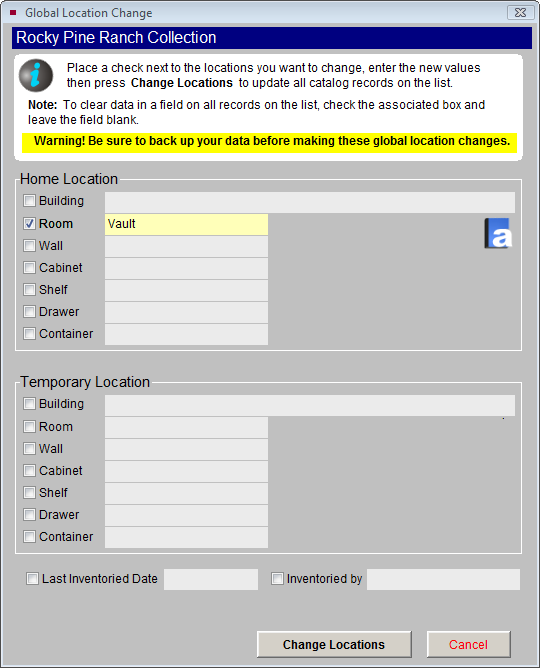
Change Location - Using this action, you may change the data in the Home Location and Temporary Location fields for all the items on your list. Check the field(s) you want to change on all of the list's catalog records. Enter the exact value(s) you want to appear in the records. You may use the authority file to fill in the value by right clicking in the box or pressing the F7 key on your keyboard. Once you have the new location entered, click Change Locations. You will be asked if you want to save the previous location into the Location History file.
To follow up with our "Example A", all of the items added to the list need to have a Home Location Room of "Vault" entered on them. Check the box next to Room in the Home Location section. Then enter "Vault" as the value in the Room field. Click Change Locations to make the change.
Global Location Change
Global Update - Before making any kind of global change, we strongly suggest you make a backup by clicking on Hard Drive Backup from the Main Menu. This screen enables you to change data in a field for all list records. First use the Field drop-down menu and select the field to be changed. Next, enter the exact value you want to enter in that field for all records. If an authority file is available for the field, you may right click or press F7 to view the authority file and choose your term from the list. Once you are sure the value is exactly as you want it, click Make Global Change.
Global Change

Include on Web - This option is available if you have purchased the PastPerfect Online program. It enables you to add all items on the list to your PastPerfect Online site. All items on the list will be included the next time you publish your data to the Web. For more information about PastPerfect Online, please visit our website www.museumsoftware.com.
Remove from Web - You may remove all items on the list from your PastPerfect Online site. These items will not be included the next time you publish your data to the Web.
Build Relationship - This option allows you to create a relation between all items on the list. It will add each item on the list to the list of related items that can be viewed on the catalog records by clicking the Relations button under Other Views. Please note that if items are related to others, all items related to those items will also be related.
The Catalog Lists section helps PastPerfect users manage collections. Whether you want to ask a volunteer to work on selected records, put items on exhibit, or map the artifacts' original sites, you have the tools to build, view, print, export, globally change and share lists.