Catalog Detail and Summary Reports
Catalog Detail and Summary reports may be printed for Objects, Photos, Archives, and Library records. The Detail reports print a one or multiple page report for each record. The Objects Detail reports are geared to different artifact categories: Archaeology, Art, Geology, History, and Natural History. The Archives Detail reports are also separated by categories: Maps, Music, and Oral History. These reports include fields specific to each category. The Objects Detail - Complete report includes all Objects fields, while the Archives Detail report includes the standard archival fields.
The Summary reports for Objects, Photos and Archives print the Catalog, Object ID, Object Name, Description, Condition, Status, and Home Location for each record, with multiple records per page. The Shelf List is the Summary report for the Library catalog and includes the Call#, Title, Author, Subjects and Home Location.
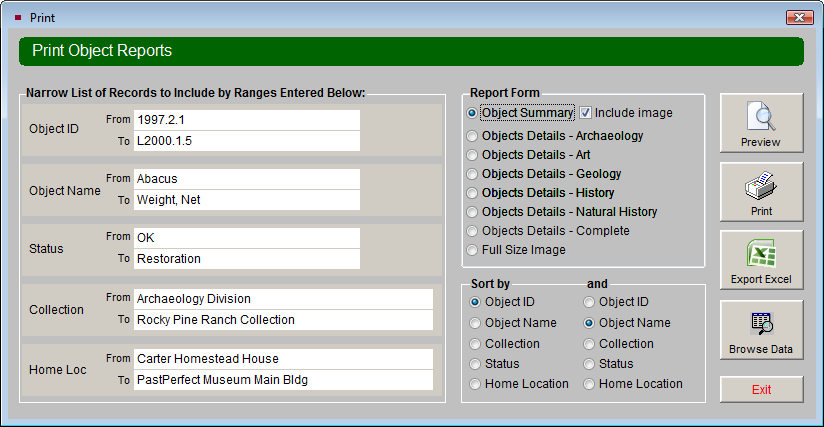
To run a report, click on the report name and click the Run Selected Report button. Before printing a report you will be provided with options to produce just the results you need. You can select the records included on the report by entering ranges of records. You can also select the sort order for the report. For example, if you select the Objects Summary with Images report from the Objects Reports list, the Print Object Reports selection screen will display.
In the section Narrow List of Records to Include by Ranges Entered Below, you can change ranges of Object IDs, Object Names, Status, Collections, and Home Locations to include only selected Object Catalog records on the report. By default, all records will be included. The From and To boxes for each field are pre-filled with the first and last entries in a field when the catalog is sorted on that field, either alphabetically or numerically. For example, the first Object Name alphabetically is "Abacus" and the last Object Name is "Weight, Net."
Print Reports screen
If you want to print a report of items with the Object Name "Abacus," leave the From box with "Abacus" and change the To box to "Abacus," shown below.
Print Object Report for Object Name Abacus
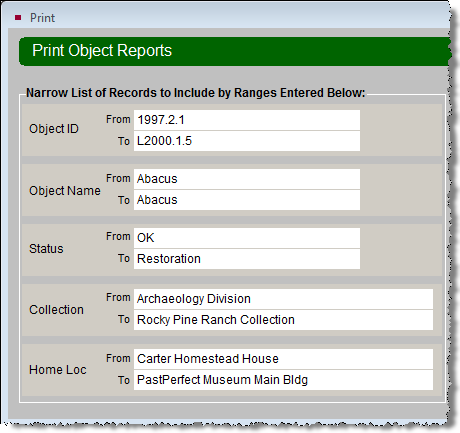
In most cases, you should change the entries for only one field. Narrowing the list based on two or more fields may produce no results at all. For example, selecting a range of Object IDs from 2008.1.1 to 2008.999.9999 and a range of Object Names from "Abacus" to "Abacus" would produce a list of abaci with Object IDs beginning with 2008. If there were no abaci with Object IDs beginning with 2008, then no records would be selected.
TIP: If you are narrowing your list of records by one field, you should change the entries for just that one field, and leave the other fields as they are by default. Do NOT remove the data from the other fields. If you do, PastPerfect will look for records with those fields blank. You may find no results.
When choosing your entries for the From and To fields, remember that you will be selecting records as they appear in the catalog sorted by that field. For example, if you enter the collection names From "Krantz Collection" and To "W," the list would not include the Waiahukini Archaeology Collection because the records with the Waiahukini Archaeology Collection name would be listed alphabetically after records with just "W" for a collection name. A more effective entry might be From "K" and To "WZZZ." Entries are not case sensitive.
To make entering your ranges easier, you may use the authority file if one is available. If an authority file is available, you will see the authority file flag appear. Right click or press F7 to access the authority file.
TIP: Catalog Detail reports may be run for one record at a time by going to the desired catalog record and clicking Print in the Navigation Bar at the top of the screen.
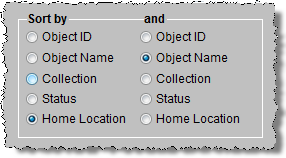
The Detail and Summary reports allow you to choose the sort order of the results. For the Objects, Photos, Archives, and Library Catalog reports, the results can be based on two sorts. The results will be sorted by the first chosen field, then in the case that there are two results with the same data in the first chosen field, the results will be sorted by the second field. For example, if you sort first by Home Location, the results will be sorted alphabetically by locations. For records that are in the same location, the results will be sorted by your second sort choice.
For these reports, like the Objects Summary with Images, you may change your report form on the Print Object Reports screen. To use a different report form, select the radio button next to the desired report form. You may find you want to preview different report forms for the same range of records before you select one to print.
Before you print a report, use the Preview button to display the results on your screen.
Report Preview screen
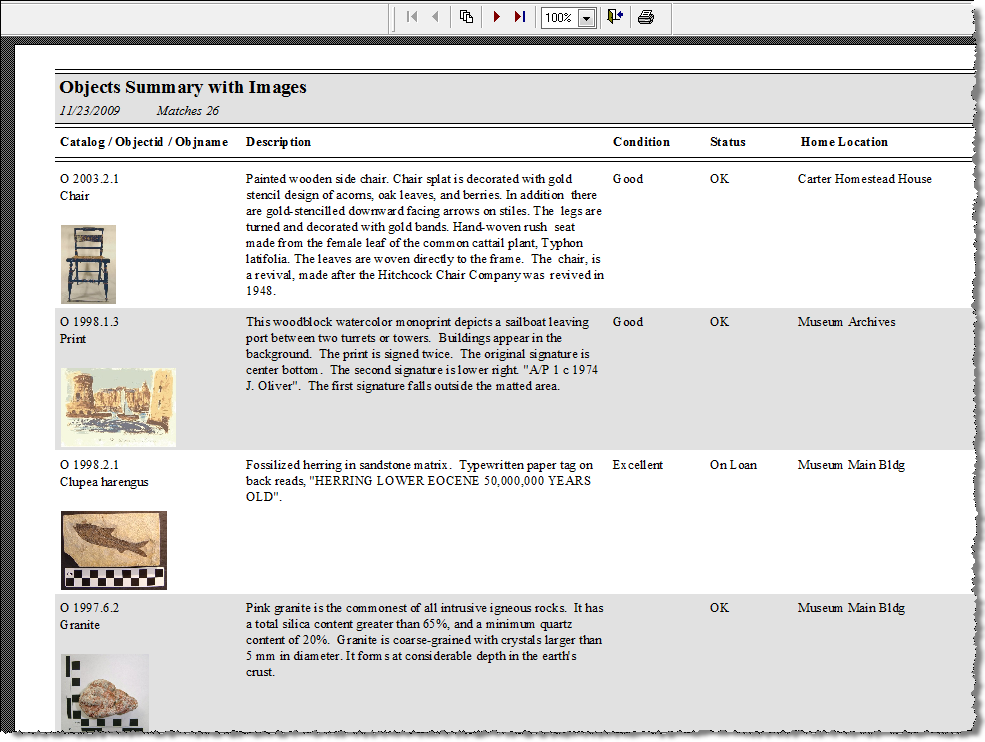
The Print Preview toolbar on the report preview screen has buttons that allow you to view different pages, jump to the first or last page, zoom in or out, print the report, and close the preview.

When you click on the printer icon on the report preview screen, the entire report will be sent to your printer. If you want more print options, close the preview and click the Print button to see the Print Report Output Options.
NOTE: If you have checked the Select Layout when Printing box when choosing the report to run, you will see a Select Layout screen after clicking Preview or Print. This enables you to pick the standard layout or one of the custom layouts you created for this report.