Report Bands
The horizontal bars that span the column width of your report separate the report into band types. Each report contains at least three bands. The Page Header band is displayed at the top of each page of the report. The Detail band makes up the report's body and contains output fields, and the Page Footer band is displayed at the bottom of each report page. In many column layout reports, the Page Header contains the column headings, which appear once at the top of each page. The Detail band has the fields that will appear for each record on the report. The Page Footer may include a page number or other data you want to see at the bottom of each page.
Report Designer screen with bands
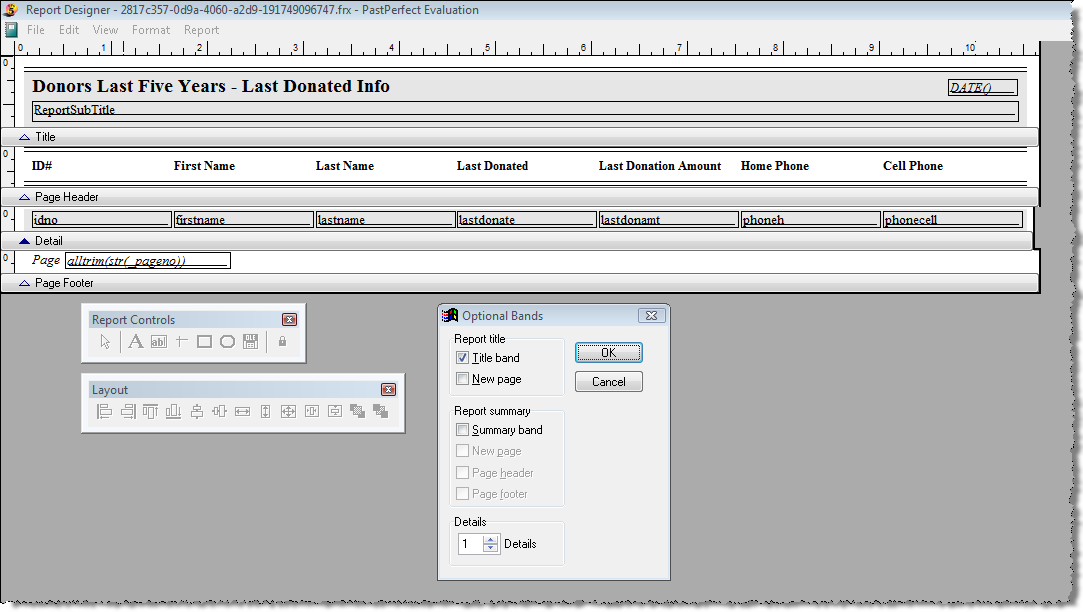
You can add bands such as Title, Summary, Group Header and Group Footer, as required. The Title band contains text that appears before the main report begins. The Summary band contains text that appears at the end of the report. The Summary band is usually employed when you want a count or sum at the end of the report. The Group Header and Group Footer bands display at the top and bottom of each data group on the report. To add these additional bands to a report, select Optional Bands (for Title and Summary bands) or Data Grouping (for Group Header and Footer bands) from the Report drop-down menu at the top of the Report Designer screen. Data Grouping will be explained later in an example.
To adjust the vertical size of the various bands, click on the gray line (showing the band name and an up arrow) at the bottom of the band. Then while holding down your left mouse button, drag the line up or down to expand or shrink the band. You may also double click on the gray line to open a window where you may type in the desired size of the band.