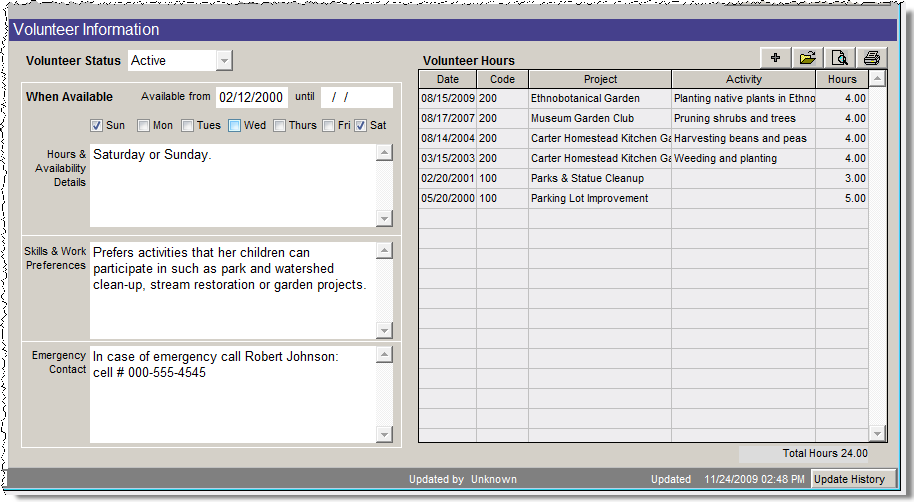
Almost all museums, no matter how many paid staff they have, rely on volunteers to perform valuable, and often essential functions. Candidates for volunteer positions are usually interviewed concerning experience, abilities and interests. For scheduling, it is important to know when a volunteer is available.
You can use the Volunteer Screen View to record a contact's volunteer status, availability, skills and work preferences and emergency contact information. You may also track hours worked and the projects on which a volunteer worked.
Volunteer Screen View
To enter volunteer hours:
Enter New Volunteer Hours screen
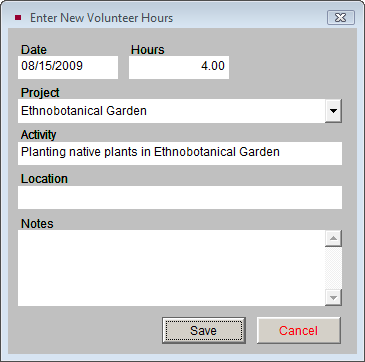
Date and Hours - Fill in the date the volunteer worked, and the number of hours worked. These are required fields.
Project - Use the drop-down menu to choose the project on which the volunteer worked. You may print reports based on volunteer projects. Projects are set up by going to the Main Menu | Setup | Contacts | Volunteer Projects. This field is required.
Activity - Enter the activity on which the volunteer worked. This field is controlled by the Volunteer Activities authority file. Right click or press F7 to access the authority file. To add or edit terms, go to the Main Menu | Setup | Authority Files | Contacts | Volunteer Activity.
Location - Enter the location where the volunteer worked. This field is controlled by the Volunteer Location authority file. Right click or press F7 to access the authority file. To add or edit terms, go to the Main Menu | Setup | Authority Files | Contacts | Volunteer Location.
Notes - Enter any notes regarding the volunteer's work.
Click Save to enter the volunteer hours. The entry will appear under Volunteer Hours. To edit or delete the entry, double click on it to bring up the Volunteer Hours Details screen, or click once on the entry and click the file folder icon above the Volunteer Hours listing.
To view or print a report that details volunteer hours for this contact, press the Preview Hours List or Print Hours List buttons under Actions on the Sidebar, or click the preview or printer icons above the Volunteer Hours listing.