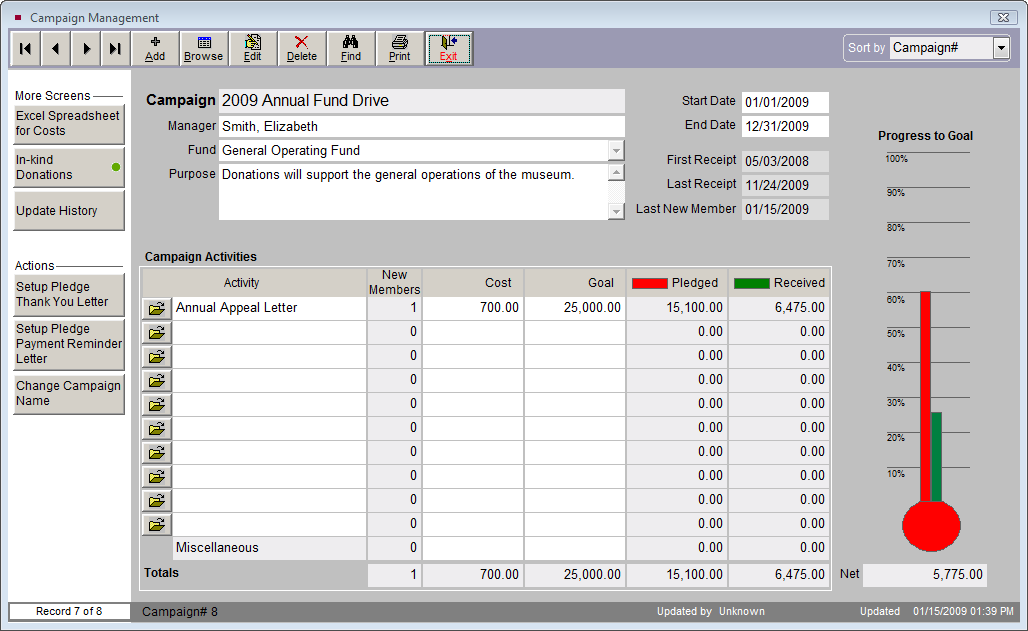
Figure 23-1 Campaign Management screen
23
Campaigns and Pledges
Creating and Managing Campaigns
Planning and executing fundraising campaigns is important to the survival of most museums and historical organizations. Once you have created your database of contacts, you will have gathered all the necessary information that can help you identify your key supporters and turn your contacts, volunteers and members into prospective donors. To access the Campaign Management screen, click Campaigns on PastPerfect's Main Menu. You will see the screen shown in Figure 23-1.
The top of the Campaign Management screen has fields to record the campaign name, manager, the associated fund, the purpose of the campaign, and the start and end dates.
To create a new campaign, click the Add button in the Navigation Bar. You are required to fill in the Campaign field and the Start and End dates. If you use the same campaign name each year, such as Capital Campaign, we suggest adding the year to the name of the campaign, such as Capital Campaign 2009, to distinguish campaigns through the years.
TIP
The campaign will be set as an Active Campaign as long as today's date falls in between the Start and End Dates. The campaign must be active to be available on the Enter a New Pledge Receipt or Enter Donation Receipt screen. Once the End Date has passed, the campaign will become a Past Campaign and will have a green Past Campaign flag at the top of the record.
The Manager field is controlled by the Users authority file. To access the authority file, right click in the field or press F7 on the keyboard. The Users authority file may be edited by going to the Main Menu | Setup | Authority Files | Common Screens | Users.
You may choose a Fund that will act as the default fund when entering a donation or pledge towards this campaign. If some donations should be credited toward a different fund, you may select that fund when entering the pledge or donation. You are not locked into using the fund chosen on this screen.
The Purpose field may be used to enter a description of the goals of this campaign.
There are three more date fields for First Receipt, Last Receipt and Last New Member that will be filled in automatically when donations are received or new memberships are added as a result of the campaign.
The lower part of the screen has information about campaign activities.
Campaign Activities
After creating the Campaign, you may want to generate a list of solicitation activities for your fundraising campaign. These can be any type of activity, from a mailing to a fancy dress ball, that your institution is using to raise money for this campaign. You can enter an activity name by clicking in the Activity field while in Add Mode or Edit Mode. If you wish to enter details about the Activity, click the file folder icon to the left of the name. The New Members field will be automatically filled in with the count of members who joined as a result of the campaign. When entering a new membership, be sure to choose the campaign and activity so that PastPerfect can fill in this field.
Next, in the Cost field, enter the amount for how much the activity will cost your institution to hold. In the Goal field, enter the amount for how much you hope to earn from this activity. The Pledged and Received fields are updated automatically when you enter a pledge or donation payment from either the Contacts screen or the Pledges & Receipts screen. You must be sure to choose the campaign and activity on the pledge or donation screen when entering it.
If no activity is chosen when posting a pledge, donation or new membership to this campaign, the transaction will be recorded under the Miscellaneous activity at the bottom of the screen.
Campaign Goals
The Progress to Goal thermometer on the right side of the screen is automatically generated from information you enter on this Campaign Management screen, as well as the pledge and donation amounts you receive. See Figure 23-2. The sum of the Goal fields determines the overall goal of your campaign. As pledges are entered, the red bar will move up on the thermometer. As donations are entered, the green bar will move up on the thermometer. Once your pledges and donations match or exceed the goal amount, the red and green bars will reach the top. At the bottom is the calculation of the Net amount. This is the amount of donations you have received, minus the sum of the costs you entered for the activities.
More Screens
Three options are available under More Screens. The first option, Excel Spreadsheet for Costs, gives you access to an Excel spreadsheet that you can customize to track accounting and other information about each activity, seen in Figure 23-3. If your PastPerfect system is equipped with the optional MultiMedia Upgrade and you have MS-Excel, you may click this button to view the Excel spreadsheet. The default for this spreadsheet is set up under the Main Menu | Setup | Contacts | Campaigns & Pledges | Default Excel Spreadsheet for Costs.
The In-kind Donations button will open another screen that shows a list of all the in-kind gifts that have been received as part of this campaign.
Update History will show you the date, time, and user name for each time the campaign record was updated.
Actions
Setup Pledge Thank You Letter - You may modify this letter for this specific campaign. This letter is sent from the Enter a New Pledge screen when posting a pledge, or the Pledge Detail screen after a pledge is posted, thanking the contact. The Default Pledge Thank You Letter should be created first by going to the Main Menu | Setup | Contacts | Campaigns & Pledges | Default Pledge Thank You Letter.
Setup Pledge Payment Reminder Letter - You may modify this letter for this specific campaign. This letter is sent from the Enter a New Pledge screen when posting a pledge, or the Pledge Detail screen when a pledge payment is coming up. It reminds the contact of the payment due. The Default Pledge Payment Reminder Letter should be created first by going to the Main Menu | Setup | Contacts | Campaigns & Pledges | Default Pledge Payment Reminder Letter.
Change Campaign Name - The name of the campaign may be changed before you post any pledges or donations using this campaign name, and before any memberships are created with this campaign name. If you change the name after you have entered pledges, donations or memberships to this campaign, you will need to manually change the campaign name on each pledge, donation, and membership. Click this button to enter the new campaign name.
Print - The Print button in the Navigation Bar of the Campaign Management screen allows you print information about: This Campaign, All Campaigns, Current Campaigns, and Past Campaigns. The printed report will contain the campaign name, dates, manager, number of new members, cost, goal, pledges, donations received, and net amounts for all activities. You can also print the members, cost, goal, pledged, received, and net amounts for each activity by selecting the Include Details box.
TIP
If you need a report that shows each donation, in-kind gift, or membership posted to a specific campaign, use the Donations, Dues & In-kind Gifts report. This report may be run for one campaign at a time, and for all activities or just one activity at a time. The report is run by going to the Main Menu | Reports | Dues & Donations.
Pledges
Part of your fundraising campaigns may be to collect pledges. Pledges are a useful tool for gauging how much money you will be collecting over time, assuming all pledged money is collected. PastPerfect can track your pledges, allowing you to send reminder and thank you letters to contacts after they pledge an amount. Using the schedule of payments on the Pledge Detail screen, you can easily see when a contact's next payment should be, how much it will be, and how much has already been paid. When a contact makes a payment toward a pledge, it is entered under the Donations screen view. The Campaigns screen will show you how much money has been pledged and how much has been received for each campaign.
To begin, pledges are entered on the Pledges Screen View of the Contacts section, seen in Figure 23-4.
To enter a new pledge, click the Contacts button on the Main Menu. Find the record for the contact who is giving the pledge and click the Pledges button on the Sidebar.
To enter a pledge:
1. Click Enter a New Pledge under Actions on the Sidebar. The screen in Figure 23-5 will appear.
2. Select a Campaign and Campaign Activity from the drop-down menus. By entering these fields, you ensure that you can track the pledge on the Campaign screen. To create Campaigns and Campaign Activities, please see the Creating and Managing Campaigns section of this chapter.
3. Select a Fund from the drop-down menu. This may be the same fund linked to your campaign, or a different fund. Please see Chapter 20 - Contacts for information about setting up funds.
4. Select a Solicitor, if any, from the drop-down menu. The names on this list can be changed by going to the Main Menu | Setup | Authority Files | Contacts.
5. Enter a Pledge Date. Today's date is entered automatically, but you may enter any date you like.
6. Enter the Amount (the full pledge amount), then enter the date the first payment is expected in the 1st Payment Date field. A value must be entered into these fields for the pledge to be posted. You may also enter the Number of Payments that can be expected, as well as the Payment Interval. Based on these fields, PastPerfect will generate the schedule of payments for this pledge.
7. Enter the In Memory of or In Honor of names, if appropriate. If there are any notes related to this pledge, enter them in the Notes section.
8. If you do not wish to send a reminder letter, check the Don't Send Reminder box. A reminder letter will not be generated if you print the letters in a batch from the Reports section of the program. Otherwise, leave that box empty.
9. Click Post.
Please note that posting the pledge simply creates a pledge record. If the contact is also making the first payment on a pledge, you will need to enter the payment under the Donations screen and apply it to this pledge. When posting a donation for a contact who has an open pledge, you will be asked if you want to apply the donation to the specific pledge. The pledged amount will be added to the appropriate campaign screen, in the Pledged column. After a pledge has been posted, the Thank You Letter and Reminder Letter options become activated.
Pledge Letters
The Pledge Thank You letter should be sent to the donor thanking them for the pledge. Reminder letters function much like an invoice or gentle reminder that a pledge was made and a payment is due on a specific date. For each pledge there is only one Thank You Letter, but there can be multiple Reminder Letters, one for each payment.
The Pledge Thank You Letter should be sent when the pledge is made. This letter is composed by going to the Main Menu | Campaigns | Pledge Thank You Letter. Please see Chapter 22 - Letters, Labels & Email for more information about composing letters.
The Pledge Reminder Letter may be sent when the pledge is made if the first scheduled payment is due. However, this letter may be printed at a later date from the Pledge Detail screen. This letter is composed by going to the Main Menu | Campaigns | Pledge Payment Reminder Letter.
Pledge Detail Screen
The Pledge Detail screen is accessed by double clicking on a pledge in the list of Pledges Made on the Contacts Pledges Screen View. This screen, seen in Figure 23-6, gives you the option to print your pledge letters, in addition to giving you access to details associated with a single pledge, including: the contact's name, company, campaign, activity, solicitor, schedule of payments, etc.
On the right side of the Pledge Detail screen is a spreadsheet with the Schedule of Payments where you can view the amount promised, the date the payment is due, the amount paid, and the remaining balance. PastPerfect automatically calculates the totals at the foot of each column.
Making changes to the Schedule of Payments will alter the payment information in the middle part of the left side of the screen. You may add, edit or delete payments in the schedule by using the buttons at the bottom of the Schedule of Payments. Deleting payments will increase the amount in the Write-off Amount field and place today's date in the Write-off Date field. To write off a pledge completely, delete all of the unpaid payments.
Sending Payment Reminder Letters
These letters are set up first as the Default Pledge Payment Reminder Letter under Main Menu | Setup | Contacts | Campaigns & Pledges. They are composed for each campaign on the Campaign screen, using the Setup Pledge Payment Reminder Letter button. The letter you composed on the Campaign screen can be viewed on the Pledge Detail screen by clicking the Default Reminder Letter button. Looking at this letter, you will see that some merge fields such as <Payment_amount> and <Payment_date> still appear in brackets. They will be replaced in the next step. You may make changes to the letter at this point, which will be used in all the reminder letters sent to this contact. You will want to preview this letter before printing the Selected Payment Reminder Letter.
Since a pledge may be paid off in multiple payments over time, a separate reminder letter is created for each payment. From the Pledge Detail screen select a pledge payment from the Schedule of Payments list on the right and then click the button Selected Payment Reminder Letter. The letter will display in MS-Word, where it can be printed. As long as you have previewed the Default Reminder Letter, the merge fields will be filled in appropriately for this payment.
You can also print all pledge payment reminder letters for any pledges due within a specified date range from the Reports menu. From the Main Menu click on Reports |Pledges | Pledge Reminder Letters | Run Selected Report.
PastPerfect Museum Software User's Guide
Figure 23-1 Campaign Management screen
Figure 23-2
Progress to Goal
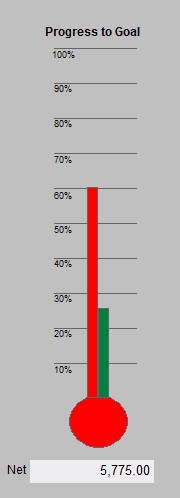
Amount Donated shows up in green.
Net amount is the amount donated minus the costs for activities.
Amount Pledged shows up in red.
Figure 23-3
Excel Spreadsheet for a Campaign
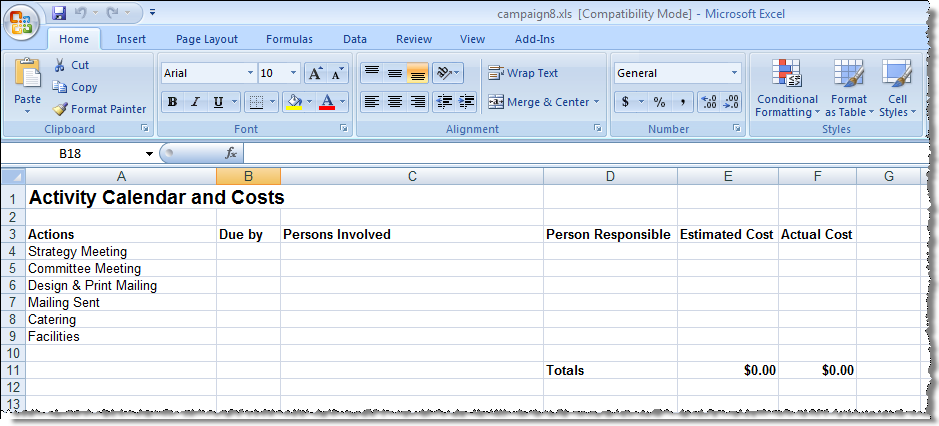
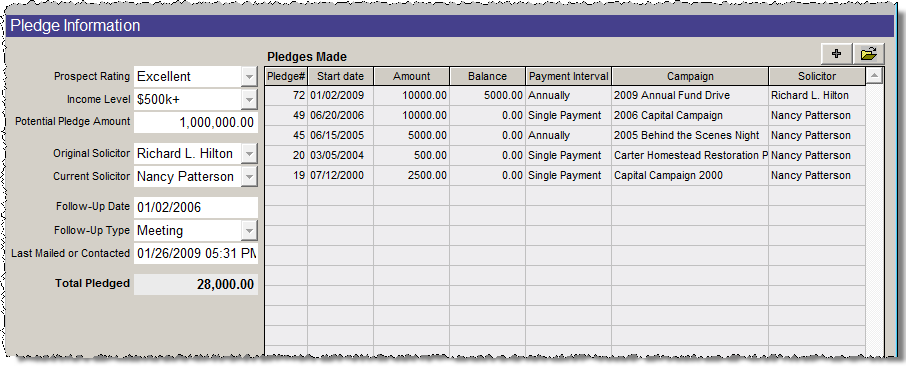
Figure 23-4 Pledges Screen View
Figure 23-5
Enter a New Pledge screen
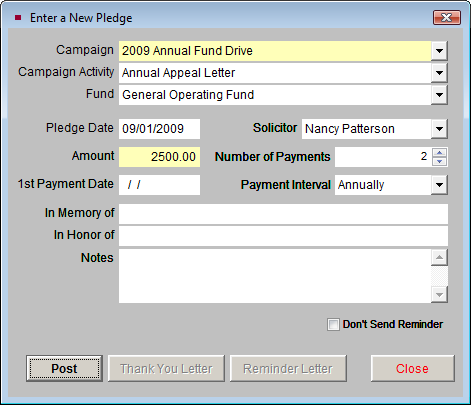
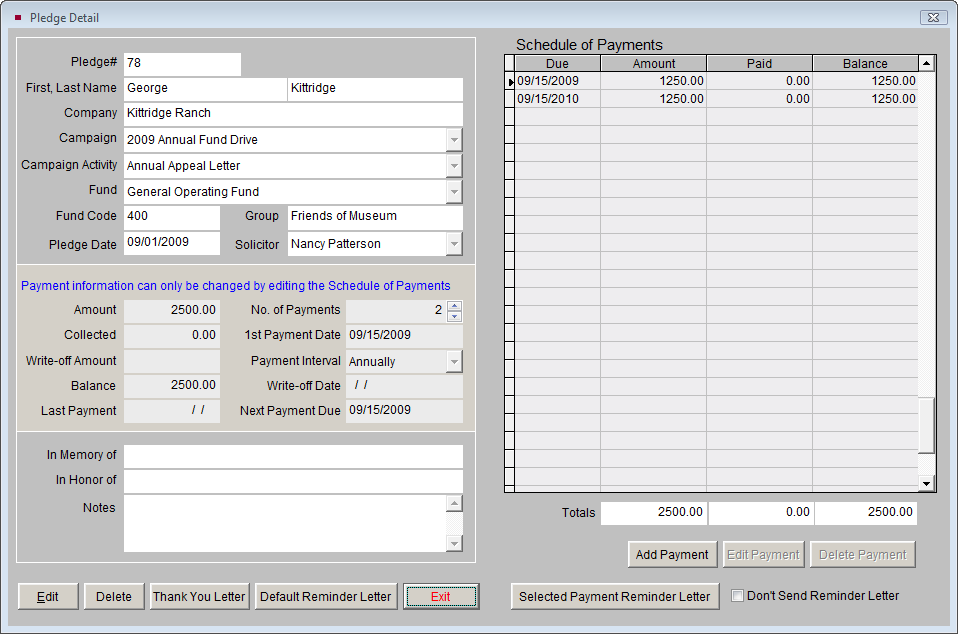
Figure 23-6 Pledge Detail screen
Figure 23-7 Pledge Detail screen
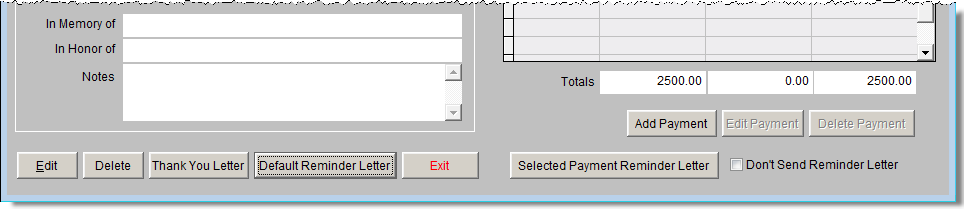
Click here for the Default Reminder Letter, which you can customize for this contact.
After selecting a payment, click here for that Payment Reminder Letter.