Restore Backup
This option is used only if you experience hardware failure, encounter seriously damaged files, or if you want to transfer PastPerfect data to another computer. It is highly recommended that you speak with a PastPerfect staff member before restoring a backup.
To start the process, go to Utilities on the Main Menu and click Restore Backup. Then select the dataset. Data may be restored from one of the 30 sets of compressed data stored on the hard drive, or from a backup file on CD/DVD or removable drive created with the PastPerfect Backup function. When restoring from CD/DVD or removable drive you will have the option to restore, data, images, and/or multimedia files.
Restore Data screen
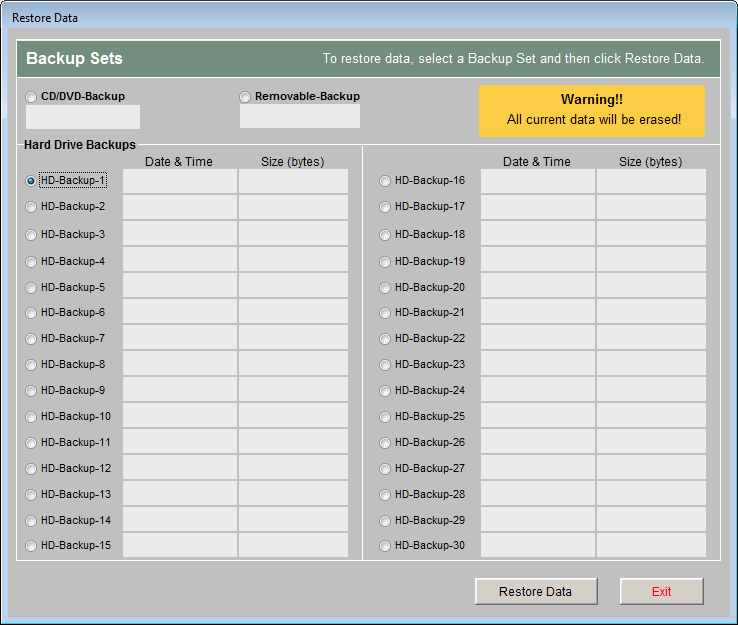
Warning: Restoring data will erase all current PastPerfect data. Once data is restored, you must reindex all data from Main Menu | Reindex.
If you restore images or multimedia files, the files will be copied from the CD/ DVD or removable drive into the appropriate PastPerfect folder. Existing files with the same name will be overwritten. Please be sure that you include Rebuild Catalogs in the Files to Reindex if you have restored images or multimedia files.