Barcode Scanners
Most barcode scanners will read the label formats described above. Scanners come in three basic styles - the wand, CCD, and laser.
The laser scanners are the easiest to use because they can scan labels from a distance of one to two feet. However, they are the most expensive.
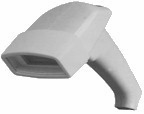
The CCD (Charged Coupled Device) scanners work well as long as you scan from a distance of about one inch or less. They are a mid-range price option.
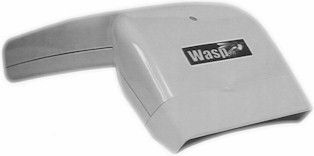
The wand-style scanners are the most economical to purchase, but the wand must be in direct contact with the barcode label to read it. PastPerfect does not recommend the use of a wand-style scanner.
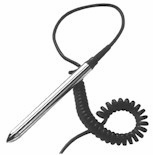
PastPerfect Software, Inc. does not sell barcode scanners. Barcode scanners may be purchased from a variety of vendors.
Scanning the Barcode
Once you have barcode labels printed, you can "attach" them to your items. One way to do this is to place items in an archival polyethylene bag or an acid-free box and attach the label to the bag or box. Or you can affix the label to an artifact identification tag. Do not affix the label directly to an item as the adhesive may permanently damage the artifact.
Once the barcode label is associated with the item, you are ready to scan it. If, for example, you have printed the Object ID as a barcode, whenever you scan the barcode it will be just as if you typed the Object ID on the keyboard. Scanning reduces the chance of typing errors and speeds up the find process.
Using Quick Find
The Quick Find button allows you to search for a particular Object ID number right from the Main Menu. Quick Find will search through the Objects, Photos, Archives, and Library catalogs all at once.
To begin, click the Quick Find button on the Main Menu. Scan the barcode with a barcode scanner. Check the box or boxes for the catalogs you want PastPerfect to search in for the number. Then click Find.
When the record is found, the catalog containing that record will be opened and the item's record will appear on the screen. You can begin working with that record and continue to work in that catalog, the same as if you had opened the catalog directly from the Main Menu.
Barcodes may also be used with the optional Inventory Manager for inventory control. Please see Chapter 30 - Inventory Manager for more information.