Import Inventory List from External File
Some organizations perform an inventory by creating a list of found items in a specific storage location and reconciling that list against their PastPerfect database. Once these items are placed on PastPerfect catalog lists, users can globally update inventory information, including location and status changes.
Add Records to a List Manually
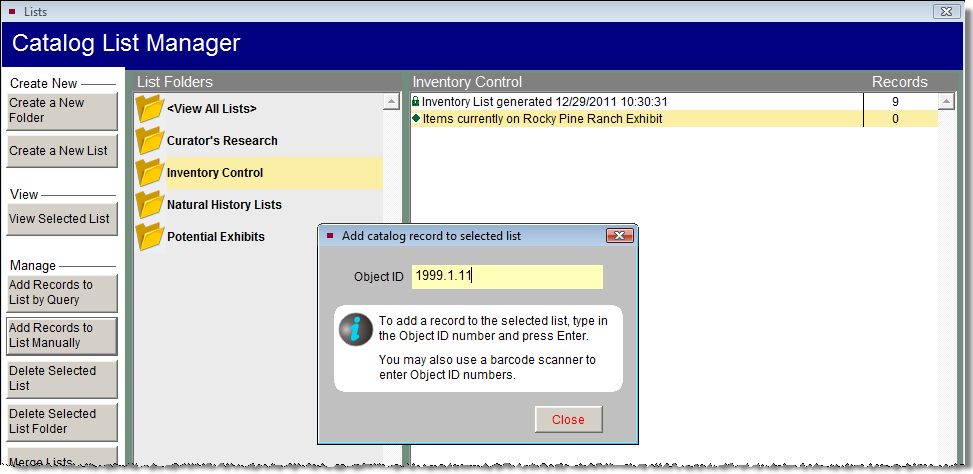
This is the simplest way to create a catalog list of inventoried items without using external files or devices. From the Main Menu, open Catalog Lists and create a new list. Then click the Add Records to List Manually button from the Sidebar. Enter your Object ID number by typing or by using your barcode scanner, as shown below. Once your list is complete, you will have the options for updating the list items that are explained later in this chapter.
Add catalog record to selected list manually
Importing External Lists
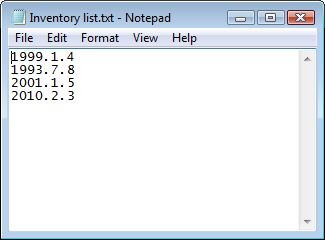
Inventory Manager enables you to import a basic text document that contains the Object IDs of your inventoried items. To create this document, as you check each item, type its Object ID number followed by a carriage return, as shown below. Or you can enter the numbers in the document by scanning each item's barcode (Object ID). Scanning the barcode instead of typing the Object ID number speeds up the process and reduces the chance of typing errors.
Inventory list in Notepad
TIP: Microsoft Notepad is recommended for creating this basic text document for importing. Name the file appropriate to the content of the list. Example: "Vault Inventory 2012"
From the Main Menu, select Inventory Manager, then click Import List to import the document. Click Import List Now. Browse to the location of your text file, select it, then click OK. The list will be saved to the Inventory Control folder in Catalog Lists, with the name of your text file as the name of the list. Once the list is created in Catalog Lists, you can use the standard list tools to print the list and update the records.
If an Object ID number in your text file is not found in the Objects, Photos, Archives, or Library catalogs, that number will appear in a new text file that you can save and print for later inventory reconciliation.
Importing Using Other Digital Devices
The principles for importing are the same whether the list is compiled by manually typing Object ID numbers into a Notepad document or scanning items from a device like a tablet or a barcode scanning/storage device. You must have a simple text file with one item per line separated by <enter> or a carriage return. Once this file is created, you can import it using the steps described above.
TIP: When using a device that is incapable of creating a simple text file, try emailing yourself the list and copying the email's contents into a text file.