The Deaccession Process
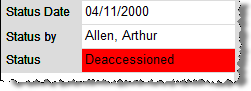
PastPerfect provides two methods of deaccessioning items. The first is simply to change the catalog record's status to Deaccessioned. This can be done from the Objects, Photos, Archives, or Library catalog screens that are described later in Chapters 6-9. PastPerfect will make the background of the field red for faster recognition of deaccessioned items.
Status - Deaccessioned
If you prefer to remove deaccessioned items from the catalog, you can use the Deaccession function. This function allows you to remove the items from the catalog and place them in a special Deaccessioned file. Please note that the Accession record will remain for deaccessioned items. You may enter an Activity on the Accession screen to record the deaccessioning of items.
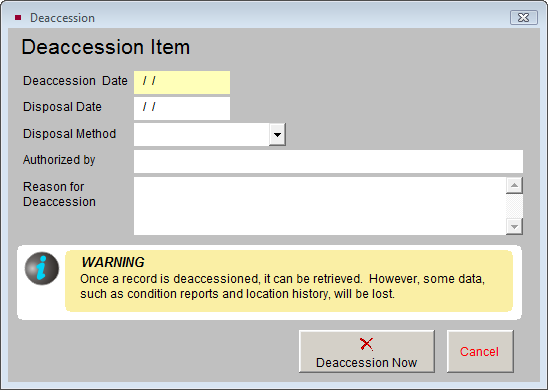
Warning: Not all information about the item will be moved to the Deaccessioned file. Information such as condition reports and location histories will not transfer.
To deaccession an item and move it to the Deaccessioned file, first locate the item in the Objects, Photos, Archives, or Library catalog. Then click the Edit button. This will reveal the Deaccession button. The Deaccession command is only available in Edit mode.
Deaccession button

Clicking on Deaccession will open the Deaccession screen, where you will enter the deaccession date, disposal date, disposal method, name of the person authorizing the process (required), and the reason (required) for deaccession.
Deaccession Item screen
Finally, click the Deaccession Now button to remove the item from the catalog and move it to the Deaccessioned file. The catalog record will also be removed from the list of associated catalog records on its original Accession record. You can print a summary or detailed list of items that have been deaccessioned by going to the Reports screen, clicking on the All 4 Catalogs button, and selecting one of the Deaccessioned reports.
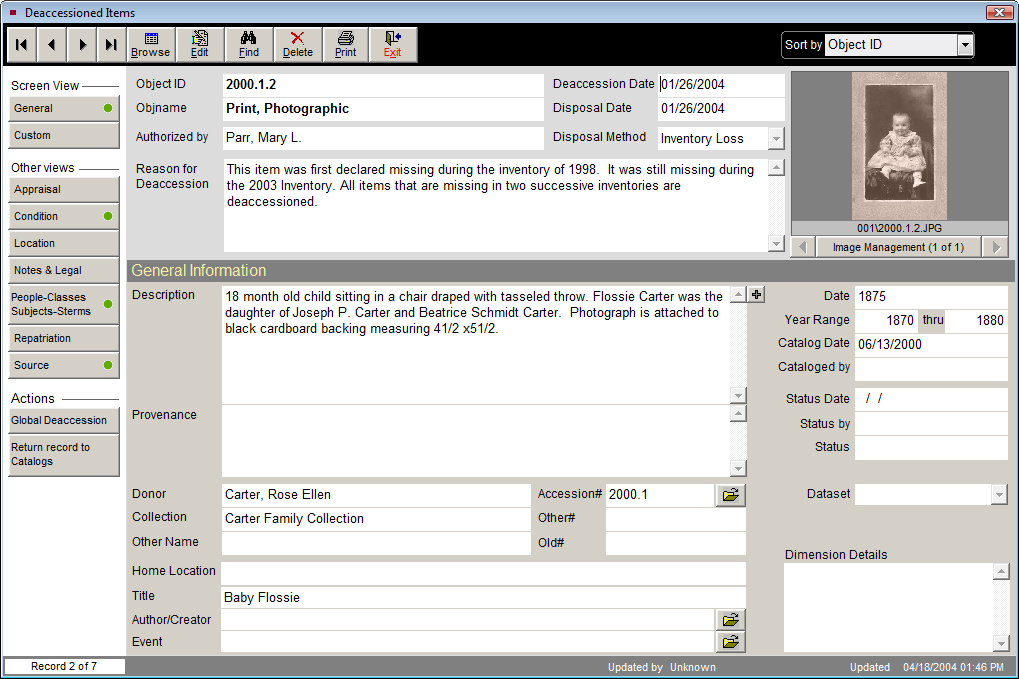
To view the items in the Deaccessioned file, click on the Deaccessions button from the Main Menu.
Deaccession screen
Global Deaccession
If you have many items that need to be deaccessioned at one time, and they all have the same disposal date, disposal method, person authorizing the process and reason for deaccessioning, then you do not need to deaccession them one by one. To globally deaccession items with the status set to "Deaccessioned," click the Global Deaccession button in the Actions section of the Sidebar of the Deaccession screen. You will need to enter the deaccession date, disposal date, disposal method, name of the person authorizing the process and the reason for deaccession that will be used for all records being deaccessioned. You can choose to include or exclude records from certain catalogs by checking or unchecking the box next to the catalog. The screen will display the records selected to be deaccessioned. When you are ready, click the Deaccession All Records NOW button.
Return Record to Catalogs
If you have mistakenly deaccessioned an item and you need to move it back to the catalog where it was originally, you have the option to do so by clicking the Return Record to Catalogs button on the Sidebar. You will be asked if you want to return the record, click Yes if you are sure. The record in the Deaccession catalog will be moved to the Recycle Bin and will be deleted when you Reindex. Please note that any data that was not transferred to the record in the Deaccession file, such as condition reports and location histories, will not be recovered. Records that were deaccessioned in PastPerfect version 4.0 or earlier versions cannot be returned to their original catalogs.