Adding a Catalog Record
To begin cataloging an object, click on the Add button at the top of the Objects screen.
This will open the Add New Catalog Record screen.
Objects Navigation Bar

Please review the Add Options section. If you plan to add one new, blank record, select Add a Single Record and choose Fill New Record with Blank Data using the radio buttons. Once you enter a unique Object ID and Object Name, you can add the new record. PastPerfect will verify that the Object ID number you assign has not already been used. If it has, you will receive a message asking you to assign a different number.
Add New Catalog Record screen
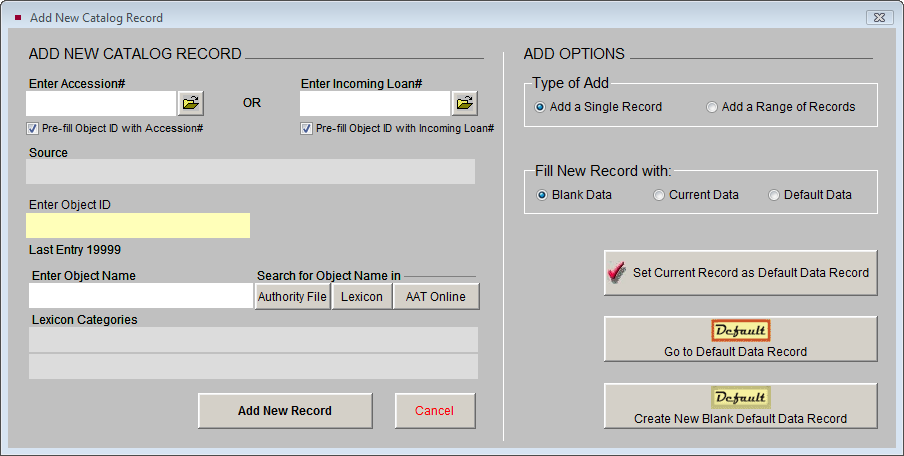
If the object has been accessioned in PastPerfect (recommended), please begin filling the Enter Accession# field on the Add New Catalog Record screen. You can do this by either typing in the Accession# or opening the Accession File (using the file folder icon button) and selecting the Accession# from the list. This will automatically link the new catalog record with the Accession record, and will fill in the Source field. You can perform a similar action for Incoming Loans by using the Enter Incoming Loan# field and the file folder icon button to link to the Incoming Loans File. To save some time, you can check Pre-fill Object ID with Accession# (or Incoming Loan#) to fill the Object ID field with the Accession# (or Incoming Loan#). You will just need to add the final part of the Object ID number to the pre-filled number to complete the field.
You must enter an object name to add a new record. You can type an object name in the Enter Object Name field, or search for the name using the Authority File, Lexicon or AAT Online buttons. Your Object Name authority file is where you should list the most common names used in your collection. It is a good idea to set up your authority file before you begin cataloging, but you can always add names as you go. By clicking the Lexicon button, you can locate an approved name from the Lexicon. PastPerfect comes preloaded with more than 11,000 object names from Nomenclature 3.0 for Museum Cataloging in its Lexicon. For more information about the Lexicon, please see Chapter 10 - The Lexicon.
NOTE: You may add to the Lexicon by going to the Main Menu | Setup | Lexicon. However, we recommend that you use the terms in the Lexicon as much as possible, as it is a museum standard and allows for common terms to be used across all museums.
The AAT Online button provides a link to the website for the Getty Museum's Art and Architecture Thesaurus. This online resource gives you access to the Getty website, free of charge, for searching individual terms and names. The Getty vocabularies are made available via the Web to support limited research and cataloging efforts only. Licensing is required for more extensive use of these tools. For more information about Getty thesauri, visit the website at: http://www.getty.edu/research/tools/vocabularies/index.html .
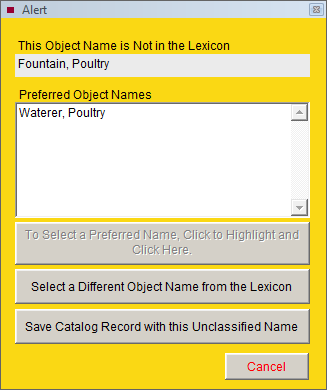
If you enter an Object Name that is not in the Lexicon, the Alert screen will appear when you press the Add New Record button. It gives preferred Object Names and the ability to select an Object Name from the Lexicon. While it is not recommended, you may add your Object Name to the Lexicon, to be classified later.
Lexicon Alert screen
Adding a Range of Records
If you want to add a range of records for similar or nearly identical items, please select Add a Range of Records from the Add Options | Type of Add section. First enter the Object ID Prefix, which may be the same as your Accession# or Incoming Loan#. All records in this range will begin with this prefix. Please be sure that the Object IDs to be added do not already exist in the PastPerfect catalogs. The Object ID Prefix should end with your numbering system's Object ID separator (period, dash, etc.), so that the generated item numbers become the third part of the number, and are not tacked onto the end of the prefix. In the Object ID Prefix From field, please enter the first number for this range. If you already have five records in PastPerfect with this prefix, the From field should contain a "6". The Object ID Prefix To field should contain the last number for this range. Please be aware that when adding a range of records, you will not be able to use leading zeros in the item numbers.
To complete the necessary fields and add multiple records, please enter a single Object Name to be used on all the records. You can enter the object name by typing the name or searching the Authority File, Lexicon or AAT Online. Then click the Add Multiple Records button.
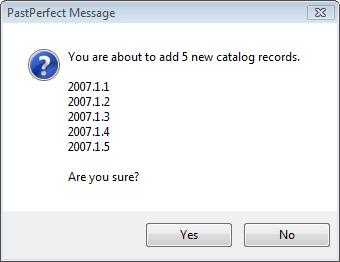
Example: You just started to catalog items from Accession# 2007.1, and the first artifacts are five identical teaspoons. You can add a range of records, each with its own Object ID and the object name "Teaspoon." The first step is to enter the Object ID Prefix "2007.1." then add a "1" in the From field. Then enter a "5" in the To field. Type or select the Object Name "Teaspoon," and click the Add Multiple Records button. Five new catalog records are added with Object IDs 2007.1.1, 2007.1.2, 2007.1.3, 2007.1.4 and 2007.1.5.
Add Multiple Items

Entering these Object ID Prefixes and ranges will create these 5 new
catalog records.