Main Screen Views
At the top of the Sidebar on the left, you will notice six Screen Views representing specific fields for different object types: Archaeology, Art, Geology, History, Natural History, and Custom.
You may set a default screen view for each catalog record so that whenever you open that particular record the selected screen view appears. To change the screen view, click the Edit button in the Navigation Bar, then click on the desired screen's radio button and click Save.
Archaeology Screen View
Objects Catalog Archaeology Screen View
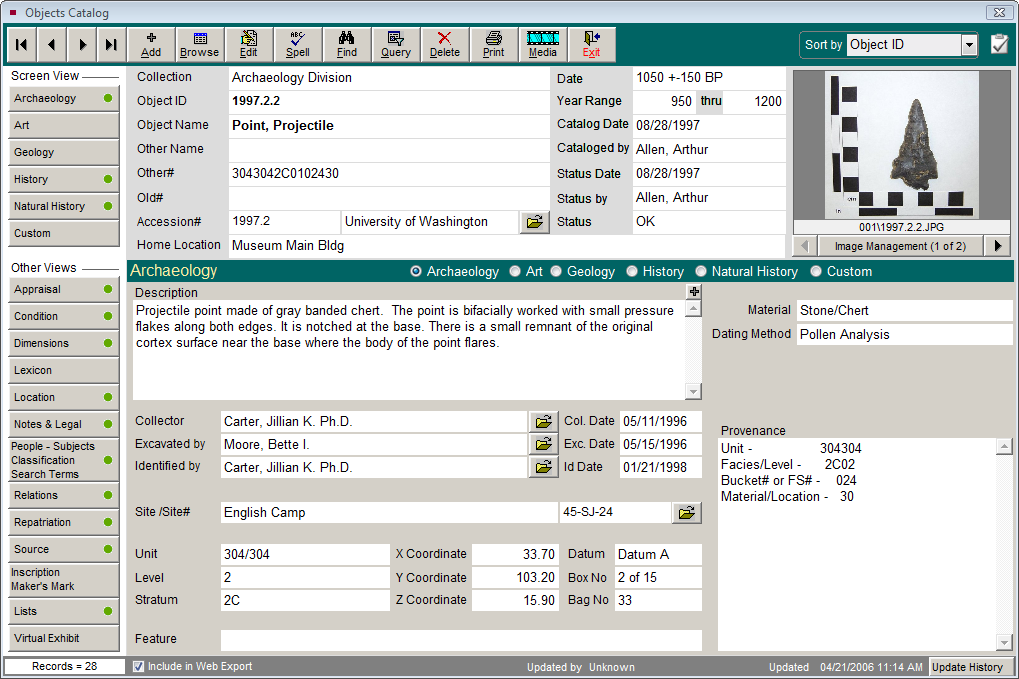
Archaeological materials require specific fields for cataloging objects that have been recovered from an archaeological site. In order to record pertinent field location information, PastPerfect provides the following fields: Site Name and Number, Unit, Level, Stratum, Feature, Three-point Provenience coordinates, and Datum. You may record the names of people involved in collecting the objects in the Collector, Excavated by, and Identified by fields, as well as the dates of these actions. You may also record the Description, Box Number, Bag Number, Material, Dating Method and Provenance.
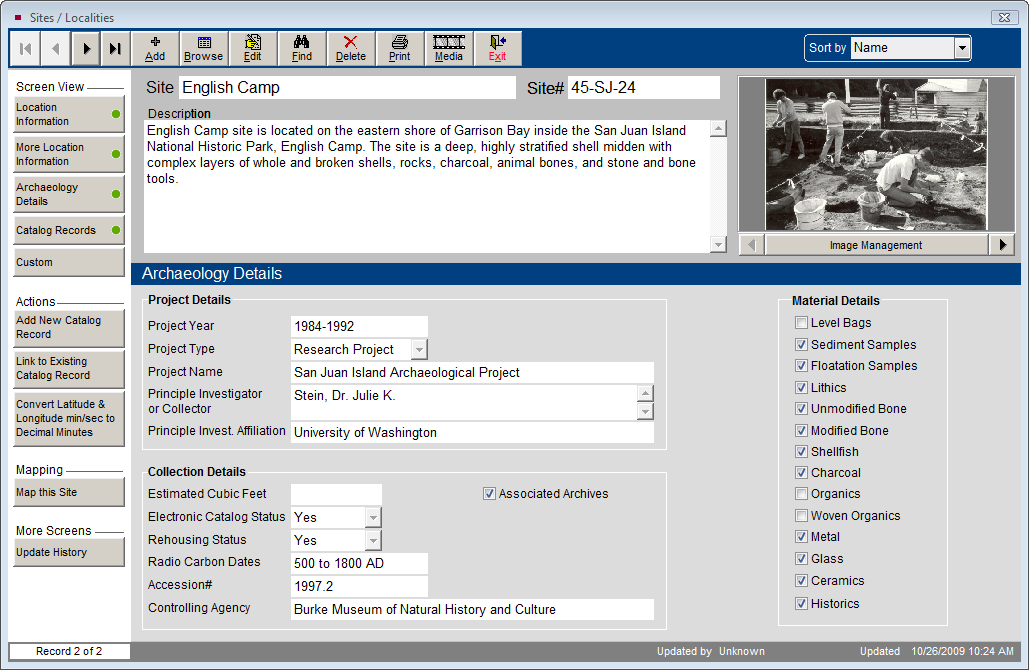
Site Information - For items that have been recovered from archaeological, geological, or paleontological sites enter a Site Name and Site#. When you enter information in the Site Name and Site# fields, you have access to the Sites & Localities file (seen above).
Click the file folder icon to the right of these fields to display the Sites/Localities screen with specialized fields for recording information including: Description, Range, Section, Quarter, Township, County, State, Country, Prime Meridian, UTM values, Maps & Publications, and Notes. Using Longitude and Latitude locations, you may map the site. You may also record archaeological project and collection details. With the MultiMedia Upgrade you may attach up to 20 images of the site.
Multiple objects can share the same Site screen, seen by clicking the Catalog Records Screen View button. Due to the sensitive nature of site information, PastPerfect allows you to restrict access to this screen.
Art Screen View
Objects Catalog Art Screen View
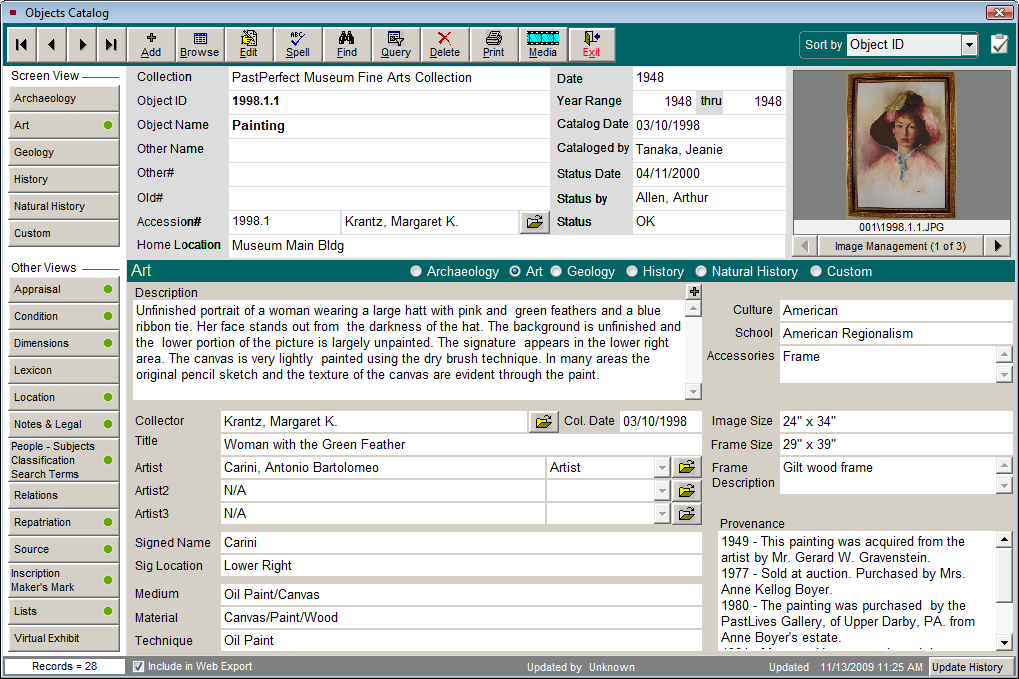
This screen view allows you to enter information about your art collections. It contains special fields for cataloging art objects, including Collector, Title, Artists, Signed Name, Signature Location, Medium, Material, Technique, Culture, School, Accessories, Image Size, Frame Size, Frame Description, Provenance and Description.
Artist Information - Once an artist's name is entered in the Artist field, click the file folder icon to create and display biographical information about the artist in the Artist/Author/Creator/Photographer authority file. A separate screen is provided, with fields for other names, dates and places of birth and death, places and/or geographical areas of residence, nationality, titles and honors, occupation, relationships, and notes. You may search the Getty's ULAN (Union List of Artist Names) for the artist's name and biographical information by clicking the Search ULAN Online button.
Artist/Author/Creator/Photographer File
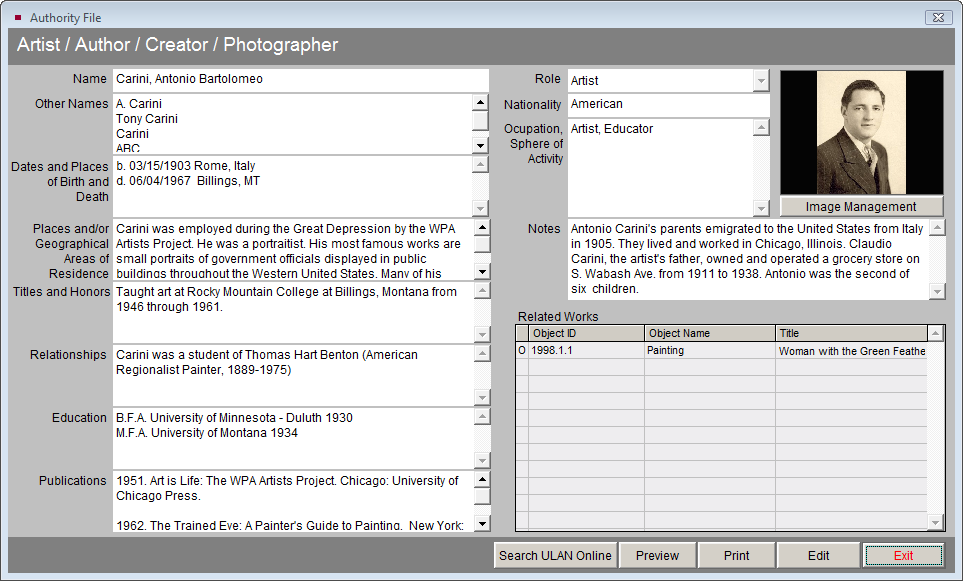
The Artist/Author/Creator/Photographer authority file may be shared by any number of art works. Once an artist is entered into the Artist Information screen, that data is available anytime you enter new works of art.
If more than one artist has contributed to the art work, you can record three artists' names, roles and biographical information.
Geology Screen View
This screen view allows you to enter information about your rock and mineral specimens. PastPerfect has added an additional category to the Lexicon to accommodate these items. This is the Lexicon category Natural History, with the classifications of Biology, Botany, Geology, and Paleontology.
Objects Catalog Geology Screen View
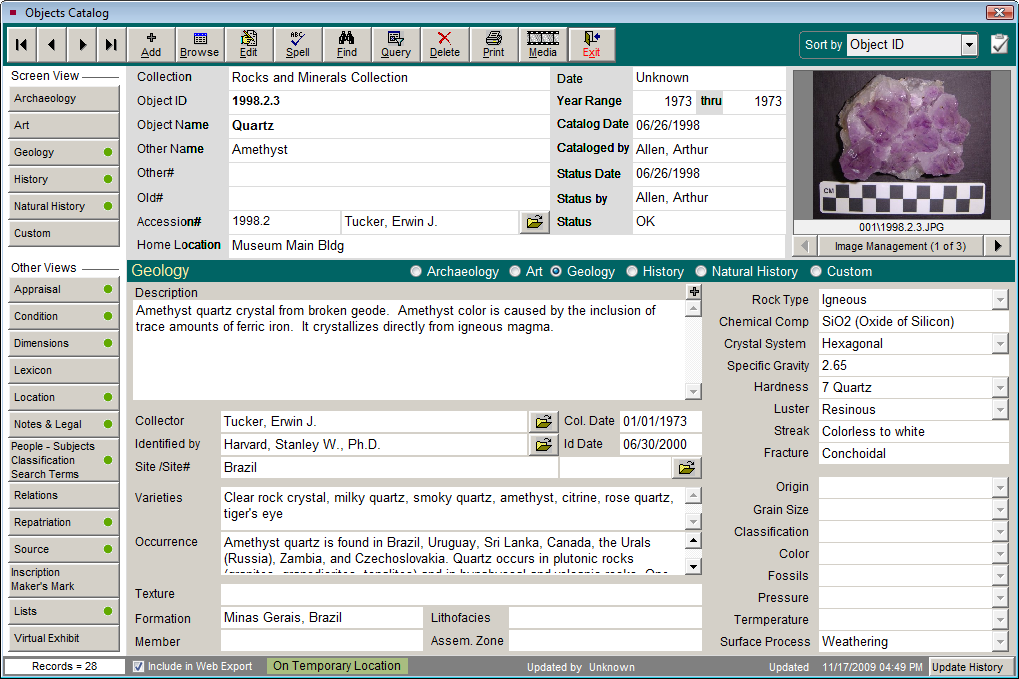
This screen view contains special fields for cataloging geological objects such as Rock Type, Chemical Composition, Hardness, Luster, Streak, Grain Size and Color. As always, use only the fields you need to accomplish your cataloging goal. In the case of geological specimens, you may need only to use the fields for Rocks and Minerals. You may use the Site fields to link the record to a site listed in the Sites & Localities section as explained earlier in this chapter.
History Screen View
The History Screen View provides the fields needed for cataloging decorative arts, ethnographic materials, household furnishings, machinery, and other historic objects. Decorative arts refers to all aesthetic objects that are not architecture or fine arts, such as furniture, textiles, metalworks, and ceramics. This term may extend to toys, jewelry, and clothing. The fields in this screen view may also be used to catalog large composite artifacts such as airplanes, automobiles or buildings and building fragments. This screen view includes fields for recording ownership and use history of the item: Found, Made, Used, and Owned.
Objects Catalog History Screen View
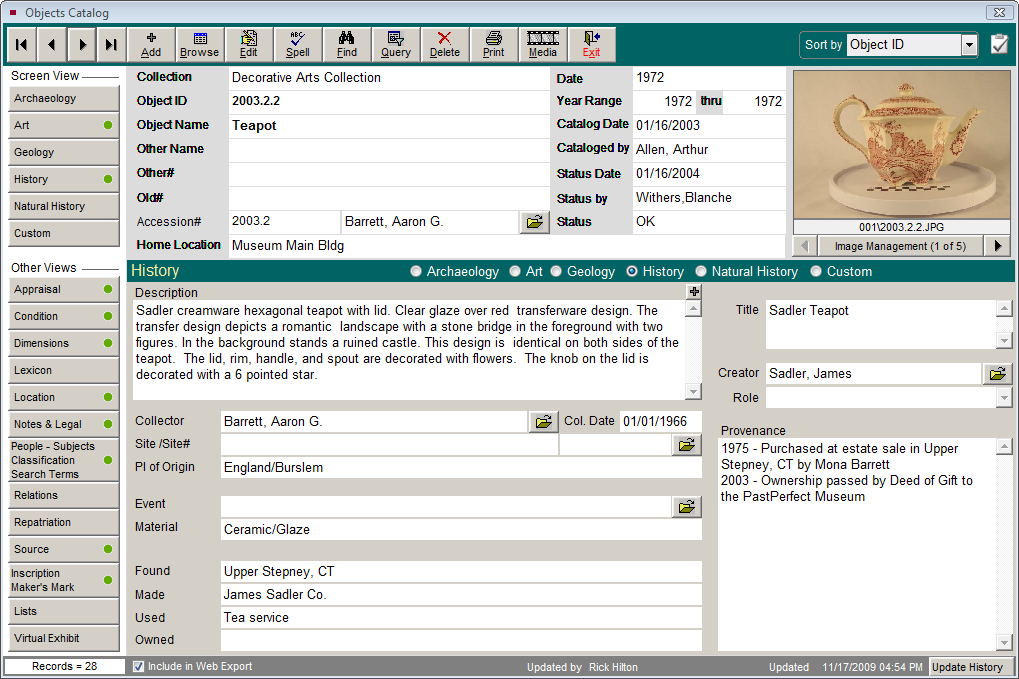
You may use the Site fields to link the record to a site listed in the Sites & Localities section as explained earlier in this chapter. The Creator field can be used to link the maker of the item to the Artist/Author/Creator/Photographer file.
Natural History Screen View
The fields in this screen view are used for cataloging paleontological, biological, or botanical specimens. PastPerfect has added an additional category to the Nomenclature 3.0 to accommodate these items. This is the Lexicon category Natural History, with the classifications of Biology, Botany, Geology, and Paleontology.
Objects Catalog Natural History Screen View
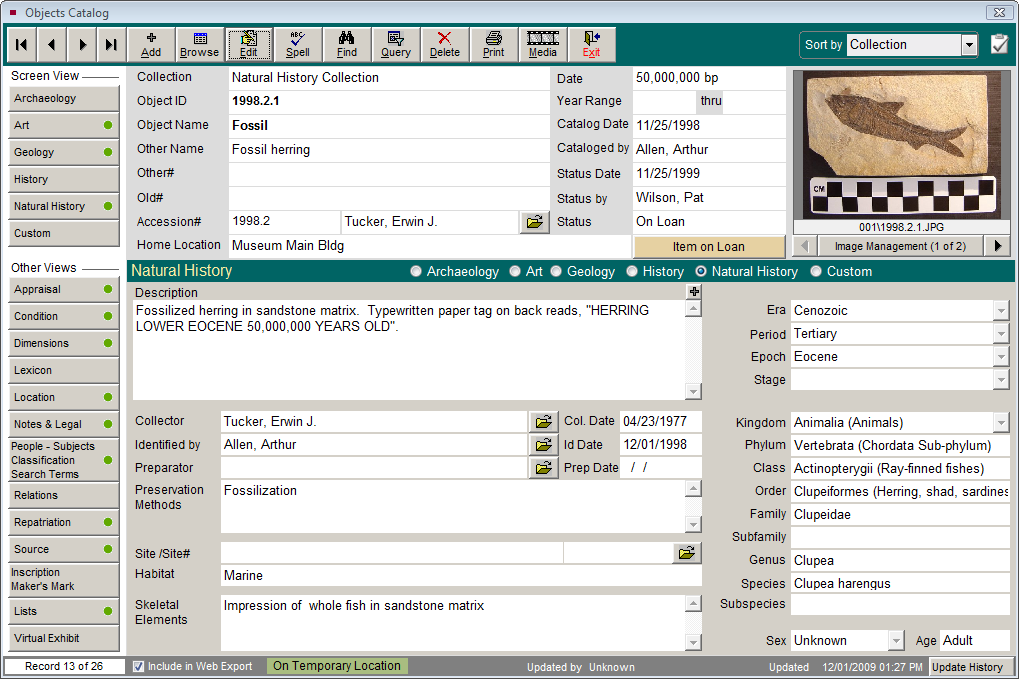
If you have natural history collections you may want to enter a descriptive term for the item's use in the Object Name field, such as "Mount, Specimen," "Skull," or "Fossil." The separate Species field in the Natural History screen view may be used to record the animal or plant species. For example, if you have a mounted deer, you would enter "Head, Trophy" in the Object Name field, and "Odocoileus virginianus" in Species.
Natural History Order authority file
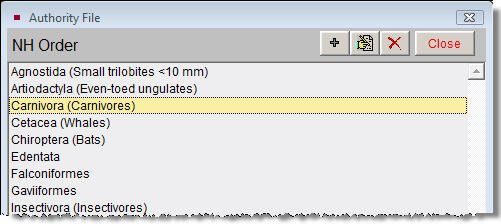
To insure consistent and accurate data entry, most of the Natural History fields are controlled by authority files. For example, to enter data in the Order field, use the right mouse button or press F7.
Custom Screen View
This screen, provides twenty-two custom user defined fields. Fields 1-10 are character fields limited to 75 characters. Fields 11 and 12 are character fields limited to 20 characters. Field 13 is a numeric integer field limited to 12 digits. Fields 14 and 15 are numeric fields limited to 12 digits with 2 decimal places. Fields 16 and 17 are numeric fields limited to 12 digits with 3 decimal places. Fields 18, 19, 20 are date fields. Fields 21 and 22 are unlimited memo fields. You may assign your own field names to these fields. You may also assign your own name to this screen view, which will rename the button in the Sidebar and also the name next to the screen view radio button.
Objects Catalog Custom Screen View
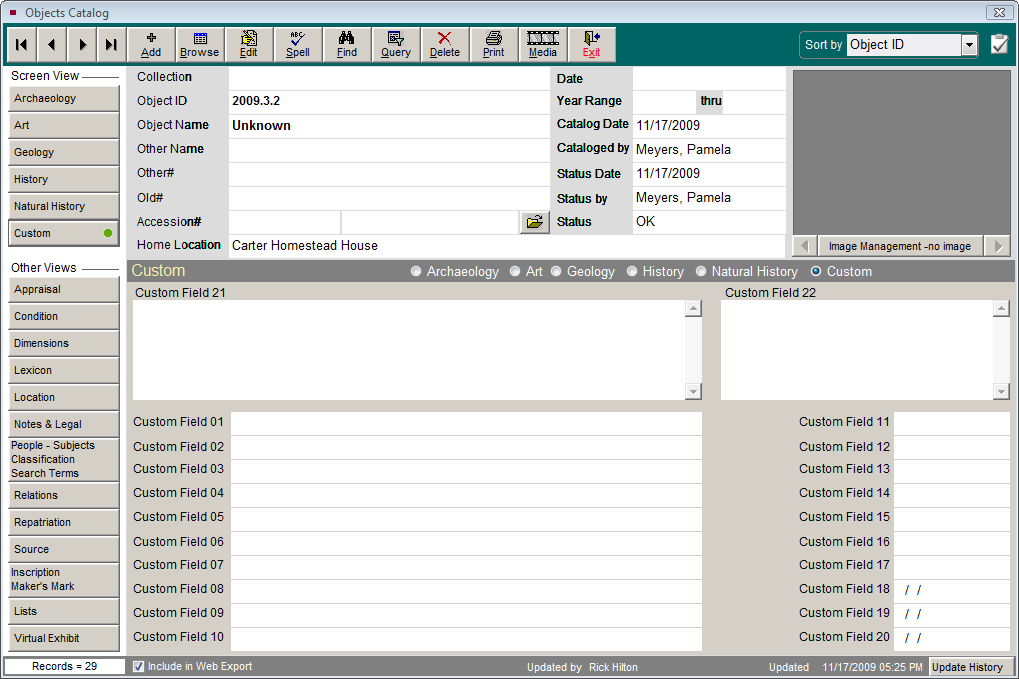
To rename the custom screen and fields with your own names, go to the Main Menu | Setup | Custom Fields. Select the catalog screen on the left, then type the name of the custom screen (if desired) in the Title field at the top. Type your custom field names in the appropriate boxes. Authority files for custom fields can also be set up from this screen. Authority files are provided for custom fields 1-10, 21, and 22.