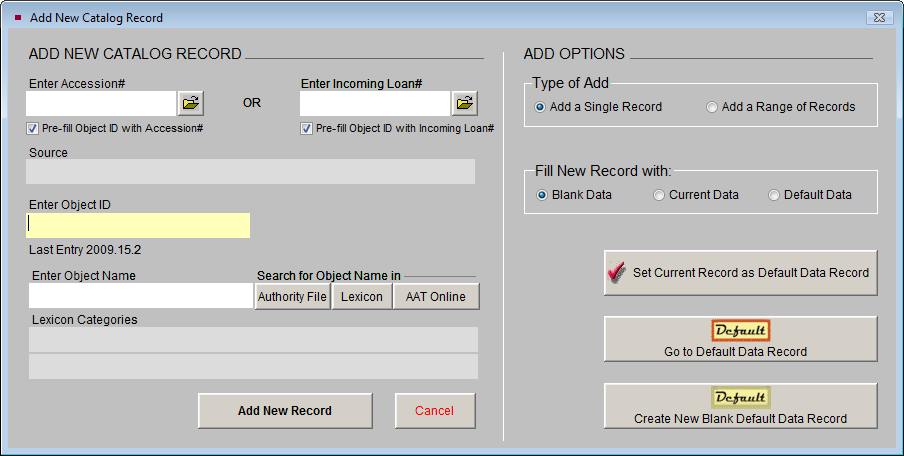
Figure 7-1 Add New Catalog Record screen
Enter the Accession number here.
Enter the Object ID number here.
Enter the Object Name here.
Photographic collections provide a special view of the past. They are a record of people, places, events, and architecture at a specific point in time. Since the invention of the daguerreotype in 1839, photographs have provided a kind of time machine that allows modern viewers to hold history in their hands.
Your historic photograph collection can provide insights into the dress, landscapes, architectural styles, transportation, interior decorating, marriage customs, and even social attitudes of past times. Therefore, the care of photograph collections is extremely important.
All museum items must be marked with their Object ID number. This provides an immediate link between the item and its documentation. However, because marking is one of the most invasive procedures in the registration process, the method of marking must be selected with care. The rule for marking any item is reversibility. If the numbering method cannot easily be reversed, don't do it.
The recommended method for marking photographs is to use a pencil. Mark the item on the reverse side behind a non-image area at the lower margin. Modern resin-coated photographic papers may resist standard pencil markings. Try a #1 pencil or an all graphite pencil. If the photograph cannot be marked directly, place the photo in an archival quality sleeve, and place the identification number on the sleeve.
The Photos screen in PastPerfect has specialized fields for entering the information you need to catalog a photograph. These include Place, Date, Photographer, Print Size, Negative Number, and Film Size. To begin cataloging a photograph, click the Photos button from the Collections section on the Main Menu. If the catalog already contains data, the catalog record that was last viewed will display. If this is the first photograph entered, the screen will display blank data fields.
Adding a Catalog Record
Click on the Add button, and the following screen will appear.
The first options to consider on this screen are on the right. If you are adding a single record, click in the radio button next to Add a Single Record. If you want to add multiple records using a range of Object IDs, click in the radio button next to Add a Range of Records. For more information about the Add a Range of Records options, please see Chapter 6 - The Objects Catalog.
Next choose whether you want your new record pre-filled with data. If you want to start with a blank record, click the radio button next to Blank Data. If you want to start with a record filled with the data from the record showing behind the Add New Catalog Record screen, click the radio button next to Current Data. If you want to start with a record filled with your default data, click the radio button next to Default Data.
Default Data Record
The Photos catalog has one record set as the Default Data Record. Data entered on the default record may be used to pre-fill the catalog screen when adding new records. For example, if one person will be cataloging a group of photographic prints, you may want to fill his or her name in the Cataloged By field and "Print, Photographic" in the Object Name field on the Default Data Record. When new records are added, the Cataloged by and Object Name fields will be pre-filled with the default data.
The Default Data Record can be changed at any time. On the Add New Catalog Record screen, you can view the record currently set as the Default Data Record by clicking the Go to Default Data Record button. You can set the record showing behind the Add New Catalog Record screen as the new Default Data Record by clicking the Set Current Record as Default Data Record button. Or you can make a new Default Data Record by clicking the Create New Blank Default Data Record button. The Default Data Record you choose will pre-fill any new Photo records that you add from the Accession catalog as well. Catalog records may be added from the photograph's Accession record, and you have the time saving option to use Fill with Default Data on the Accession's Add Item to Photo Catalog screen.
Object ID and Object Name
If this item is part of an existing accession or loan, you can enter the Accession# or Incoming Loan# in the appropriate field, or use the file folder icon button to the right of the field to search the file for the accession or loan. Doing so will fill in the Source field.
If you have selected to pre-fill the Object ID from the Accession# or Incoming Loan#, the Object ID field will be filled with that number. You will need to create the Object ID number from the pre-filled number. If the field is not pre-filled, then type the Object ID number. Each catalog record must be assigned a unique Object ID number. An Object ID number can be any combination of alpha-numeric characters up to 25 characters in length.
PastPerfect will verify that the Object ID number you assign has not already been used. If it has, you will receive a message asking you to assign a different number.
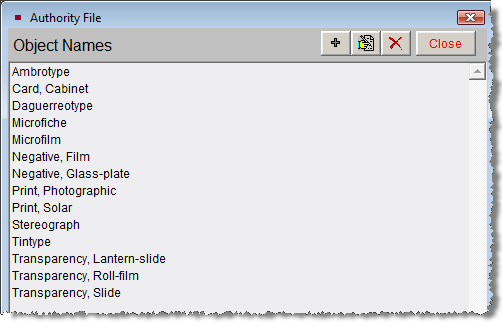
In the Enter Object Name field, type the object name, or use one of the options on the right to search for an object name. Access the authority file of object names in the Photos catalog by clicking the Authority File button.
Search the Lexicon by clicking the Lexicon button, or search the AAT website by clicking the AAT Online button. You will be notified if the object name you entered is not in the Lexicon. Please see Chapter 6 - The Objects Catalog for more information about entering object names.
Once the Object ID number and Object Name fields are filled, click the Add New Record button to proceed.
Complete the Record by Entering Data in Pertinent Fields
The Photos catalog field descriptions can be printed from the Reports menu. Go to the Main Menu | Reports | Photos | Photos Field Descriptions. You may also use the F1 key on your keyboard. Click in the field in question, then press the F1 key to display the definition of the field.
Data Entry Basics
To enter data in a field, click inside the field to place the cursor and start typing. To advance the cursor to the next field, press the Tab key. To move the cursor to the previous field, press Shift+Tab. You may use the mouse to jump to any field on the screen by positioning the mouse over the field and clicking the left mouse button. Authority files may be accessed by clicking in a field and pressing the F7 key or right clicking with your mouse. The authority file flag will appear in the top right if an authority file is available for the field.
The upper portion of the Photos screen contains common fields for cataloging any object. This upper portion is essentially the same on all four catalogs. These fields include the collection name, identification numbers, source information, date information, status information, home location, and image management. Please see Chapter 6 - The Objects Catalog for more detailed information about these fields. Also, please see Chapter 3- Getting Started and Chapter 6 - The Objects Catalog for instructions on setting up and using Function Keys, Authority Files, and Drop-Down Menus.
Image Management - If your PastPerfect system is equipped with the optional MultiMedia Upgrade, clicking the Image Management button opens the Image Management screen, where you may add digital images to your Photo record. Additionally, multimedia files may be attached to your Photo record by clicking the Media button at the top of the screen. Your Media, Browse, Edit, Print, etc. buttons in the Navigation Bar are available after you save your record.
Photos Screen View
The lower part of the screen is devoted to the specific fields used in cataloging photographs, in addition to the Description and Provenance. These are Title, Photographer, Studio, Place, Event, Medium, Frame, Negative Location, Slide#, Frame#, Neg#, Processing Method, Site and Site#, Original/Copy, Print Size, Film Size, Dimension Details, and Copyrights. These fields can be viewed by clicking the Photos button under Screen View on the Sidebar. A green data light will appear on the Photos button when there is data in this view. When in Edit Mode, you may set this screen view as the default (rather than Custom) by clicking the radio button next to Photo, which appears above the Provenance field.
Notice the file folder icon to the right of the Photographer, Studio, Event and Site# fields. This icon indicates that there may be additional information about the entry in that field.
Custom Screen View
Clicking the button below the Photos button under Screen View on the Sidebar will display the custom fields for the Photos catalog. This screen provides twenty-two custom user-defined fields. You may assign your own name to this screen view and to these fields. For more information on the custom fields, please see Chapter 6 - The Objects Catalog. A green data light will appear on the Custom button when there is data in this view. Please note if you rename the screen view, the button will display the new name instead of "Custom." When in Edit Mode, you may set this Custom screen view as the default (rather than Photo) by clicking the radio button next to Custom (or the new name), which appears above the Provenance field.
Other Views
The Sidebar in the Photos catalog displays ten buttons that contain more information about the item. A green data light will appear on the buttons when there is data in the view. Please see Chapter 6 - The Objects Catalog for detailed information about these views. The screen view for People-Subjects-Classification-Search Terms will be explored below.
People - Subject - Classification - Search Terms Subscreen
These four fields and their associated authority files are helpful in creating searchable access points for your photograph catalog records. These access point fields are People, Subjects, Classification, and Search Terms.
PastPerfect uses authority files to help standardize data input. Common entries can be saved in each file. Authority files are available whenever you are adding or editing catalog records. Authority files may be accessed by clicking in a field and pressing the F7 key or right clicking with your mouse. The authority file flag will appear at the top right of the screen if an authority file is available for the field.
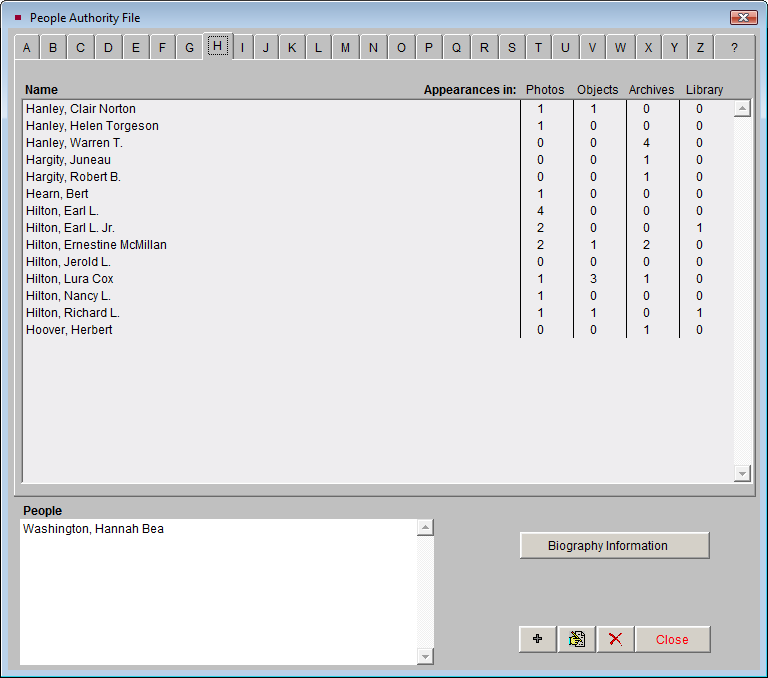
The People authority file is unique. Not only does it look different, with alphabetic tabs at the top, but it is populated automatically with peoples' names as they are entered in the People field in any of the four catalogs. Since the number of entries could be large, PastPerfect uses tabs to make locating names easy. To the right of each person's name are the Appearances columns, indicating the number of photos, objects, archives, or library items that are associated with each name.
This authority file is linked to the People Biographies file which is found by clicking People Biographies under the People & Sites section of the Main Menu.
The People authority file can be populated manually from the Main Menu | People Biographies or from the catalog screens. To populate the file from the catalog screen, first check to see if the name is in the authority file by pressing the F7 key or right clicking in the People field to bring up the authority file. If the name is not in the list, click the plus sign button to bring up a screen where you can type the name. Then press Enter to add the name to the list. We suggest that you enter the names in "last name, first name middle name or initial" format to allow for alphabetical indexing by last name.
You may add biographical information to the person's record by finding the name and clicking once on it, then clicking the Biographical Information button. To add data, click the Edit button and type in the information. Click Save, then click Exit to return to the People authority file. To add this name to the Photo record, double click on the name so it appears in the box on the bottom left. Then click Close to return to the catalog record.
When you add a name to the People field, the number of appearances in the authority file for that name will increase. If you remove a name from the People field of a catalog record, the number of appearances in the authority file will decrease. However, the name will not be deleted from the People authority file.
Once names are entered in the People authority file, you may choose the name from the authority file rather than typing it, reducing the chance of misspellings. To choose a name from the authority file while doing data entry, first make sure you have clicked Edit to be in Edit Mode. Then click in the People field and press F7 or right click to open the authority file. To choose a name, double click on it so it appears in the box at the bottom left. You may choose multiple names by continuing to double click on the names. Click Close to return to the catalog record.
You can also add a name to the People authority file simply by typing it into the People field. However, this is not recommended as the name may already be in the authority file with a slight variation in the name, and it increases the chances of misspelling the name.
TIP
People's Biographies may also be accessed from the Photo record's People field by clicking on the file folder icon just above the field. This icon is active when you have saved the record and are no longer in Edit Mode.
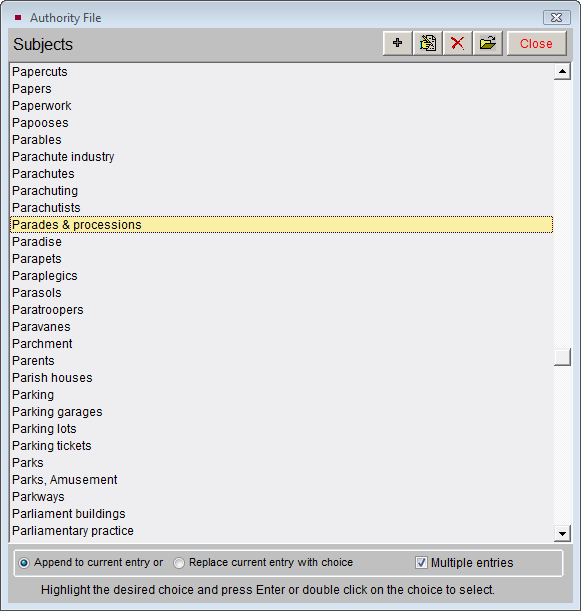
The Subjects authority file comes pre-filled with the Library of Congress Thesaurus for Graphic Materials I: Subject Terms (LCTGM I). This Subjects file provides terms for subject indexing of pictorial materials, particularly collections of historic photographs. To learn more about LCTGM 1 go to: www.loc.gov/rr/print/tgm1/.
In photographs, the Subjects field may be used to record objects that appear in the photograph. For example, a photo may depict a child carrying a cat standing next to an oak tree in a crowd of spectators at a parade. The description of the photo may or may not mention any of these details. Use the Subjects field to record this information, with each term on its own line, as in: Parades & processions, Children, Cats, Trees, Oaks.
You never know what researchers may be looking for. This Subjects file is for describing graphical materials such as photographs and artworks. This field is especially useful in researching the photo or art object catalog when a researcher is interested in viewing all graphical materials in your collection that contain a particular subject such as "Cats."
Since the list of subjects is long, using the scroll bars or Page Up and Page Down keys may not be as efficient as you'd like. You can use the keyboard to move through the list. First, click on the list and then start typing the subject term you want to find. You will be advanced to the name that most closely matches the letters. For example, typing "CHIC" will take you to Chickadees and Chickens.
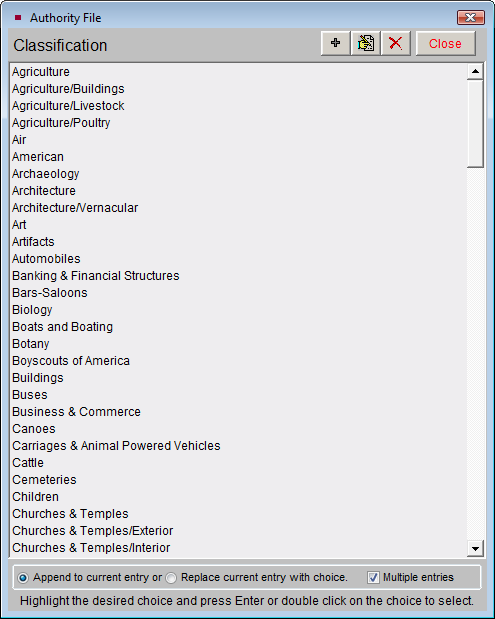
Classification - This field is based on a hierarchical photograph classification system. In this system, each classification corresponds to a file folder in filing cabinets that contain the actual photographs. Within the folders, the photos are enclosed in Mylar sleeves and are placed in numerical order. This system works well for quick and easy retrieval.
Thus, the classification system is actually a finding aid. This field is designed to contain classifications organized in a hierarchical system. It is recommended that you arrange your terms from the general to the specific, for example: Agriculture, Livestock, Cattle. Separate each term with a carriage return. You may wish to create your classification system and corresponding file folders before beginning data entry.
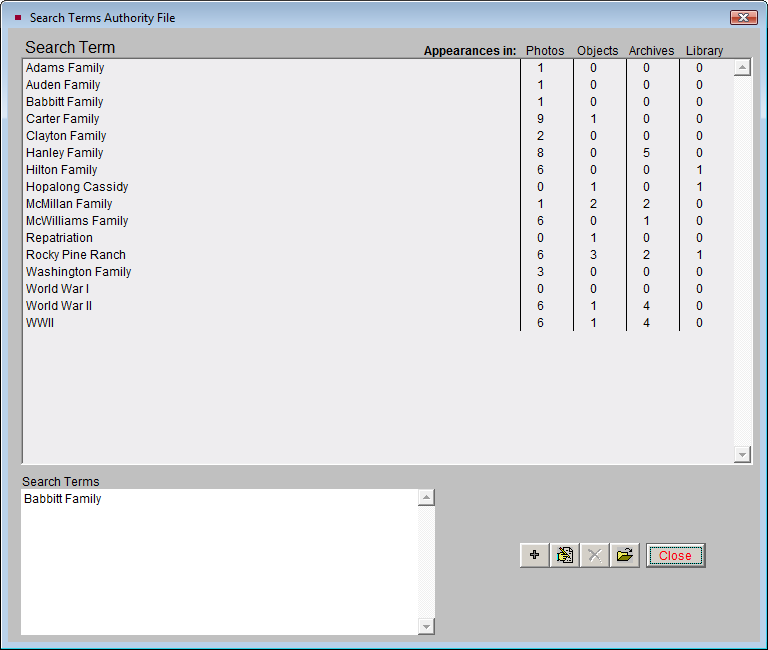
Search Terms - This field is used to record any terms, words, names, phrases, or entities that will be helpful in researching collections.
Search Terms are specific to your institution's collections and may include family names, groups or entities that are associated with items. For example, you may have books, photographs, objects and archival materials from the Rocky Pine Ranch. Including "Rocky Pine Ranch" as a search term allows items connected with this entity to be related. As you enter data, separate the entries with a carriage return to enable PastPerfect to create the authority file from the terms it finds in the field. This field is similar to the People field in that the terms that you enter here will automatically populate the authority file. Please check the authority file before typing a new search term, to see if the term already exists. If it does, choose the term from the authority file. The authority file screen will list the number of appearances of each term in the Objects, Photos, Archives, and Library catalogs.
Multiple Entries - The Subjects and Classification authority files allow single or multiple entries in these fields. Single entry means that after selecting a term, the authority file screen will close. If you wish to enter multiple terms from the authority files, be sure to check the Multiple Entries box so that you do not exit the authority file until you have made all your selections. If you would like the new terms that you select to be added to the existing list of terms, select the radio button next to Append to current entry. Multiple entries are added to the current field data and separated by a carriage return to form a list. If you want to overwrite the existing entries with new terms, select the radio button next to Replace current entry with choice.
Alphabetic Sorting - While we suggest using a hierarchical classification system, and organizing names in the People field according to the position of the person in the photograph, it is possible to sort entries in these four fields alphabetically. Press the A/Z Sort button while in Edit Mode to arrange the entries alphabetically. This process cannot be reversed without deleting the entries and re-entering them.
Photograph Cataloging Tutorial
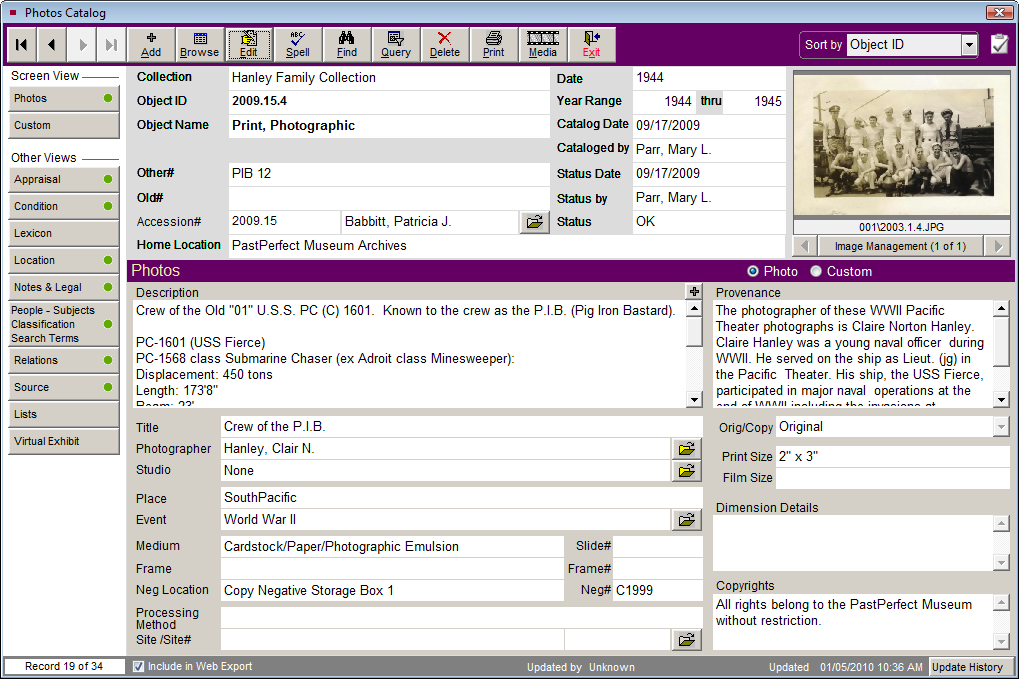
Now that you are aware of the options for cataloging photos, let's walk through the steps. For this example, let's catalog a photograph with the Object ID 2009.15.4. First, open the PastPerfect program and click on the Photos button on the Main Menu. On the Photos catalog screen, click the Add button at the top of the screen. The Add New Catalog Record screen will appear. For this tutorial, please be sure you have Add a Single Record and Blank Data selected in the Add Options section. Please complete the following fields and click Add New Record.
Complete the entry of information in the top section of the Photos catalog screen. For more information about these common fields, please see Chapter 6 - The Objects Catalog.
Photos Catalog Screen
Description - This field provides an unlimited memo field for writing a description of the photo.
Title - Use this field to enter the title of the photograph. You may record the photographer's title, or if the item lacks a formal title, you can leave this field blank.
Photographer Information - Once a photographer's name is entered in the Photographer field, click the file folder icon to create and display biographical information about the photographer in the Artist/Author/Creator/Photographer authority file. A separate screen is provided, seen in Figure 7-12, with fields for other names, dates and places of birth and death, places and/or geographical areas of residence, nationality, titles and honors, occupation, relationships, and notes. You may search the Getty's ULAN (Union List of Artist Names) for the photographer's name and biographical information by clicking the Search ULAN Online button.
If you have multiple photographs by the same photographer, this detailed information need only be entered once. Each photo with the same name in the Photographer field will share a single Photographer Information screen. This authority file can be added to and edited by going to the Main Menu | Setup | Authority Files.
Studio - Use this field to record the studio where the photograph was created. Click the file folder icon to the right of the Studio field to record to bring up the Studio Details screen. You may record the studio's address, photographers, founder information and history. This authority file can be added to and edited by going to the Main Menu | Setup | Authority Files.
Place - This field is used to record the place that the photograph depicts or the location where the photo was taken. Place names should be entered from the general to the specific. For example: Pennsylvania/Chester County/Tamaqua. An authority file is provided for this field.
Event - This field provides a way to create named events for which you have objects in your collection. For example: You may have a hat, a balloon, three photos, and a program from a high school graduation. The event can be added to the Event authority file and you may use the unlimited Event Details field to describe the event. The Events field is available in all catalogs, so you can relate objects, archives, photographs, and library items through a shared event.
Before you can access the Event Details screen, you must enter an event name in the Event field. You can type a new event name in the field or press F7 to access the authority file for a list of established events. If the event is not yet listed in the authority file, you may choose to add it and then enter details for the event. This authority file can also be added to and edited by going to the Main Menu |Setup | Authority Files.
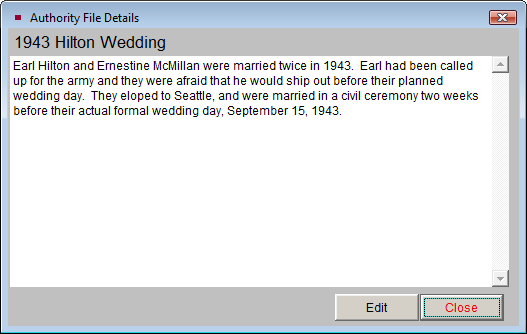
Once an event name has been entered, click the file folder icon to the right of the Event field, which will display details of the event.
Medium - The Medium field is used to list all media from which a photograph is made. You may choose to record a single entry such as "Paper" or "Mixed Media." However, you have the option to choose several entries separated by forward slashes as in, "Cardstock/Paper/Photographic Emulsion." Record multiple entries in descending order of percentage of composition. This field is controlled by an authority file from which you may choose pre-defined media types. Press the F7 key or right click with your mouse to view this authority file.
You have two options for creating entries in the field. Use the radio button to select which option you prefer: Append to current entry or Replace current entry with choice. The check box Multiple entries allows you to populate the field with more than one entry without leaving the authority file.
To add, edit, or delete entries in the authority file, use the buttons at the top of the screen. You may also go to the Main Menu | Setup | Authority Files | Common Screens and highlight "Medium" on the left hand list and click Next > at the bottom of the screen. You may then use the Add, Edit, and Delete buttons to modify the authority file.
Frame - This field is used to describe the frame that is associated with the photograph. If the frame is stored separately, it is recommended that you catalog the frame in the Objects catalog and relate the two items through the Related Items screen. Please see Chapter 6 - The Objects Catalog for more information about Related Items.
Negative Location - Photographic prints and negatives should be stored separately due to differences in the chemical stability of the materials. Indicate the location of the negative for this photographic image. This field uses the Home Location - Building authority file. To choose a location from the authority file, press F7 or right click in the field. If no negative exists, leave the field blank.
Slide#, Frame#, Neg# - Use these fields to record identification numbers assigned to the slide, frame, or negative associated with the item.
Processing Method - The photographic process refers to the method used to capture and develop an image. It may include how the photographer prepared photographic materials and how the chemicals reacted to each other. Some historic photographic processes are cyanotype, daguerreotype, ambrotype, albumen print, and gelatin silver print. An authority file is provided for this field.
Site and Site# - For items related to a particular site, such as a photograph of a building that once stood in a town, you may enter a site name and site number. These fields are linked to the sites listed in the Sites & Localities file. You may choose a site from the Sites authority file by pressing F7 or right clicking in the field. If the site is listed in the Sites & Localities file, you may click the file folder icon to the right of the fields to access the Sites & Localities screen. Doing so will automatically fill in the Site# field with the appropriate number. If the site is not listed in the Sites & Localities file, you may choose to add the site after clicking the file folder icon. You may also enter information in the Site field without linking to the Sites & Localities files by simply typing the information. The Sites & Localities may be edited by going to the Main Menu | Sites & Localities. For more information about the Sites & Localities file, please see Chapter 16 - People & Sites.
Provenance - This field is used to give a detailed history of the past ownership of an item. Information, including dates, is recorded on successive transfers of ownership and custody. Ideally, the Provenance field will list the history of the item from its creation, through subsequent owners, to its final transfer to your institution. This is an unlimited memo field. You may enter as much information as you wish.
Orig/Copy - Use this field to indicate whether the cataloged item is an original print or a reproduction. This field is controlled by a drop-down menu. Click on the down arrow to the right of the field to view the choices. To add, edit, or delete entries on this list, go to the Main Menu | Setup | Authority Files.
Print Size - Use this field to record the print size of a photograph. An authority file is provided for this field.
Film Size - Use this field to record the film size, such as 35mm. An authority file is provided for this field.
Dimension Details - Fill in any additional dimension information about the item, such as the size of the photograph within its mount or frame.
Copyrights - This field allows you to write a description of copyright restrictions or special circumstances that pertain to the reproduction, copy, sale or use of the image.
The Additional Information Subscreens
In the Sidebar of the Photos catalog screen, under Screen Views, you have a Custom button where you can enter data in any of the twenty-two custom fields. Under Other Views, you will notice the following buttons.
These buttons provide access to additional data screens. These screens are common to all catalogs and are described in detail in Chapter 6 - The Objects Catalog, except for the People-Subjects-Classification-Search Terms screen which is described earlier in this chapter. To view these screens, move your mouse over the button. To hold that view on your screen, click on the button.
When any of the fields contained in the Screen Views and Other Views are populated with data, the green data light appears. This lets you know that there is more information available in that view.
After you have filled as many fields as you can, click the Save button at the top of the screen to save your new record.
NOTE
If the Photo record was added without an accession number, you may link to an existing Accession record, or create the Accession record from the Photo record. Click the file folder icon to the right of the Accession# field. You will be asked if you want to link to an existing Accession record, or create a new Accession record. The next screen will allow you to find the existing Accession records or create a new record.
Buttons in Edit Mode
Clicking the Edit button at the top of the screen will reveal more buttons.
Change Access#, Object ID or Loan# - Allows you to edit the Accession number, Incoming Loan number, and Object ID number for this record. Use this to correct records where the numbers were entered incorrectly.
Deaccession - Using this button, you may transfer the record from the Photos catalog to the Deaccession catalog. For more information about deaccessioning items, please see Chapter 5 - The Accession Process.
Change Catalog - Allows you to move the Photo record to a different catalog, such as Objects, Archives, or Library. From this screen you may select the correct catalog for the item and click OK. This will move the catalog record to the other catalog and mark the copy in the Photos catalog for deletion. Note the large yellow warning box near the top of the catalog screen. The record in the original catalog will be sent to the Recycle Bin and no longer displayed. Because each catalog contains different fields, not all data can be transferred to the new catalog. We suggest printing a copy of your record before using the Change Catalog function.
PastPerfect Museum Software User's Guide
Figure 7-1 Add New Catalog Record screen
Enter the Accession number here.
Enter the Object ID number here.
Enter the Object Name here.
The Photos Catalog
PastPerfect Museum Software User's Guide
Figure 7-2
Photos Object Name authority file
The Photos Catalog
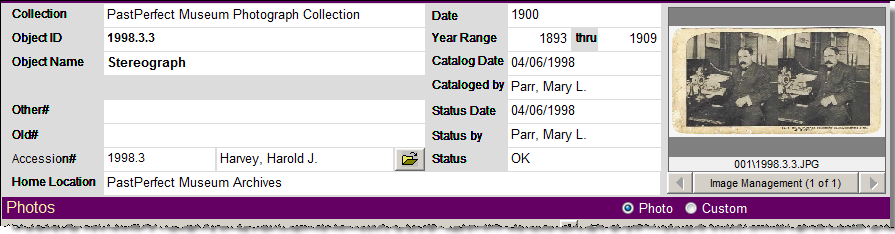
Figure 7-3 Upper portion of the Photos Catalog screen

PastPerfect Museum Software User's Guide
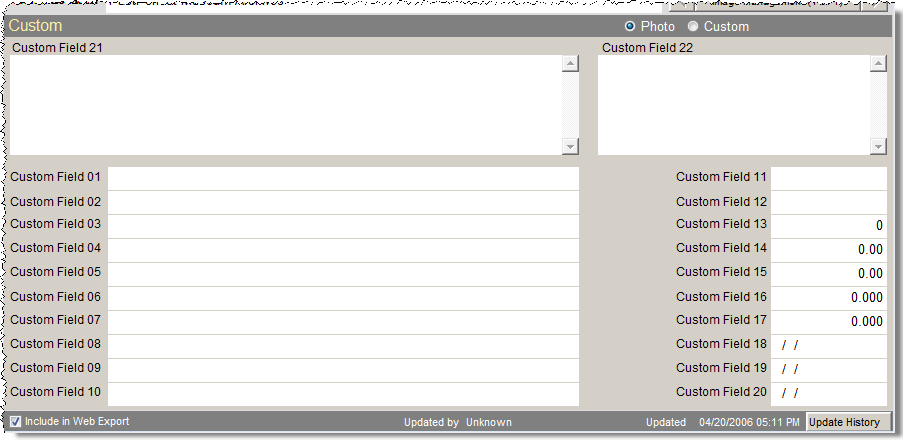
Figure 7-4 Photos Catalog Custom Screen View
The Photos Catalog
Figure 7-5
People authority file screen
PastPerfect Museum Software User's Guide
Figure 7-6
Add name to People authority file
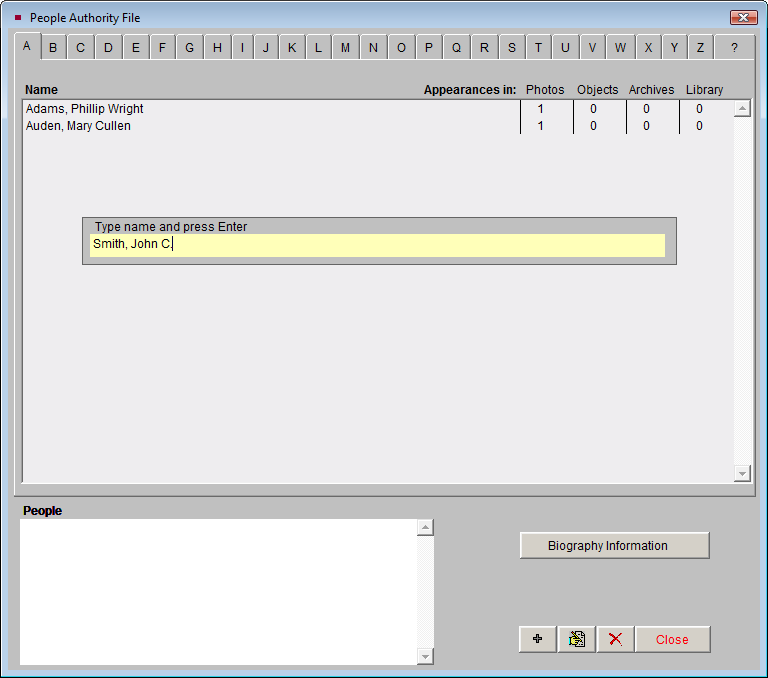
Click the Add button, then type in the new name and press Enter on the keyboard.
The Photos Catalog
Figure 7-7
Add Names from the People authority file
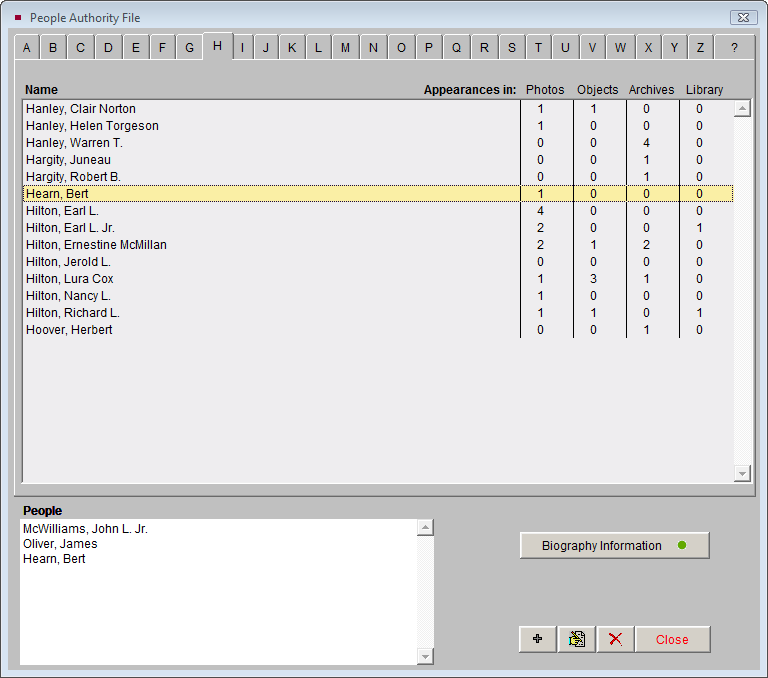
Double click on a name to add it to the People box.
Once all the names are added, click the Close button.
PastPerfect Museum Software User's Guide
Figure 7-8
Subjects authority file
The Photos Catalog
Figure 7-9
Classification authority file
PastPerfect Museum Software User's Guide
Figure 7-10
Search Terms authority file
The Photos Catalog
Figure 7-11 Photos Catalog screen
PastPerfect Museum Software User's Guide
The Photos Catalog
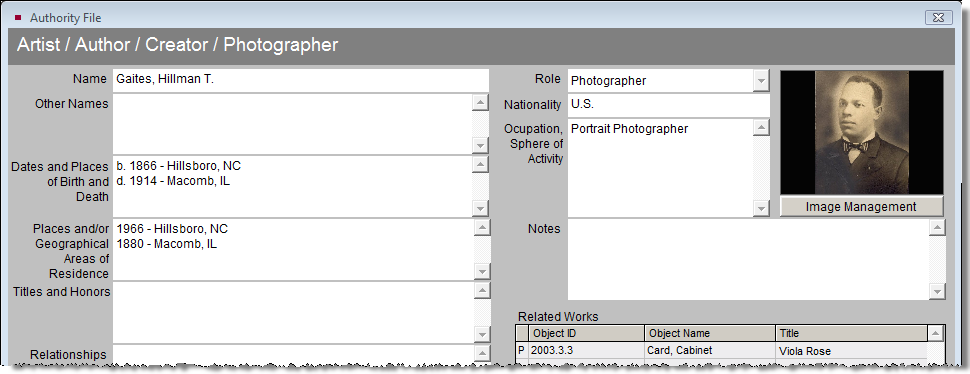
Figure 7-12 Photographer Detail screen
Figure 7-13
Event Detail screen