Using Random Images to Browse the Collection
Concept
The Random Images area of your PastPerfect Online site allows visitors
to explore your collection even if they don't have a specific search criteria
in mind. By default, Random Images includes the first image attached to
your catalog records from all four catalogs. The catalogs included in
Random Images can be customized using the Interface Management Site.
Random Images contains an image viewer and a grid of randomly selected
thumbnail images. The image viewer displays a large version of the available
images. There are several buttons within the image viewer to further interact
with it.
Task
- Click on the Random Images button. A selection of images
from the collection will be displayed on the screen. The image viewer
will initially display the first thumbnail shown in the grid.
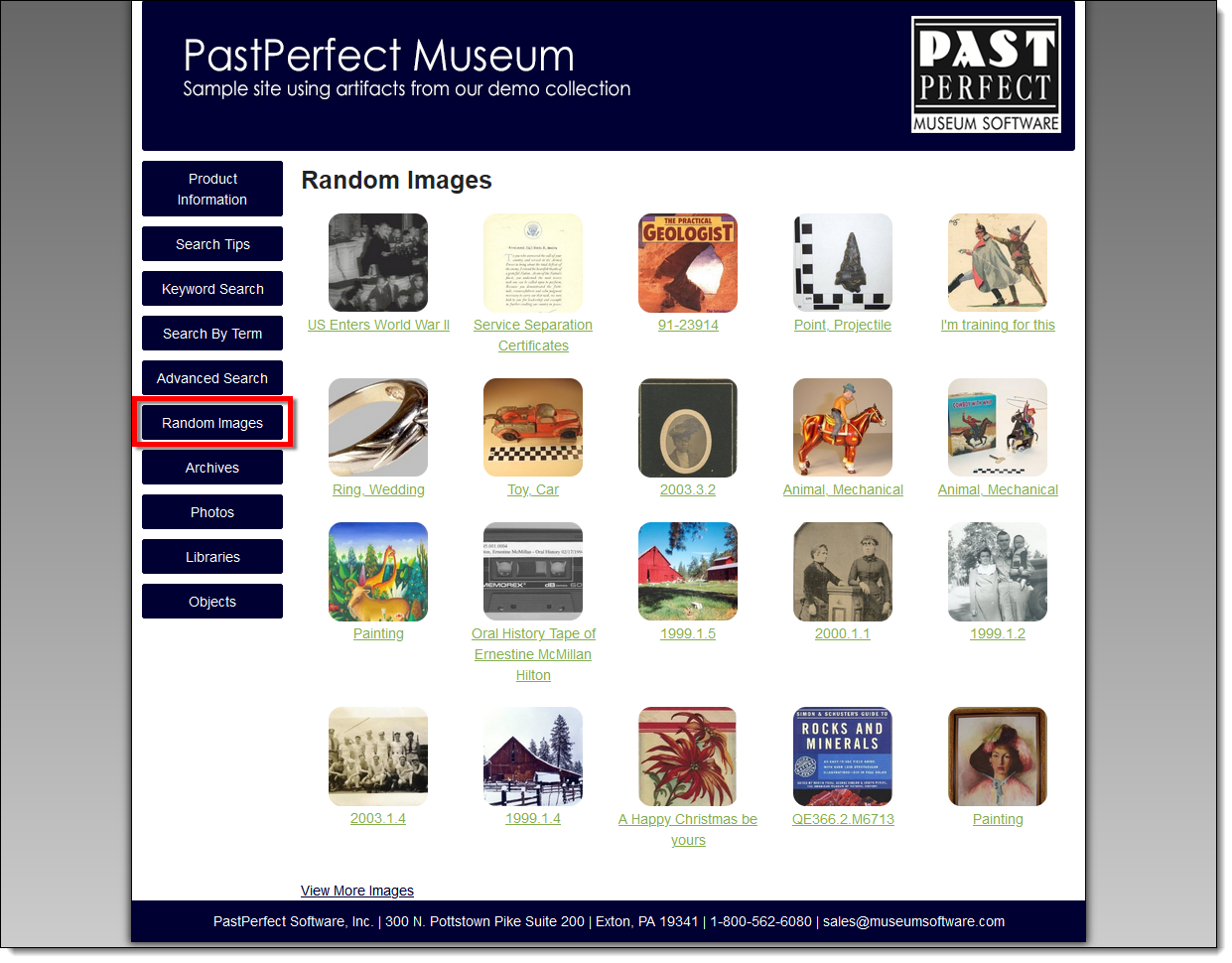
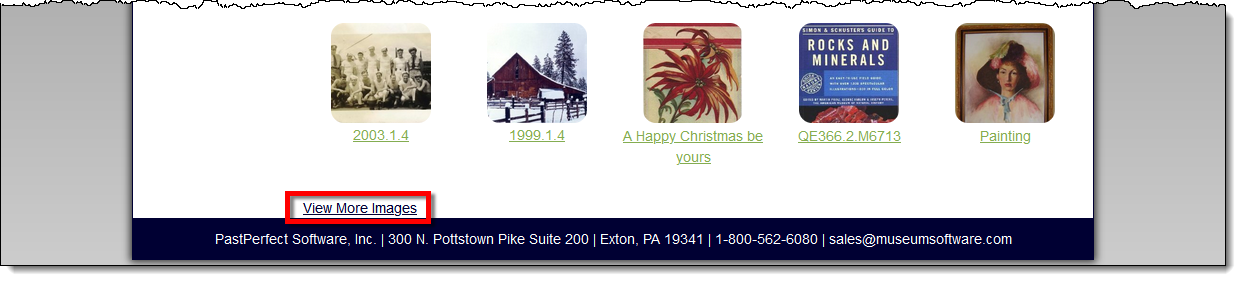
- A new set of images can be seen by clicking the Random Images
button again or clicking Refresh at the bottom of the screen.
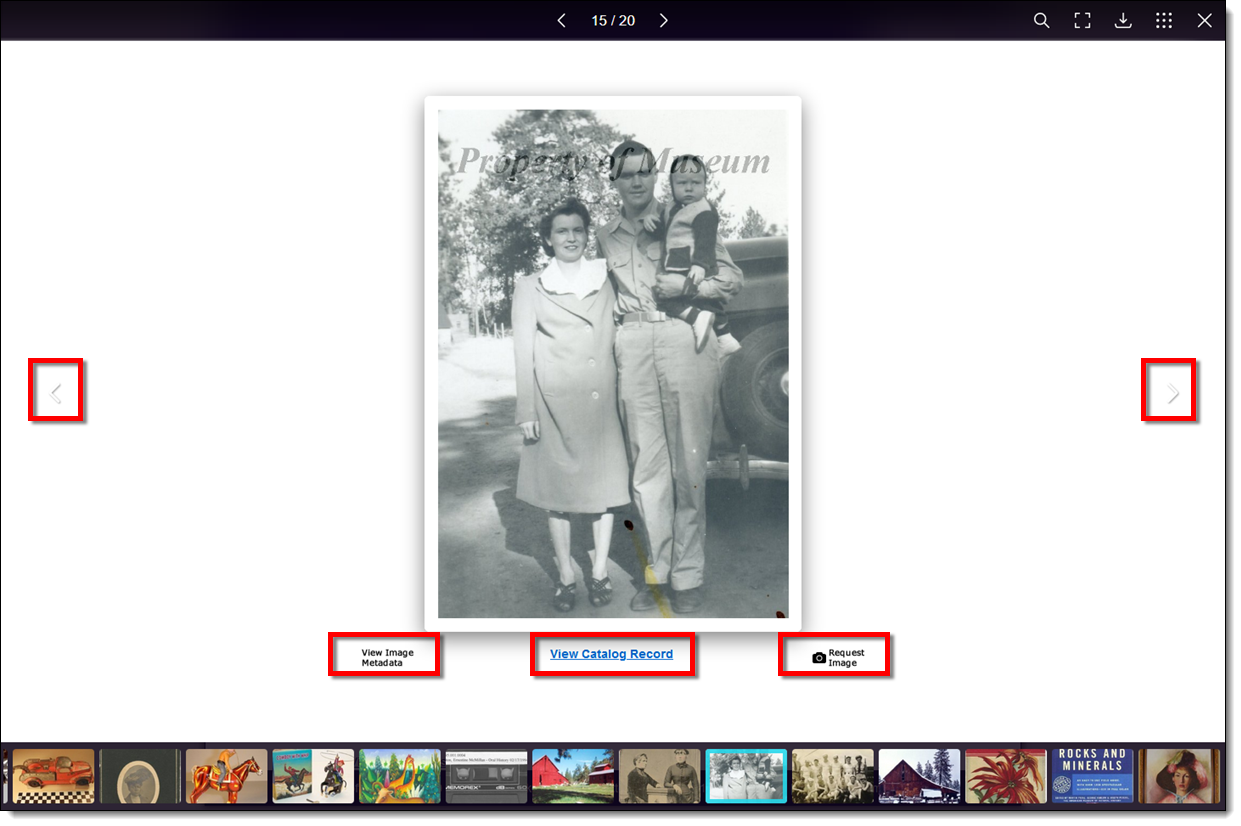
- Use the left and right Arrow Buttons or click on a thumbnail
to load a different image in the image viewer. You can also use the
left and right arrow keys on your keyboard.
- In the large image viewer, click View Record to see the
item's full detail page, Request Image to open the Image Request
form, or View Image Metadata to see the metadata for this specific
image attachment.
References