
Dues Payments
Membership dues payments are displayed in the bottom portion of the Membership Accordion. If multiple contacts share a membership, the dues payments will only display on the primary member's record. If you are not viewing the primary member, the Included in another Membership field will be populated. To access the primary member's record, click the ellipsis button to the right of the Included in another Membership field.
Before entering a dues payment, be sure your Membership Types, Membership SubTypes, and Membership Dues Receipt are set up under Contacts Settings.
Add Dues Payment & Print Receipt
Note: Membership Name must be populated on a contact record in order to be able to add dues payments.
1.Click "Edit" in the Edit Bar at the top of the contact record
2.Click the Membership Accordion bar to expand it
3.Click "Add Payment"
4.Fill in the required fields (marked with red asterisks)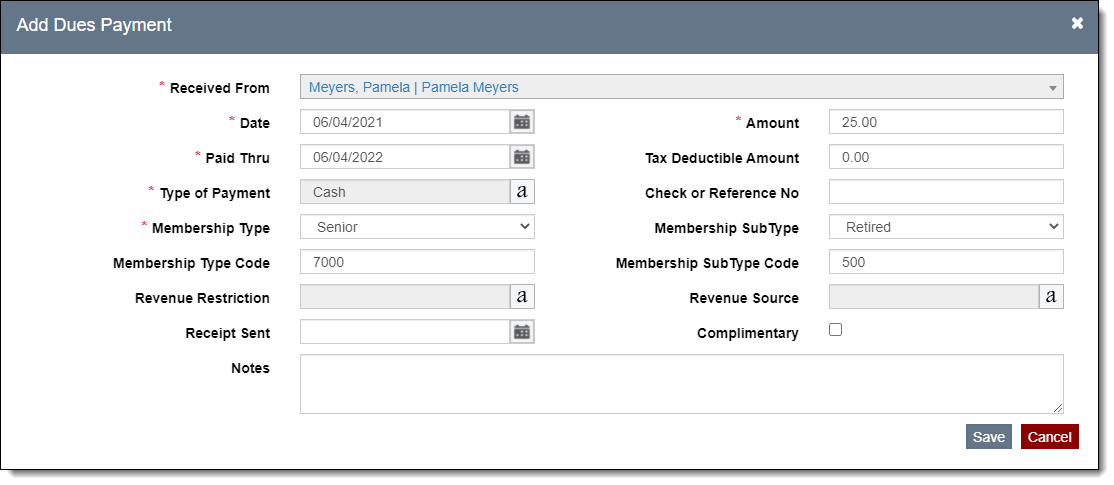
5.Fill in additional fields if needed
•Some fields are controlled by authority files. (See Using Authority Files)
6.Click "Save" on the pop-up window
7.The Confirmation pop-up window will ask if you want to update the current information listed on the contact record. Click "Yes" or "No."
•If this is the first dues payment entered for this contact, you will not see the Confirmation pop-up window. The fields on the contact record will be automatically populated.
8.Click the "Not Sent" hyperlink in the Receipt Sent column to view and print the Dues Receipt
•Customize the document on the letter screen as needed
•Use the "Email", "Save as PDF" or "Print" options to produce the document in the desired format
•Close out of the Membership Dues Receipt pop-up window
9.Click "Save" in the Edit Bar at the top of the screen
View/Edit Dues Payment & Receipt
1.Click "Edit" in the Edit Bar at the top of the contact record
2.Click the hyperlink in the Date column within the Membership Accordion
3.View the record or make your changes
•To view/edit the Dues Receipt, click the "Receipt" button on the pop-up window
4.Click "Save" on the Edit Dues Payment pop-up window
5.Click "Cancel" to close the pop-up window
6.Click "Save" in the Edit Bar at the top of the screen
Print Dues Payments
To print a list of the dues payments for a contact, click the "Print" button within the Membership Accordion and then click "Preview." The list may be saved as a PDF or sent to your printer.
Delete Dues Payment
1.Click "Edit" in the Edit Bar at the top of the contact record
2.Hover over the Dues Payment you want to delete
3.Click the Trash Can icon on the right end of the row
4.Click "Yes" to confirm
5.Click "Save" in the Edit Bar at the top of the screen