Export Contact List
Contact Lists may be exported to CSV, which may then be viewed in Excel.
Export to CSV
When you export a Contact List to CSV, you have the option to include
standard fields, which are pre-set, or extended fields, which are user-selected.
- Click the List Name on the Contact Lists Query screen
- Click "Export to CSV" at the top of the Individual List
screen
- Select which field option you want to export: Standard Field List
or Extended Field List
- If you select Extended Field List, choose which fields you want
to export:
- To add a field to the export, select the field in the Field
List column on the left, then click the right arrow. The field
will move to the Fields to Export column on the right.
- To remove a field from the export, select the field in the
Fields to Export column on the right, then click the left arrow.
The field will move to the Field List column on the left.
- To change the order of the fields in the Fields to Export column,
click a field and drag it up or down into the desired position.
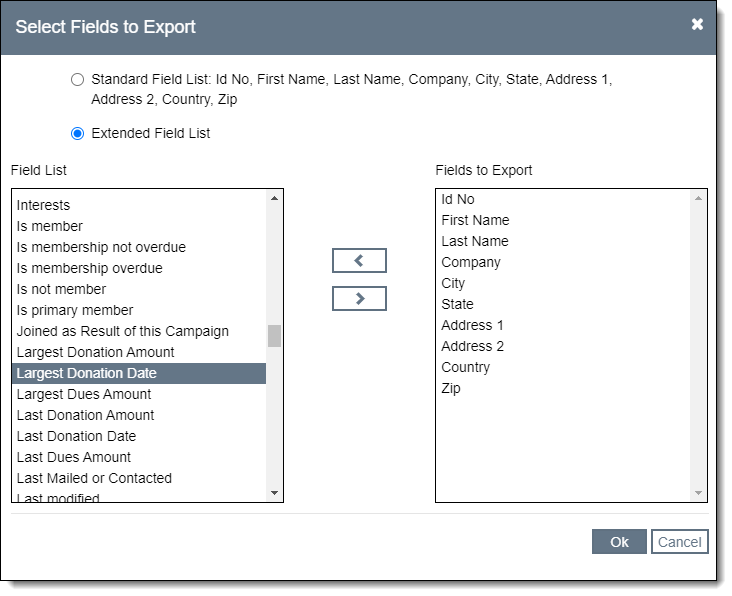
- Click "Ok" to complete the export
- Choose whether you want to add the entry to the Mail & Contact
Log
- The CSV file will download. You can open and view the file in Excel.