
Adding New Incoming Loan Records
Each incoming loan must have a unique loan number to distinguish it from other loans. The loan number may include numbers and letters. We recommend that you use a basic two-part numbering system with the prefix "L" for creating your loan numbers, for example: L2014.1. This will give you the information about the year of the loan (2014), and it tells you that this is the first loan of the year 2014. However, PastPerfect is flexible and allows any loan numbering system you choose.
Before adding a new incoming loan, we recommend you enter the lender into Contacts. Incoming loan documents will not be available for a lender unless the lender exists in Contacts and is linked to the incoming loan record. See Adding New Contact Record for details.
Add New Incoming Loan Record
1.Click "New Record" on the Incoming Loans Query screen or on an existing Incoming Loan record
2.Populate the required fields: Loan No and Source
•The Loan No must be unique. The Last Number added will be displayed for your reference.
•To select the lender from Contacts, click the down arrow for Select Contact and begin typing the lender's name. This will automatically fill in the Source and Address. A link will be created between the Contact record and this Incoming Loan record.
•If the lender does not exist in Contacts, type the lender's name in Source and fill in the lender's name and address in Address.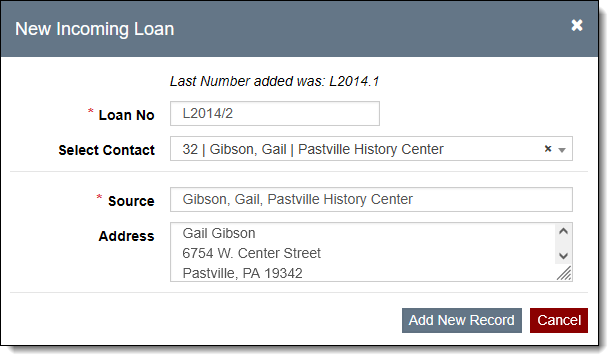
3.Click "Add New Record"
4.Populate other fields if desired
•It is recommended to populate the Description of Items field so it can be used on the Incoming Loan Agreement.
•If you place a check in the box for "Display restricted flag on associated catalog records", a flag will appear on the Object, Photo, Archive, and Library records that the items are "Restricted by Incoming Loan."
5.Click "Save" in the Edit Bar at the top of the screen
Add Additional Lenders
If items were loaned by more than one person, the additional lenders can be added to the Incoming Loan record. Be sure the additional lenders exist in the Contacts file (see Adding New Contact Record).
1.Click "Edit" in the Edit Bar at the top of the Incoming Loan Record screen
2.Click "Add Additional Donor" above the Donors Grid
3.Browse or filter to find the lender(s) from Contacts that you want to add:
•Browse using the page buttons at the bottom of the pop-up window. Records can be sorted by clicking on a column header.
•Use a filter to find the lender(s) (see Working with Filters).
4.Using the check boxes to the left, select the lender(s) and click "Add All Checked Records."
5.The contact(s) will be added to the Donors Grid on the Incoming Loan record
6.Click "Save" in the Edit Bar at the top of the screen
The first contact selected when the Incoming Loan record was created will remain as the "Source" at the top of the screen.
Remove Lender from Record
If the wrong lender was accidentally added to an incoming loan record, you can remove them from the Donors Grid using the steps below. If the lender you want to remove was the first one selected, you may also need to change the Source, Primary Contact, and Address fields in the Top Section of the record.
1.Click "Edit" in the Edit Bar at the top of the screen
2.Hover over the lender you want to remove in the Donors Grid
3.Click the Trash Can icon on the far right
4.Click "Yes" to confirm
5.Click "Save" in the Edit Bar at the top of the screen