
Printing Records
At the top of each record is a "Print" button, which allows you to print the record you are currently viewing. Additional print buttons may appear within the accordions to print records from related tables, like Condition Reports, Location History, and Appraisal Reports.
Print Individual Record
1.Expand any accordion that you want to include on the printed record
2.Click the "Print" button at the top of the record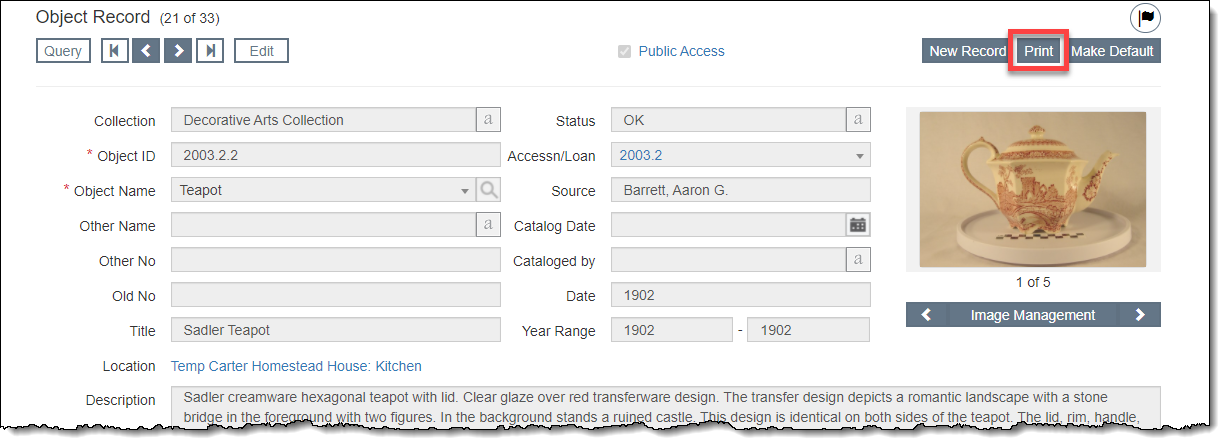
3.On the report preview screen, click either "Print" or "Save as PDF"
•Click "Print" to open your browser's print window.
•Click "Save as PDF" to enter a file name, then select the orientation and paper size for the PDF.
Print from Query Screen
From a Query screen, you can print a report of the records that appear in the results of the Browse Grid. Use a filter to narrow the list if needed. For catalogs, you also have the option to include images on the report, as well as print labels.
You can choose the fields that will display on the grid and be listed on reports by using the Options section of the Query screen. Whatever fields you have selected to display in the results on screen will appear on those reports.
1.Be sure the columns available in the Browse Grid are what you want on your printed report
•You can make changes to these columns within the Options section and then click the "Apply" button before continuing. To change which fields appear in Options for Objects, Photos, Archives, and Library, go to Catalog Filter and Option Fields.
2.Click the "Print" button above the Browse Grid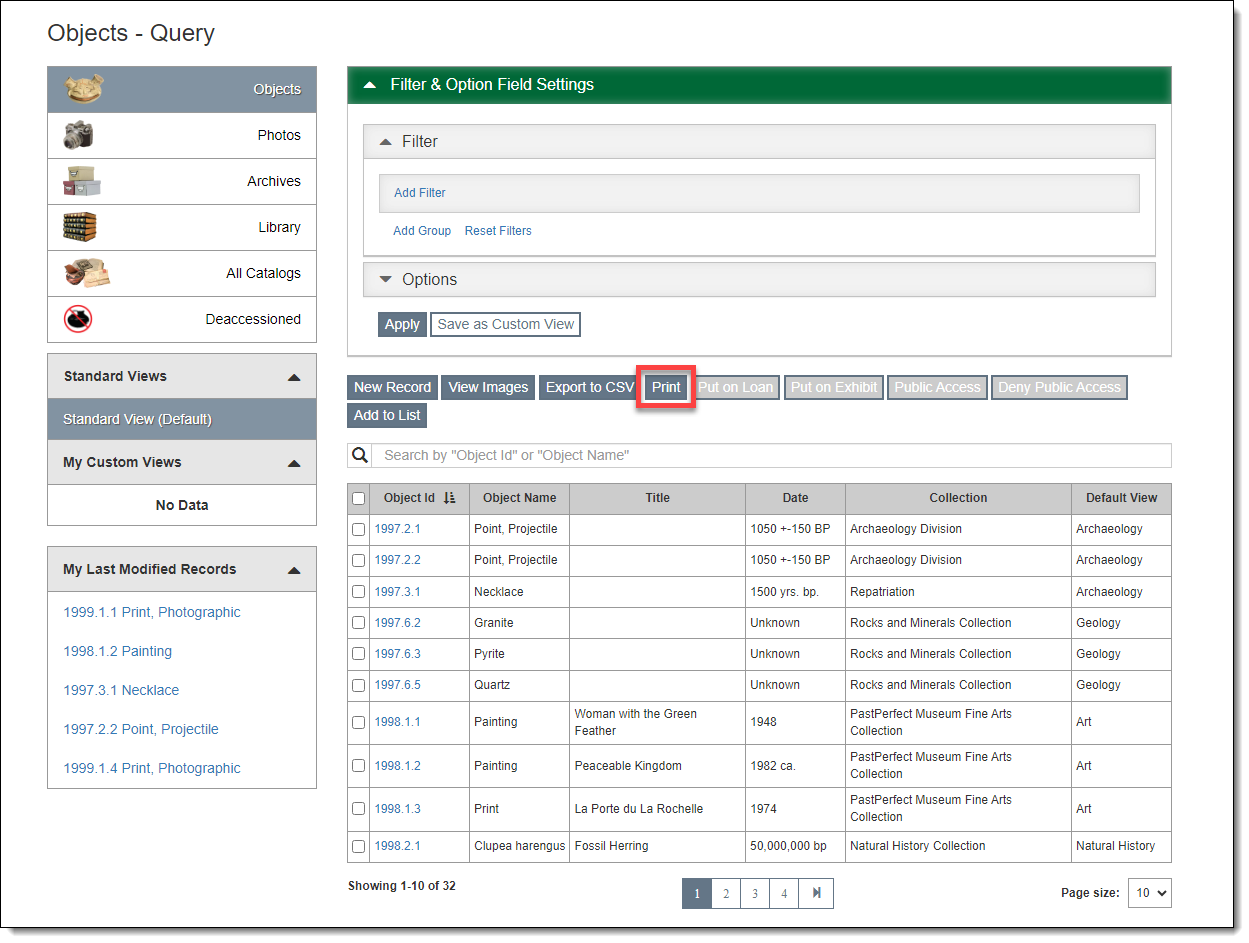
3.Select the report type you want and click "Preview"
4.On the report preview screen, click either "Print" or "Save as PDF"
•Click "Print" to open your browser's print screen.
•Click "Save as PDF" to enter a file name, then select the orientation and paper size for the PDF.