
Export Contact List
Contact Lists may be exported to CSV, which may then be viewed in Excel.
Export to CSV
1.Click the List Name on the Contact Lists Query screen
2.If you only want to export the default fields or you know which fields you want to export, skip to step 5.
3.If you want to view data before exporting, click "Field Options" to expand the accordion.
•To add a field, select the field in the Available Fields column on the left, then click the right arrow. The field will move to the Included Fields column on the right.
•To remove a field, select the field in the Included Fields column on the right, then click the left arrow. The field will move to the Available Fields column on the left.
•To change the order of the fields in the Included Fields column, click a field and drag it up or down into the desired position.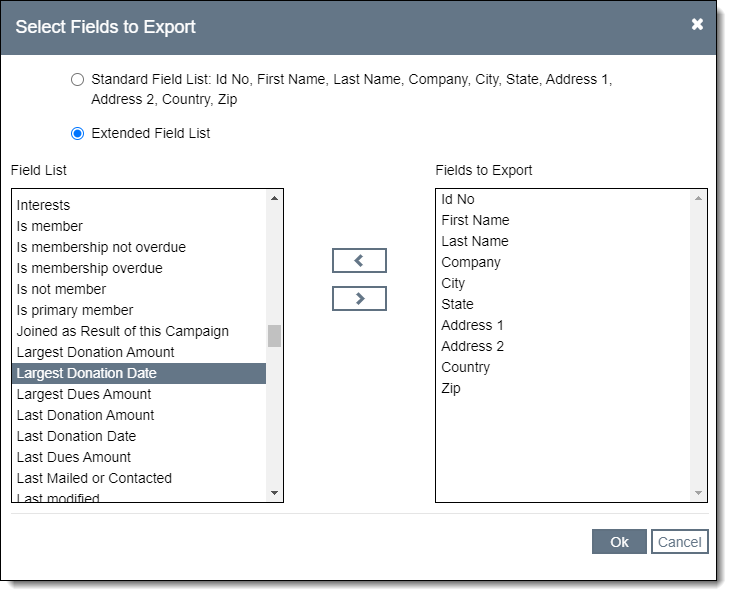
4.Click "Apply"
5.Click "Export to CSV" at the top of the screen
•Select "Export using selected field options" to export the default fields or the fields selected in step 3.
•Select "Extended Field List" to select fields.
6.Click "Ok" to download the file