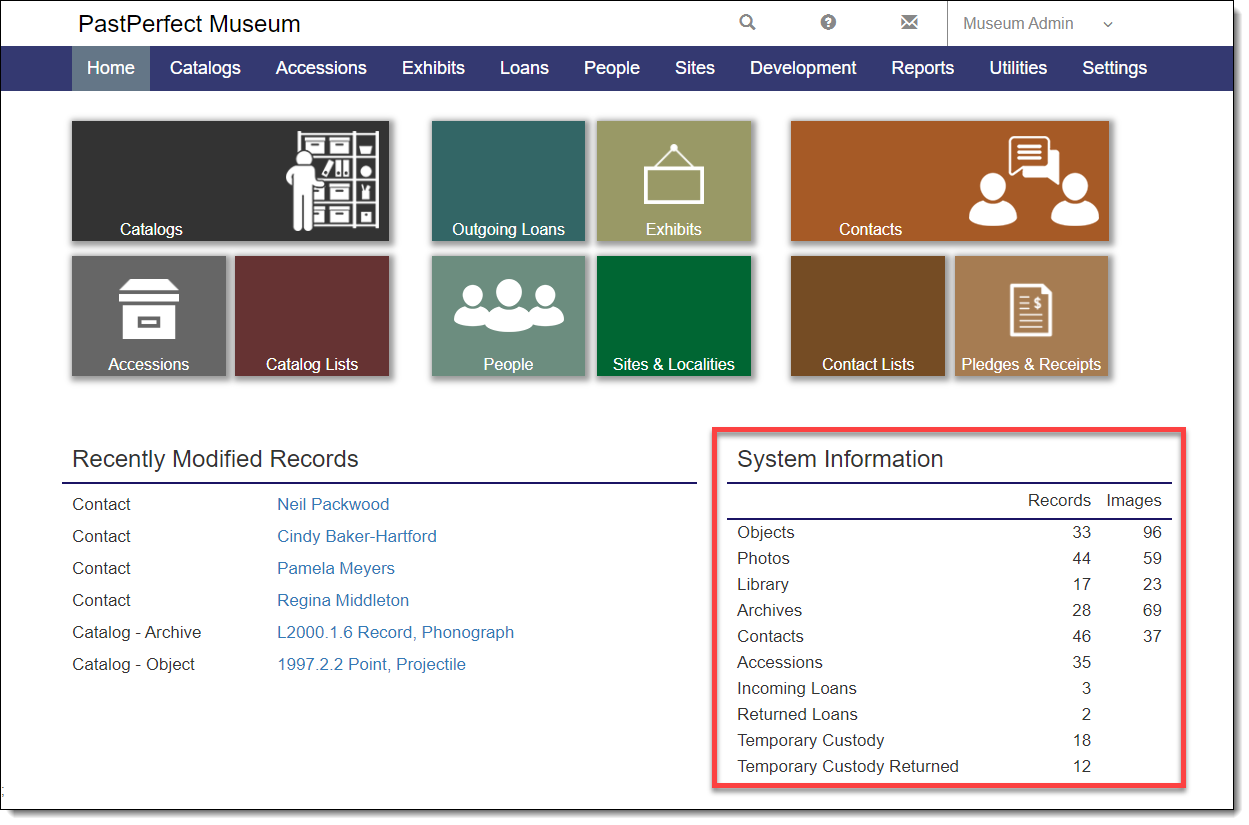
Home Screen
The Home Screen is the starting point for accessing the different program areas and seeing a quick snapshot of your organization's data in PastPerfect. The Home Screen is made up of several sections: Title Bar, Main Navigation Bar, Colored Tiles, Recently Modified Records, and System Information.
Title Bar
This area contains your organization's name, three icons – Magnifying Glass, Question Mark, and Email, and your user name. The Title Bar appears on every screen.

○Magnifying Glass – This icon opens a program area with three ways to search your records: Quick Search to locate catalog or donor contact records by Object Id, Object Name, Contact Id, or Contact Name; Full Catalog Search (Objects, Photos, Archives, Library) to search by keyword across all catalogs; and Search by Lexicon to search for records by Category, Classification, and/or Sub-Classification. For more information, see Research and Reporting | Search Functions.
○Question Mark – This icon opens the PastPerfect Web Edition User Guide in a new tab in your browser.
○Email – This icon opens our website's Contact Us page, so you can see at a glance how to reach our support team.
By hovering over your user name, you can choose to log out or view your profile, where you can change your password. Use the Log Out option to properly log out of the software, rather than closing your browser..
Main Navigation Bar
This menu provides access points to all areas of the program. Drop-down lists appear if there are multiple areas within a menu option. The Main Navigation Bar appears on every screen.

Colored Tiles
These tiles provide quick access points to the main areas of the program.

Recently Modified Records
This section lists the records from all areas of the program that have been edited recently. This is helpful for getting a quick overview of where you have been working. If you have been working on a record and want to get back to it quickly, you can click the hyperlink to go to the record. Recently Modified Records displays only records modified by your user account.

System Information
This section gives you a tally of the number of records and images currently in your system. The numbers are updated every time you refresh the screen.