Batch Processing
Batch processing is a way to print your deposit slips and detailed monetary reports that include donations, dues and in-kind gifts. It also allows you to streamline the printing of your Donation Thank You letters, In-kind Gift Thank You letters, Dues Receipts, and Mailing Labels.
Setup
The Batch Processing screen can be found by clicking on the Batch Processing button in the Options section of the Sidebar on the Pledges & Receipts screen.
Batch Processing screen
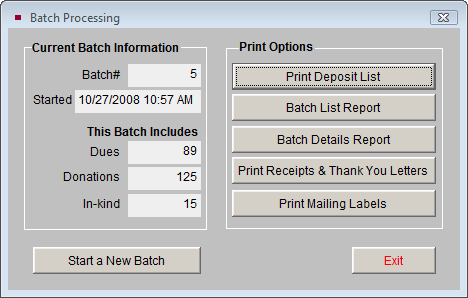
To start using Batch Processing, you will first need to create a new Batch. To do this, click on the Start a New Batch button, and then click Yes that you want to start a new Batch. Please note that the first time you start a batch, all payments entered up until that point will be part of Batch 1.
Adding Payments
To add payments to your new batch, simply enter in donations, dues payments, and in-kind gifts. Please see the sections in this chapter for entering donation and dues receipts, or see Chapter 20 - Contacts for more information about entering payments, including in-kind gifts. Your new batch will tally each donation, dues payment, and in-kind donation that your organization receives until you start a new batch. Batches can be done daily, weekly, monthly, or any time frame you choose.
When you are ready to print your reports, donation thank you letters, dues payment receipts, and in-kind gift thank you letters for your batch, return to the Batch Processing screen by clicking Pledges & Receipts on the Main Menu, then clicking the Batch Processing button.
Printing Reports, Letters and Labels
On the Batch Processing screen, you have a number of Print Options:
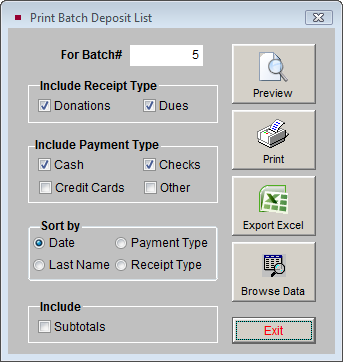
The Print Deposit List button will open the screen below. This report enables you to print out a deposit list for all donation and/or dues payments that you are submitting to the bank. You may include various types of payment on the report by checking the box next to the type (cash, checks, credit cards or other). You may set the Sort by to Date, Payment Type, Last Name, or Receipt Type. If you check the Subtotals box, you can include subtotals for your selected Sort by field. This report will print the date, payment type, reference number, amount, Contact ID#, last name, and donations/dues, with a total amount at the end.
Print Batch Deposit List screen
The Batch List Report creates a report that gives you information about your batches. Specifically, it lists the batch number, start and end dates of the batch, total amount, and a count and the total amount for each: donations, dues, and in-kind gifts. At the end of the report is a total of the number of donations, dues, and in-kind gifts for all batches, and the total amounts of all batches.
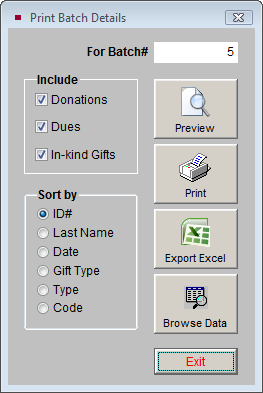
The Batch Details Report gives you a listing of each donation, dues payment, and in-kind gift value that are in a specific batch. On this screen you may select whether you want to include donations, dues, and/or in-kind gifts. You may sort the report by ID#, last name, date, gift type, type (fund or membership type), or code. If you choose to sort by code, the report will also give you a subtotal by code. The report lists the Contact ID#, gift type, payment date, amount, last name, type (fund or membership type), and code. Click Preview to preview the report, or click Print if you are ready to print the report. You may export the report to an Excel file by clicking the Export to Excel button. The exported report will also include additional information. If you wish to view the results in a Browse screen, click Browse Data.
Print Batch Details report screen
The Print Receipts & Thank You Letters button enables you to print out your donation and in-kind thank you letters, as well as your dues payment receipts for all contacts in the batch.
Print Batch Receipts & Thank You Letters screen
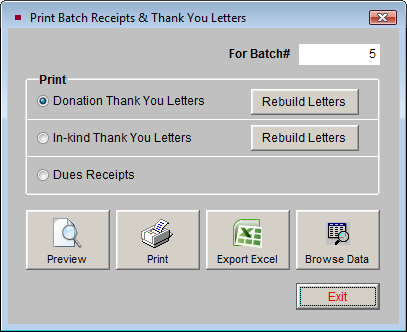
The Donation Thank You Letters and In-kind Thank You Letters are set up by going to the Main Menu | Setup | Contacts. Using the Rebuild Letters buttons on this screen will update the original letters with any changes you made to the Default letters, or to the donations or contact screens. Printing the letters for all contacts in the batch, rather than one at a time after posting each donation, will save you time.
The Dues Receipt option creates a report that is based on information from each dues payment entered. The report prints the dues receipt for each member who made a dues payment in the batch. Please note that these are not membership thank you letters, which can be created by going to the Main Menu | Setup | Contacts | Mail Merge Letters. Please see Chapter 22 - Letters, Labels & Email for more information about setting up and printing membership letters.
The Print Mailing Labels button enables you to print labels for your dues receipts and letters that were printed using the Print Receipts & Thank You Letters button. Select the type of letters that you need to print labels for, then click the Preview or Print buttons to generate the labels. These labels are set up for Avery 5160 size labels. The Export to Excel button will export the mailing information to an Excel file so you can do a mail merge with MS-Word or another program outside of PastPerfect. Browse Data will allow you to see the mailing information in a Browse screen.
After the reports, receipts, thank you letters, and mailing labels are printed, you can again click on the Start a New Batch button to begin the next batch.