Including Container List Records
Including Container List records online allows you to share your archival collections more in-depth. Container List records are accessible as links in the Container field on Archive record pages. You can also search within Container List records using Advanced Search. Each Container List record will display any populated Container List fields you have selected to share online.


For the Container List records to appear on your public site, you must select the Container List records to be included on your public site, select the Containers field for Archive Records, and also select the Container List fields to display on your public site. The Linked with field will display on all Container List records after the fields you have selected. This field contains the Object Id of the parent record and allows visitors to navigate back to the parent record.
Select Container List Records
Container Lists have the same inclusion/exclusion process for public view as images attached to your PastPerfect records. If you select an Archive record to be included on your Public Access site, all items in the Container List for that record will also be included on your public site. You can deselect individual Container List records by using the Public Access check box located on the Container List record.

Select Containers Field in Archives for Public View
1.Click "Edit" at the top of the Public Site Settings screen
2.Click the Select Fields for Public View Accordion to expand it
3.Select the Archives tab
4.In the "Don't include these fields" column, click once on Containers
5.Click the right arrow button. You should see the field move from the left column into the "Include these fields" column on the right.
6.Click "Save" at the top of the screen

Select Container List Fields for Public View
Keep in mind: the first two fields listed will be the hyperlink showing on the Archive record, so you may want to select a first field that is unique to each Container List item.
Add Fields
1.Click "Edit" at the top of the Public Site Settings screen
2.Click the Select Fields for Public View Accordion to expand it
3.Select the Container List tab
4.In the "Don't include these fields" column, click once on a field you would like to add
5.Click the right arrow button. You should see the field move from the left column into the "Include these fields" column on the right.
6.Repeat for any additional fields
7.Click "Save" at the top of the screen

Remove Fields
1.Click "Edit" at the top of the Public Site Settings screen
2.Click the Select Fields for Public View Accordion to expand it
3.Select the Container List tab
4.In the "Include these fields" column, click once on a field you would like to remove
5.Click the left arrow button. You should see the field move from the right column into the "Don't include these fields" column on the left.
6.Repeat for any additional fields
7.Click "Save" at the top of the screen
Order Fields
1.Click "Edit" at the top of the Public Site Settings screen
2.Click the Select Fields for Public View Accordion to expand it
3.Select the Container List tab
4.In the "Include these fields" column, click once on a field you would like to move
5.Click the up and down arrow buttons to move the selected field to the desired position
6.Repeat for any additional fields
7.Click "Save" at the top of the screen
Change Hyperlink
1.Click "Edit" at the top of the Public Site Settings screen
2.Click the Select Fields for Public View Accordion to expand it
3.Select the Container List tab
4.In the "Include these fields" column, click once on a field you would like to use as the hyperlink
5.Click the up arrow button to move the selected field to either the first or second position
•The first and second positions appear as the hyperlink on the Archive record pages and on Search Results pages.
6.Click "Save" at the top of the screen
Link Container List Fields
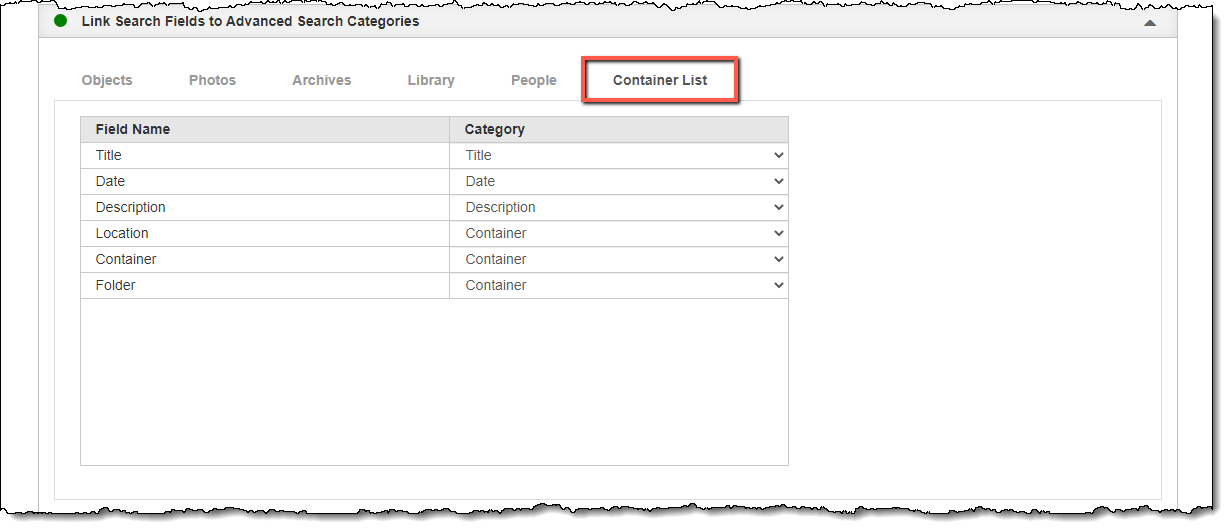
If you want to have Container List records appear in the Advanced Search results, you will need to link at least some of your Container List fields to Advanced Search Categories. Advanced Search will only search within fields that are linked. If you do not link any of your Container List fields, the Container List records will still be accessible from the hyperlink on the parent Archive record, but they will never come up in search results.
Link Container List Fields to Advanced Search Categories
1.Click "Edit" at the top of the Public Site Settings screen
2.Click the Link Search Fields to Advanced Search Categories Accordion to expand it
3.Select the Container List tab
4.For each field you wish to link, select a category from the drop-down list next to that field
5.Click "Save" at the top of the screen