
View Contact List
When you click the name of a specific list on the Contact List Query screen, you will arrive at the Contact List screen. From here you can view and edit basic list information, print letters and labels, export to CSV, print reports, and browse the records on the list.
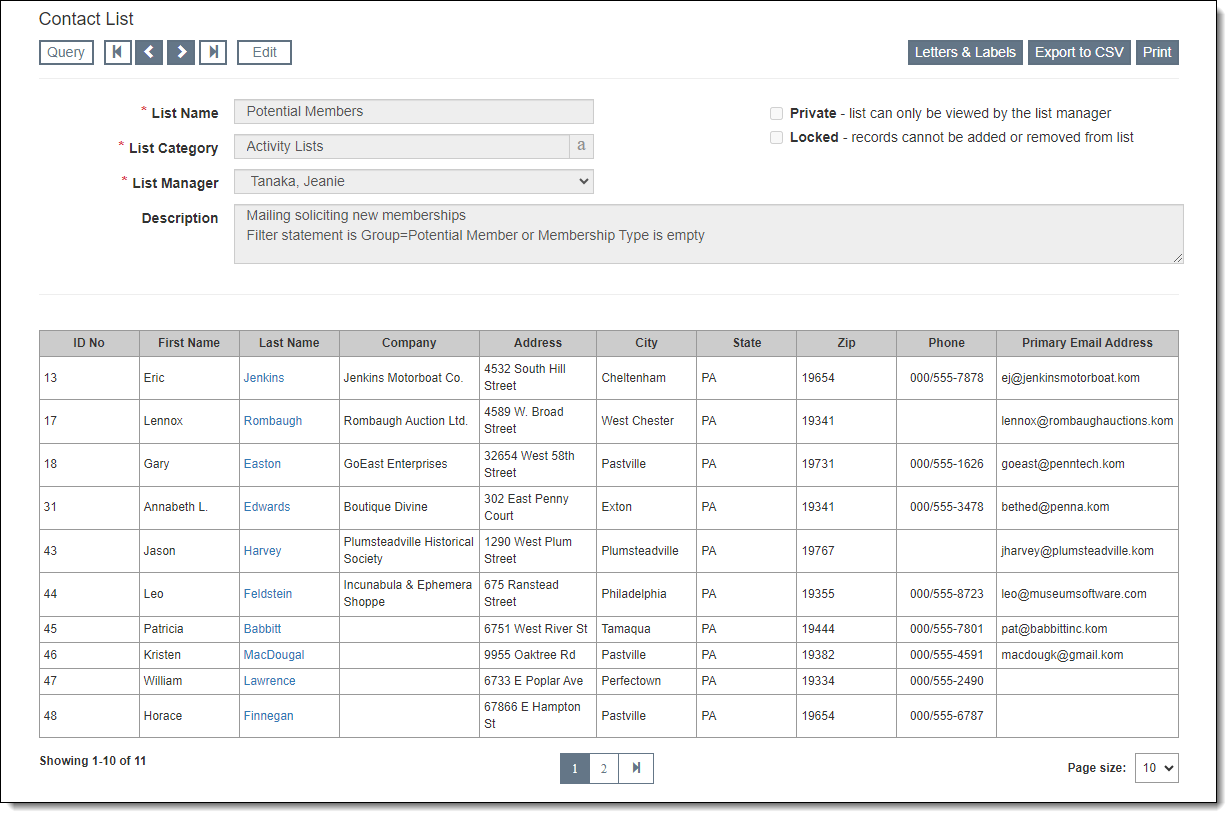
List Information
At the top of the Contact List screen, you can populate and edit basic list information: List Name, List Category, and Description. If you are the List Manager, you can also change the List Manager and mark whether a list is Private or Locked.
•Private lists are only visible to the List Manager.
•Locked lists cannot have records added or removed.
Field Options
Use Field Options to change the fields that display in the Browse Grid, by moving fields from the Available Fields column to the Included Fields column. The list of Available Fields includes any fields selected in Contact Filter & Option Fields.
Field Options can also control which fields are exported to CSV or printed on reports. See Export Contact List or Print Contact List for more information.
Browse Grid
Any records currently on the list will be displayed in the Browse Grid at the bottom of the screen. Click a column header in the grid to sort the records by that column. To change the number of records you see in the Browse Grid, change the "Page Size" option at the bottom of the screen.
Action Buttons
Action buttons are located at the top of the Contact List screen, and more buttons are available when you are in Edit Mode.
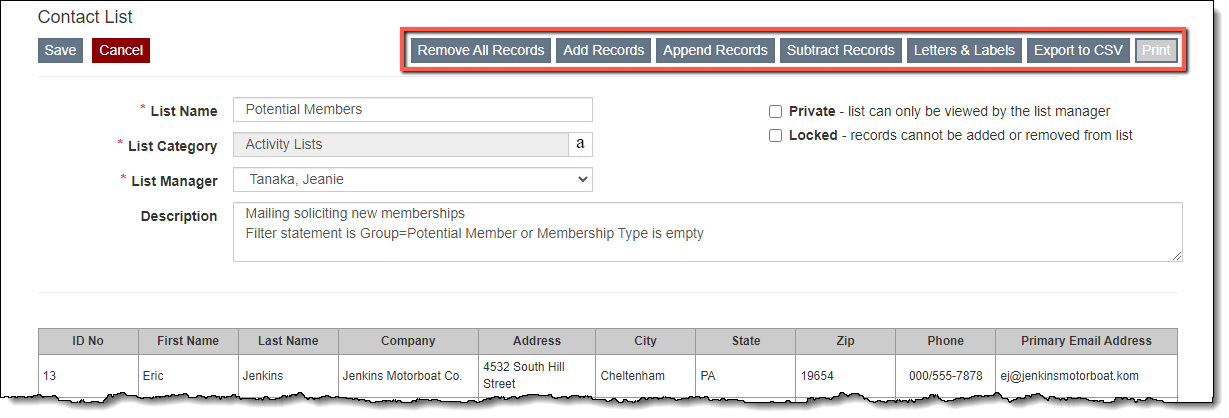
Remove All Records: Clears the list by removing all records from the list (See Remove Records from Contact List)
Add Records: Add records to the list by using a filter (See Add Records to Contact List)
Append Records: Add records from another list to the current one (See Add Records to Contact List)
Subtract Records: Remove records on another list from the current one (See Remove Records from Contact List)
Letters & Labels: Send bulk emails, print bulk letters to PDF, and print mailing labels for each contact on the list (See Produce Letters/Emails for Contact List)
Export to CSV: Export the records to a CSV file, which can be viewed in Excel (See Export Contact List)
Print: Print the list of records in various formats (See Print Contact List)