Including People Records
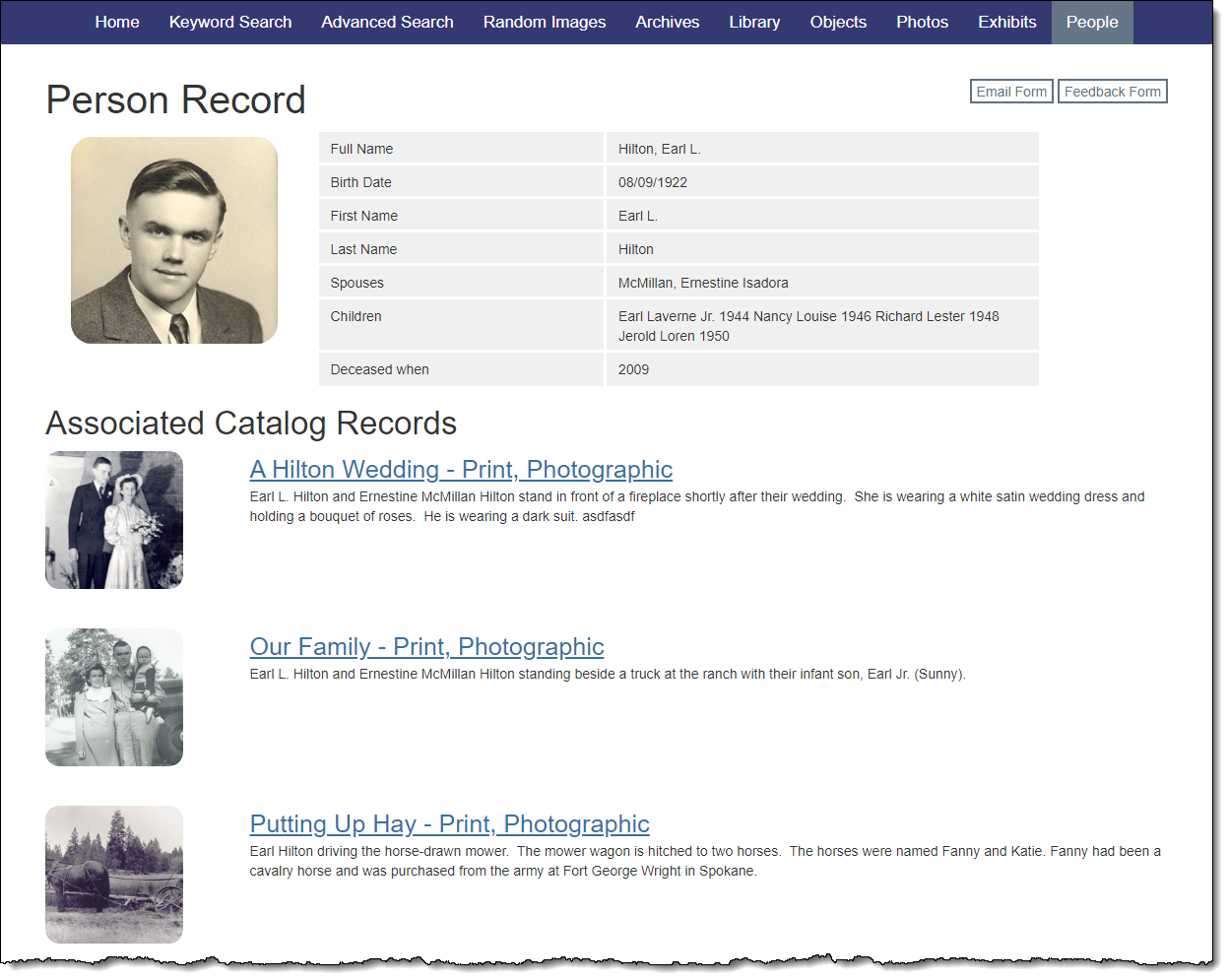
Sharing People records online can help your web visitors further explore your collection. Accessible from Keyword Search, Advanced Search, the People search page, or as links on catalog record pages, People records will display any fields from the People & Creator database you have selected to share online. There will also be a list of Associated Catalog Records for the person.
Select People Records
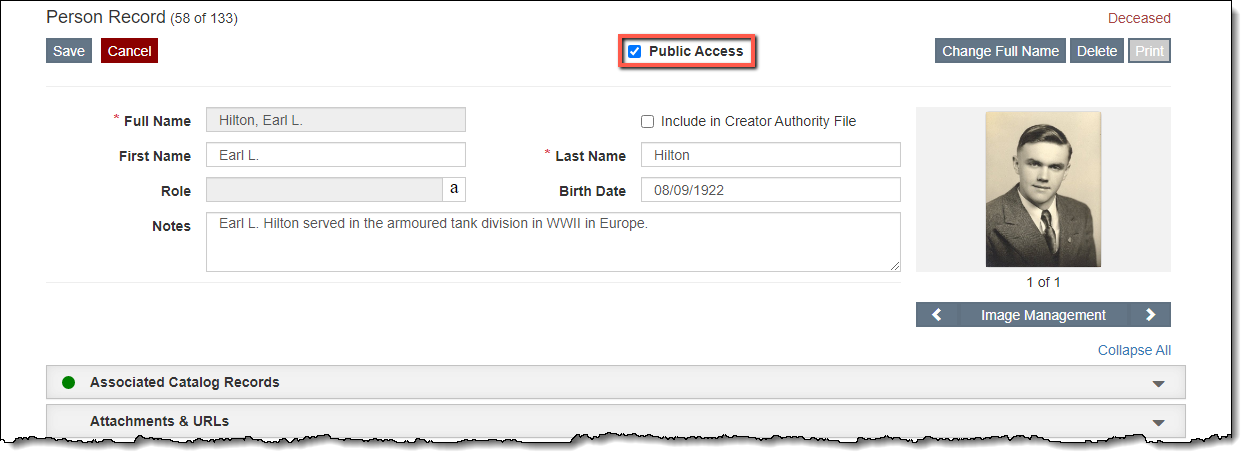
Including People records on your Public Access site is optional, and you may choose to exclude all or certain People records from displaying online. Similar to the catalog records, each Person record in PastPerfect has a Public Access check box that can be selected or deselected. By default, when you select a Person record to be included in Public Access, all images associated with that Person record are also selected to display on the public site. It is possible to deselect individual images on the Image Management screen.
Select Records Individually
1.Locate the Person record you wish to include on your public site
2.Click "Edit" at the top of the screen
3.Put a check in the Public Access check box
4.Click "Save" at the top of the screen
Select Records Using a Query
1.On the People & Creators Query screen, use the filter statements to narrow down the results
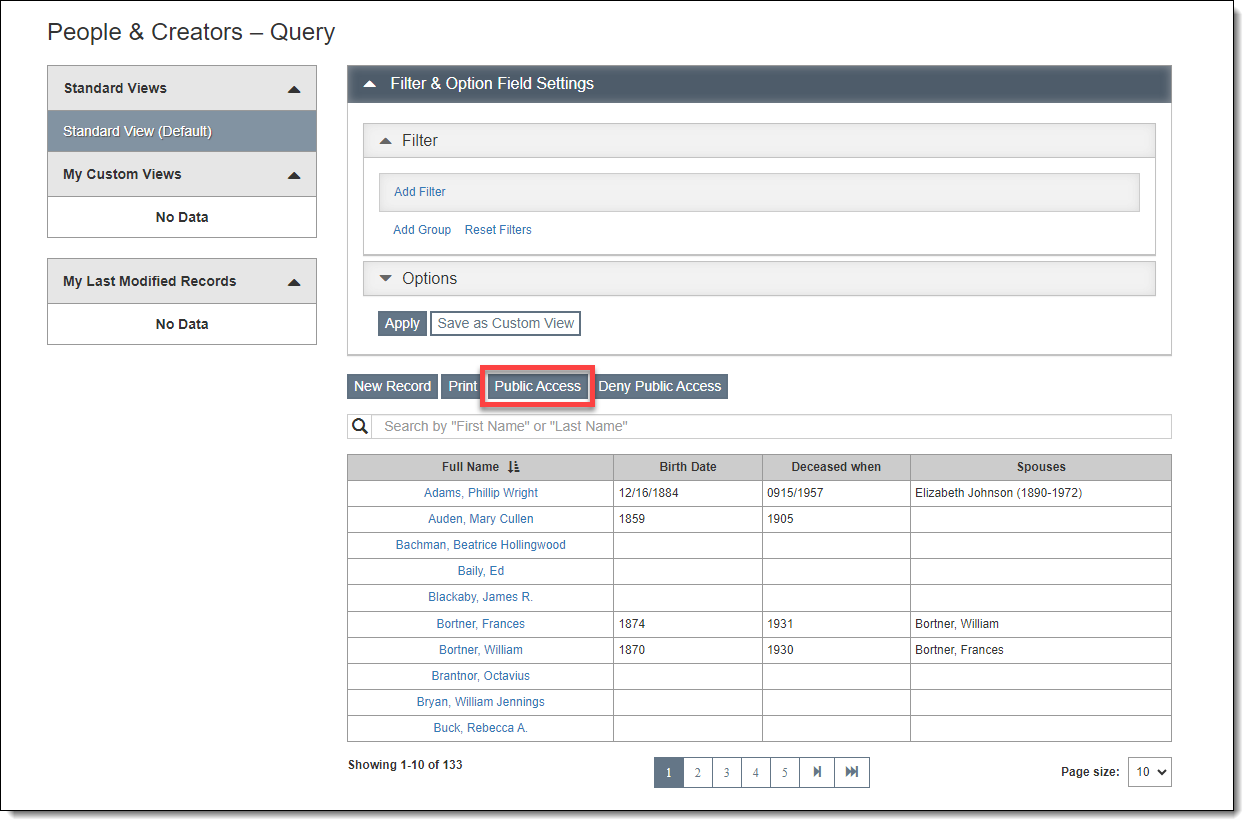
2.Click the "Public Access" button to select all resulting records for Public Access
3.Click "Yes" on the confirmation message
Deselect Records Individually
1.Locate the record you wish to remove from your public site
2.Click "Edit" at the top of the screen
3.Uncheck the Public Access check box
4.Click "Save" at the top of the screen
Deselect Records Using a Query
1.On the People & Creators Query screen, use the filter statements to narrow down the results
2.Click the "Deny Public Access" button to deselect all resulting records
3.Click "Yes" on the confirmation message
Deselect Individual Image
1.Locate the Person record that has the image you want to remove
2.Click "Edit" on the record screen
3.Locate the image you want to remove
4.Click "Image Management"
5.Uncheck the Public Access check box
6.Click "Save" on the Image Management screen
7.Click "Save" at the top of the record screen
Select People Fields in Catalogs for Public View
For the People field to appear on your catalog records on the public site, you must also select at least one of the People or Creator fields on the Objects, Photos, Archives, or Library tabs. On the Objects tab, you can choose Creator-Art, Creator-History, Creator2, Creator3, and People; on the Photos tab, Photographer and People; on the Archives tab, Name of Creator, Primary Artist, and People; on the Library tab, just People.
Add People Field on Catalog Records
1.Click "Edit" at the top of the Public Site Settings screen
2.Click the Select Fields for Public View Accordion to expand it
3.Select the Objects, Photos, Archives or Library tab
4.In the "Don't include these fields" column, click once on a Creator or Person field
5.Click the right arrow button. You should see the field move from the left column into the "Include these fields" column on the right.
6.Click "Save" at the top of the screen
7.Repeat for any other catalogs
Select People Record Fields for Public View
Be sure to select fields to include for your People records or else they will not display online. Including at least the Full Name field will allow your web visitors to easily view other records created by this same person. We suggest using either the Full Name field or the First Name and Last Name fields as your first fields to be included.
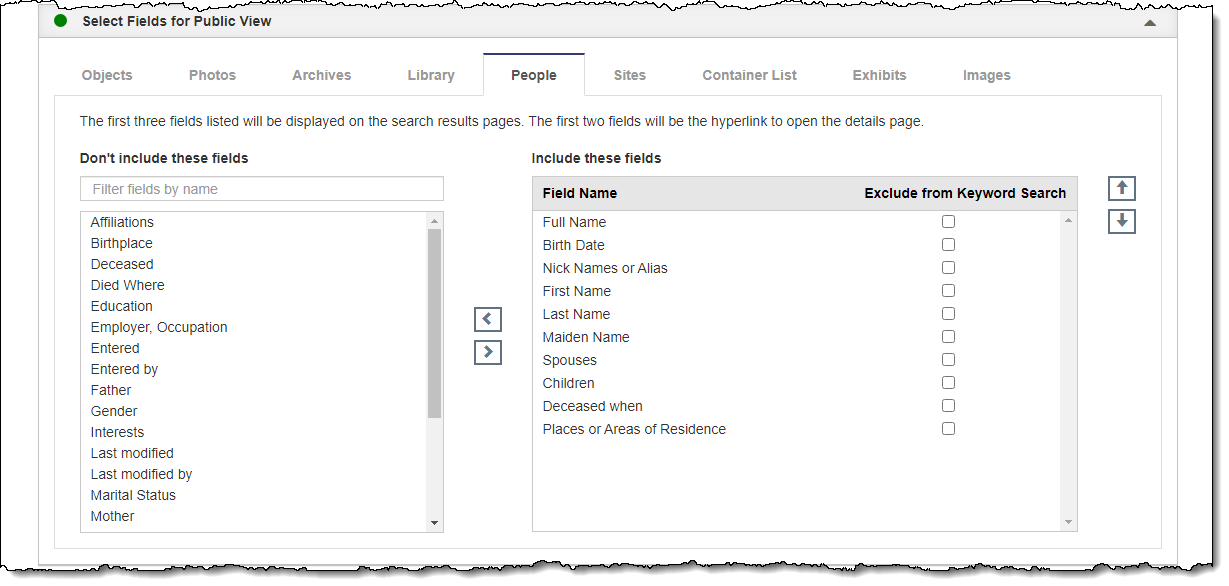
Add Fields
1.Click "Edit" at the top of the Public Site Settings screen
2.Click the Select Fields for Public View Accordion to expand it
3.Select the People tab
4.In the "Don't include these fields" column, click once on a field you would like to add
5.Click the right arrow button. You should see the field move from the left column into the "Include these fields" column on the right.
6.Repeat for any additional fields
7.Click "Save" at the top of the screen
Remove Fields
1.Click "Edit" at the top of the Public Site Settings screen
2.Click the Select Fields for Public View Accordion to expand it
3.Select the People tab
4.In the "Include these fields" column, click once on a field you would like to remove
5.Click the left arrow button. You should see the field move from the right column into the "Don't include these fields" column on the left.
6.Repeat for any additional fields
7.Click "Save" at the top of the screen
Order Fields
1.Click "Edit" at the top of the Public Site Settings screen
2.Click the Select Fields for Public View Accordion to expand it
3.Select the People tab
4.In the "Include these fields" column, click once on a field you would like to move
5.Click the up and down arrow buttons to move the selected field to the desired position
6.Repeat for any additional fields
7.Click "Save" at the top of the screen
Change Hyperlink in Search Results
1.Click "Edit" at the top of the Public Site Settings screen
2.Click the Select Fields for Public View Accordion to expand it
3.Select the People tab
4.In the "Include these fields" column, click once on a field you would like to use as the hyperlink (we suggest Full Name or First Name and Last Name)
5.Click the up arrow button to move the selected field to either the first or second position
•The first and second positions appear as the hyperlink on Search Results pages.
6.Click "Save" at the top of the screen
Link People Record Fields
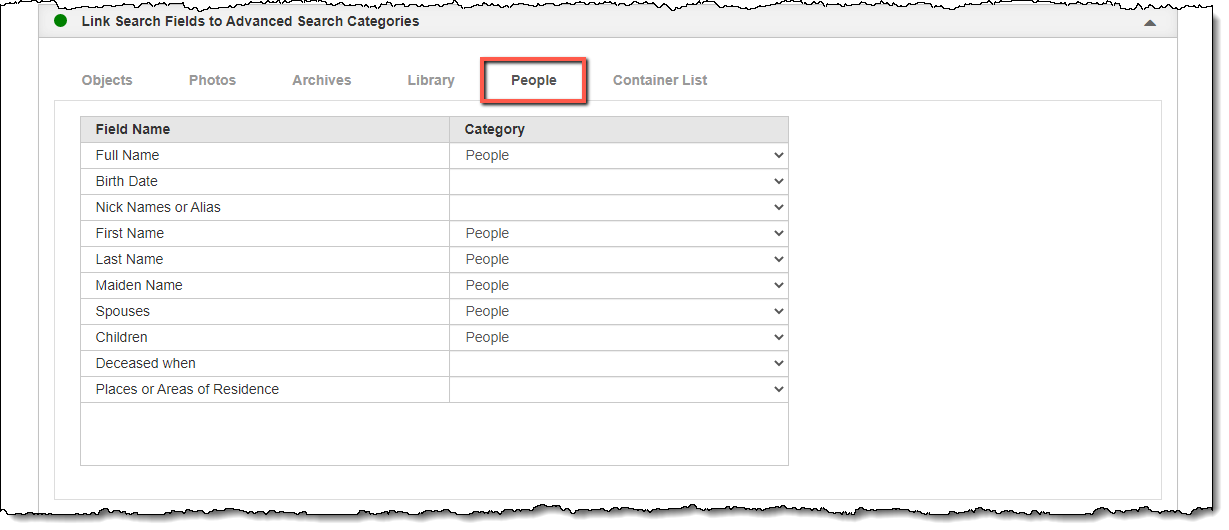
In order for People records to appear in the Advanced Search results, you have to link your People fields to the Advanced Search Categories. Not all fields need to be linked, but any field that you want to be searchable should be linked. If you do not link any People fields, the People records will still be accessible from the hyperlinks on the catalog records, but they will not come up in search results.
Link People Fields to Advanced Search Categories
1.Click "Edit" at the top of the Public Site Settings screen
2.Click the Link Search Fields to Advanced Search Categories Accordion to expand it
3.Select the People tab
4.For each field you wish to link, select a category from the drop-down list next to that field
5.Click "Save" at the top of the screen