
Including Search Terms
Including Search Terms online can help your web visitors further explore your collection. Accessible as links on catalog record pages, Search Term records will display the search term, a description of the term from the authority file entry, and the number of records shared online that also contain that search term. Below this information will be the list of Associated Catalog Records.
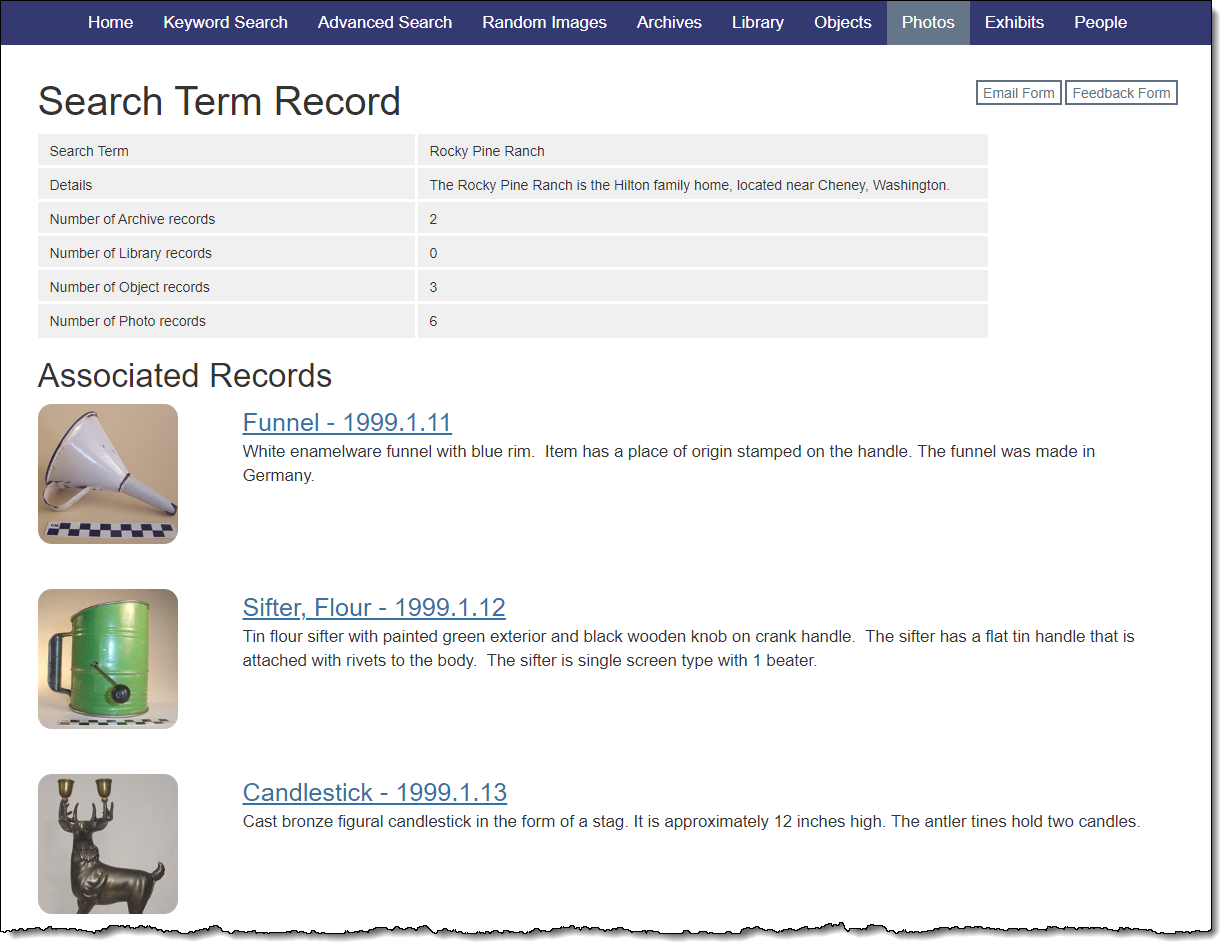
Select Search Term Records
Search Term records will automatically exist on your public site whenever there is a search term on a catalog record.
Select Search Terms Field in Catalogs for Public View
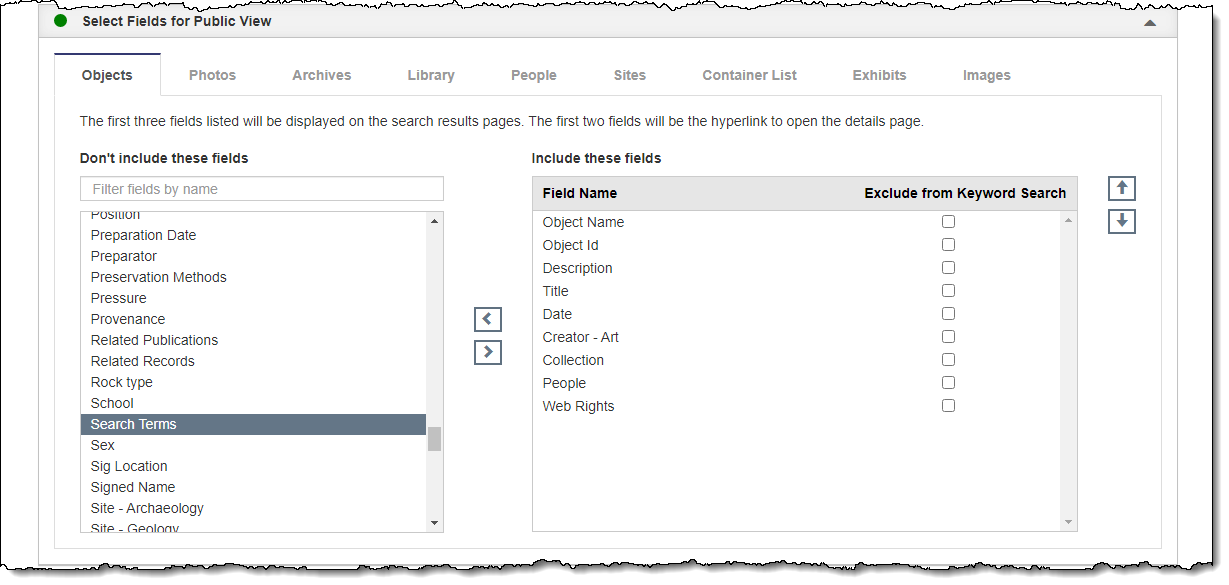
To include Search Terms on your public site, you will need to include the Search Terms field for any relevant catalogs as one of the fields to display online.
Add Search Terms Field
1.Click "Edit" at the top of the Public Site Settings screen
2.Click the Select Fields for Public View Accordion to expand it
3.Select the Objects, Photos, Archives or Library tab
4.In the "Don't include these fields" column, click once on Search Terms
5.Click the right arrow button. You should see the field move from the left column into the "Include these fields" column on the right.
6.Repeat for any additional tabs (Objects, Photos, Archives or Library)
7.Click "Save" at the top of the screen
Select Search Term Record Fields for Public View
The fields available for Search Term records are standard and cannot be changed. Each Search Term record will include the Search Term, a description of the term, and the number of times the term appears in each of the four catalogs (Archives, Library, Objects, and Photos). The Description can be edited from the Search Terms Authority File, accessed by going to Settings | Authority Files.