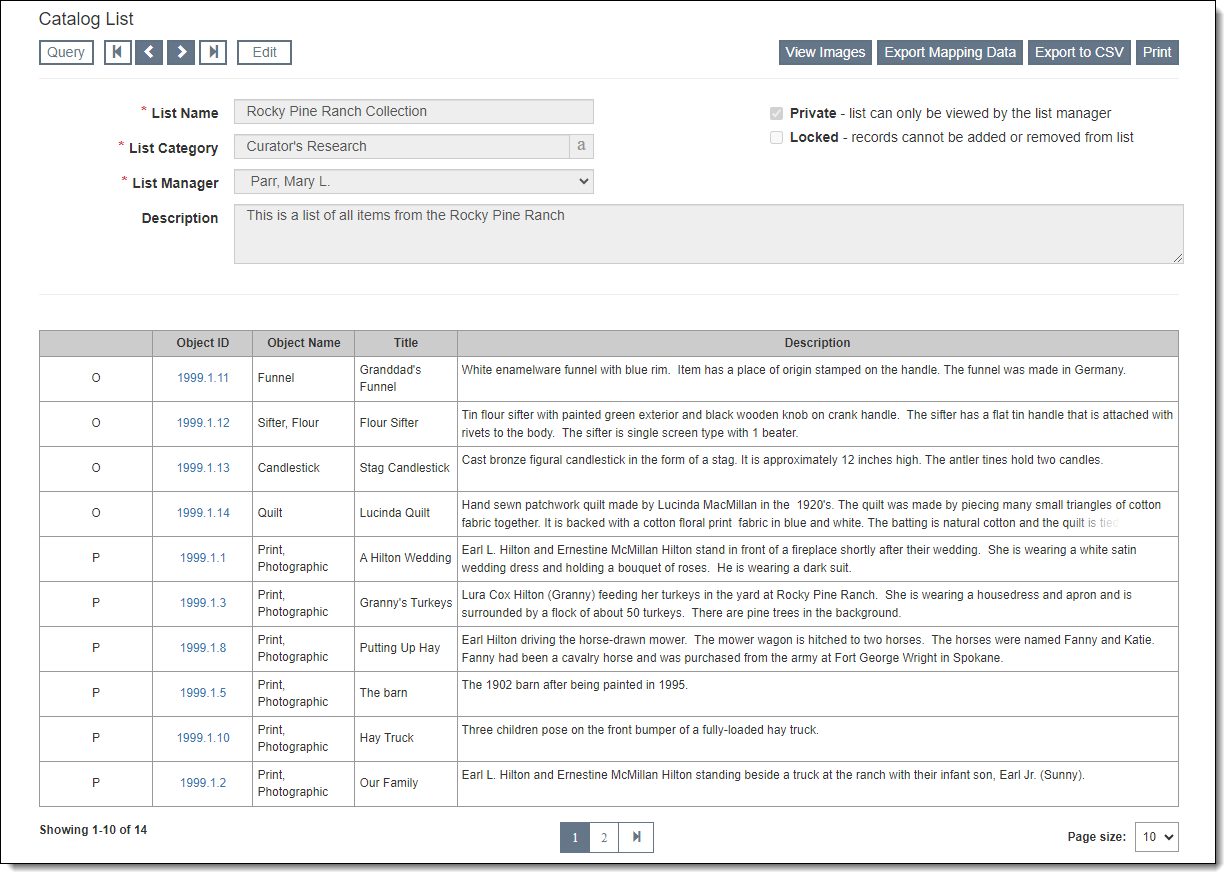
When you click the name of a specific list on the Catalog List Query screen, you will arrive at the Catalog List screen. From here you can view and edit basic list information, view images, export mapping data, export to CSV, print reports, and browse the records on the list.
At the top of the Catalog List screen, you can populate and edit basic list information: List Name, List Category, and Description. If you are the List Manager, you can also change the List Manager and mark whether a list is Private or Locked.
Any records currently on the list will display in the Browse Grid at the bottom of the screen. Click a column header in the grid to sort the records by that column. To change the number of records you see in the Browse Grid, change the "Page Size" option at the bottom of the screen.
Action buttons are located at the top of the Catalog List screen, and more buttons are available when you are in Edit Mode.
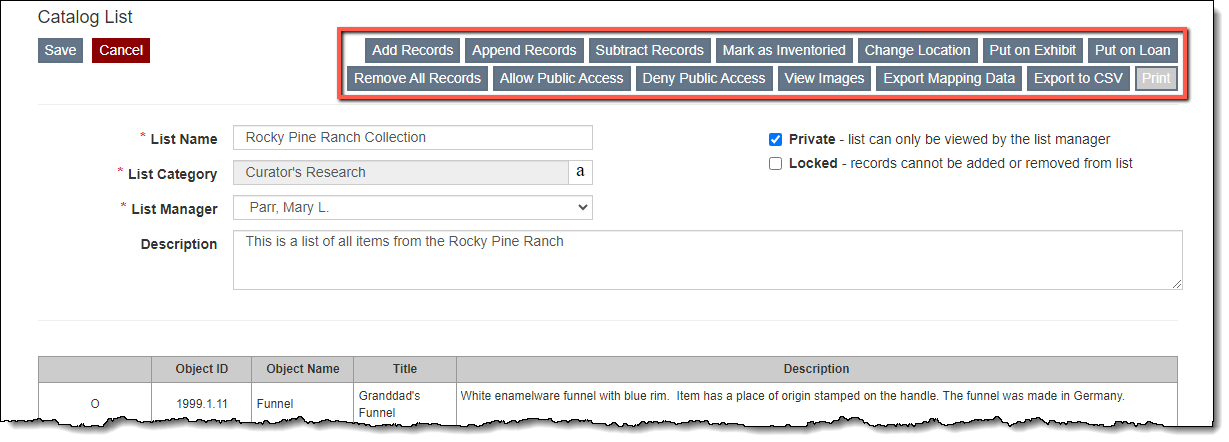
Add Records: Add records to the list by using a filter (See Add Records to Catalog List)
Append Records: Add records from another list to the current one (See Add Records to Catalog List)
Subtract Records: Remove records on another list from the current one (See Remove Records from Catalog List)
Mark as Inventoried: Globally mark all records on the list as inventoried (See Catalog List Actions)
Change Location: Globally update the location for all records on the list (See Change Locations)
Put on Exhibit: Add all records on the list to an existing exhibit record (See Catalog List Actions)
Put on Loan: Add all records on the list to an existing outgoing loan record (See Catalog List Actions)
Remove All Records: Clear the list by removing all records from the list (See Remove Records from Catalog List)
Allow Public Access: Mark all records on the list for Public Access. This feature requires the optional Public Access Upgrade. (See Catalog List Actions)
Deny Public Access: Remove all records on the list from Public Access. This feature requires the optional Public Access Upgrade. (See Catalog List Actions)
View Images: Display the first image attached to each of the records on the list. If a record has no image, it will display "No Image."
Export Mapping Data: Export mapping data to a KML file (See Export Catalog List)
Export to CSV: Export the records to a CSV file, which can be viewed in Excel (See Export Catalog List)
Print: Print the list of records in various formats (See Print Catalog List)